
Canva is the easiest first pick for most hoodie designs, while Adobe Illustrator is best when you need pro-level vector art for printing. Personalized apparel is big business too. The custom T-shirt printing market was valued at $4.31 billion in 2022, which shows how much people like wearable self-expression [source: Grand View Research].
TLDR: If you want fast hoodie art, start with Canva, Kittl, or Placeit. If you want crisp print files, use Adobe Illustrator, CorelDRAW, or Affinity Designer. For example, a small school club could make 50 matching hoodies in one afternoon using Canva templates, then export the design for a local print shop. Use mockup tools to preview the hoodie before you spend money.
A hoodie is not just a hoodie anymore. It is a walking poster. It can show a joke, a logo, a team name, a pet portrait, or a very dramatic cat wearing sunglasses. The right software makes that fun. The wrong one makes you question your life choices.
Here are 10 versatile hoodie design tools that can help you create custom apparel without making your brain melt.
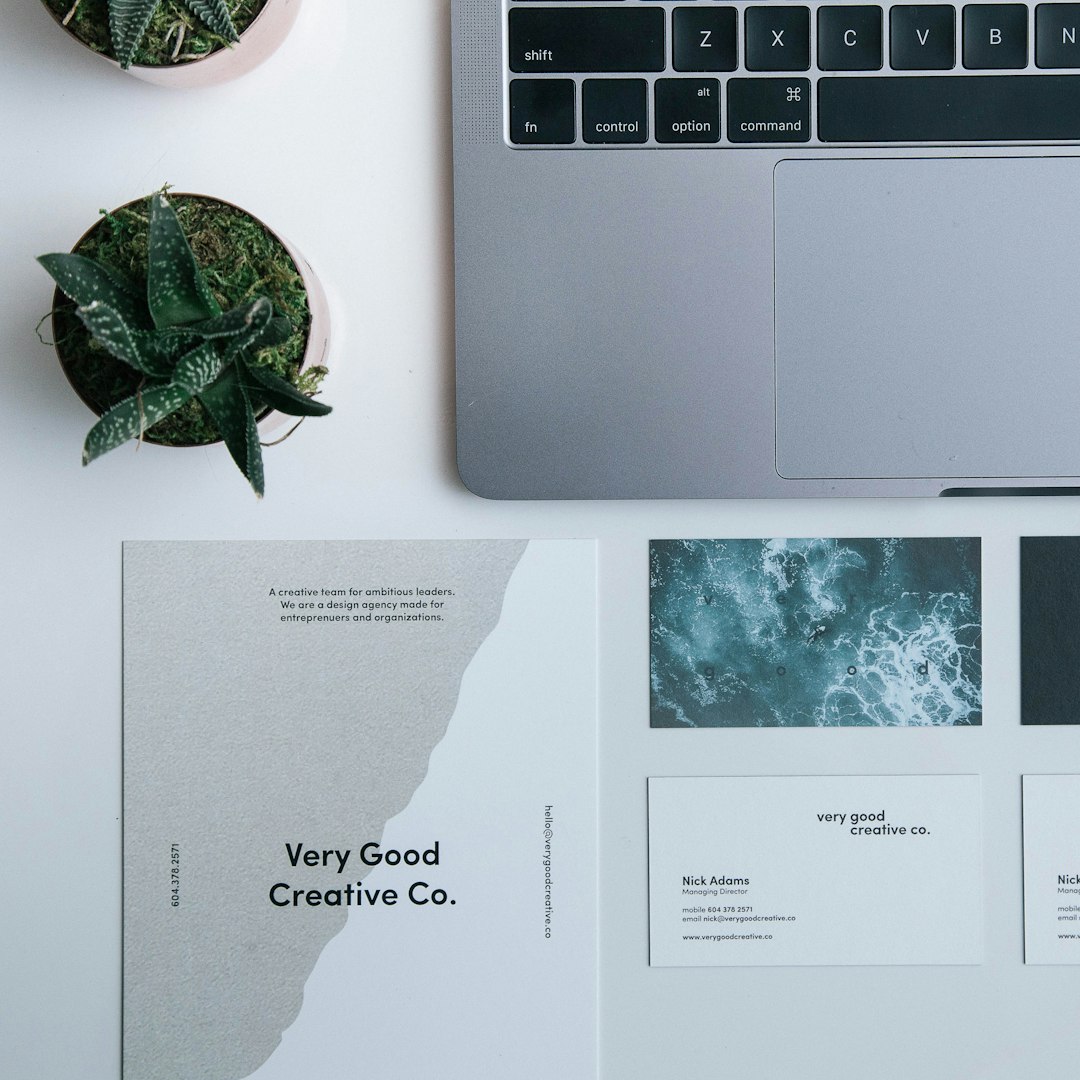
1. Canva
Best for: beginners, quick designs, clubs, small shops.
Canva is friendly. Very friendly. You can pick a hoodie template, add text, drop in icons, and change colors in minutes. It has tons of fonts and graphics. Many are free. Some need a paid plan.
Why it works: You do not need design training. Drag. Drop. Done.
Good for:
- Funny quote hoodies
- Event merch
- School and team designs
- Simple logo apparel
Small annoyance: Some designs look very “template-ish” unless you customize them hard. Change the fonts. Change the layout. Please do not use the first design you see.
2. Adobe Illustrator
Best for: professional vector hoodie artwork.
Illustrator is the classic choice for clean print graphics. It is great for logos, lettering, mascot art, and bold shapes. Vector files stay sharp at any size. That matters when a tiny chest logo becomes a giant back print.
Why it works: It gives print shops the files they love. Think AI, EPS, PDF, and SVG.
Good for:
- Brand merch
- Streetwear graphics
- Screen printing
- Embroidery prep
The catch is… Illustrator can feel like flying a spaceship at first. Also, it drives me crazy that a heavy file can take 20 seconds just to open when you only want to move one letter.
3. Adobe Photoshop
Best for: photo-based hoodie designs.
Photoshop is strong when your hoodie design uses images, textures, shadows, or photo effects. Want a vintage band hoodie? Use Photoshop. Want smoke, flames, neon glow, or a spooky forest behind a wolf? Also Photoshop.
Why it works: It handles pixels like a beast.
Good for:
- Photo collages
- Grunge textures
- Mockups
- Detailed art edits
Small warning: Keep your file large enough. A tiny image will print fuzzy. Nobody wants a blurry hoodie unless that is the joke.
4. CorelDRAW
Best for: print shops and apparel decorators.
CorelDRAW is loved by many people in the printing world. It works well for vector art, cut lines, color separations, and layout. It is especially handy if you work with vinyl cutters or heat transfer designs.
Why it works: It is built with real print work in mind.
Good for:
- Vinyl hoodie graphics
- Heat press designs
- Shop-ready artwork
- Clean logo layouts
It looks less trendy than some newer tools. But it gets the job done. Sometimes that is enough.
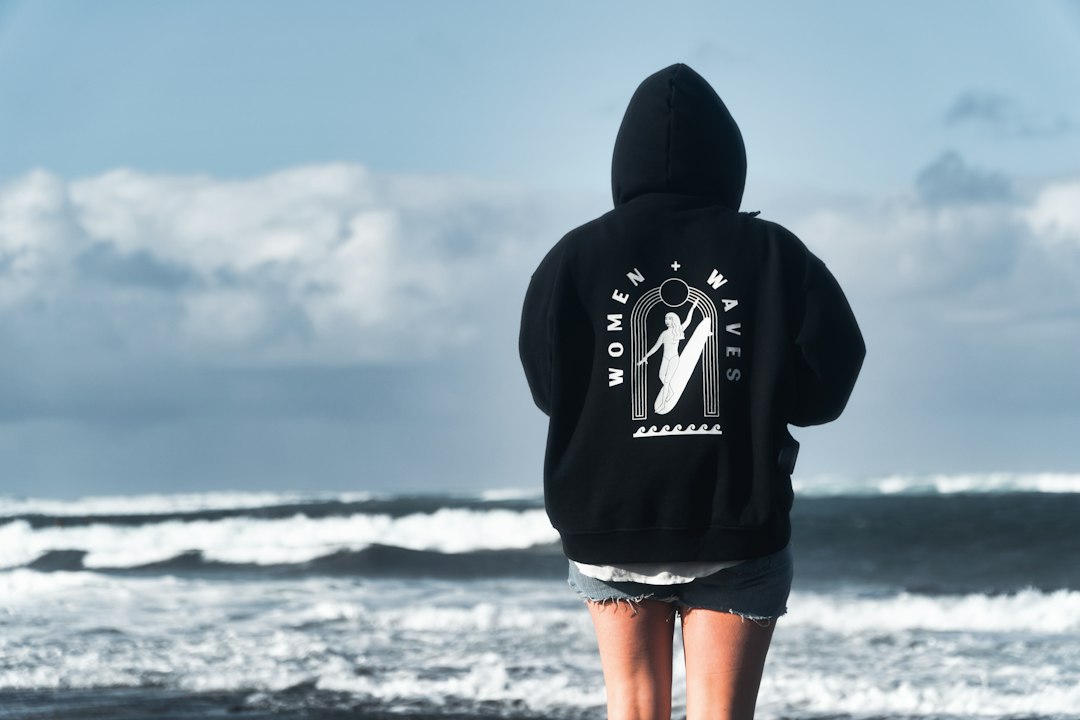
5. Affinity Designer
Best for: pro design without a subscription.
Affinity Designer is a strong Illustrator alternative. It handles vector and raster work in one app. That makes it great for hoodie designs with both bold shapes and textured details.
Why it works: You pay once. Many designers like that. A lot.
Good for:
- Streetwear art
- Logo hoodies
- Poster-style prints
- Clean typography
The interface is smooth. The tools are fast. Expect to waste a little time finding features if you come from Adobe apps, though.
6. Procreate
Best for: hand-drawn hoodie art on iPad.
Procreate is fun. It feels natural. You draw with an Apple Pencil, add texture, clean lines, color, and export your artwork. It is great for artists who want hoodie designs that do not look like everyone else’s.
Why it works: It makes drawing feel playful.
Good for:
- Cartoon hoodies
- Hand lettering
- Custom characters
- Illustrated merch
Just remember this. Procreate is raster-based. Set your canvas big. Use 300 DPI if you plan to print.
7. Inkscape
Best for: free vector hoodie design.
Inkscape is free and open source. That alone makes it worth trying. It creates SVG vector files and can handle logos, shapes, text, and illustrations.
Why it works: You can make sharp apparel graphics without paying monthly fees.
Good for:
- Budget merch projects
- Simple vector art
- DIY hoodie brands
- Sticker-style graphics
The interface is not the prettiest. Some menus feel like they were labeled by a tired robot. But the tool is powerful if you stick with it.
8. GIMP
Best for: free photo editing and texture work.
GIMP is a free alternative to Photoshop. It can edit images, remove backgrounds, add effects, and build hoodie graphics with layers.
Why it works: It gives you many pro-style editing tools for zero dollars.
Good for:
- Photo hoodie designs
- Background removal
- Vintage effects
- Distressed graphics
It can be clunky. Some actions take more clicks than they should. Still, free is free, and GIMP can create solid print art.
9. Kittl
Best for: trendy typography and vintage merch styles.
Kittl is great for bold lettering, retro badges, mascot logos, and stylish apparel graphics. It feels made for merch. You can start with polished templates, then edit colors, text, and decoration.
Why it works: It helps non-designers make work that looks sellable.
Good for:
- Vintage hoodie graphics
- Sports-style designs
- Bold text layouts
- Online store merch
Be careful with templates. If you only swap the words, your design may look too familiar. Add your own twist.
10. Placeit
Best for: hoodie mockups and simple merch designs.
Placeit is known for mockups. You can place your design on a hoodie worn by a model or shown flat on a clean background. This helps you see what customers will see.
Why it works: It makes your hoodie look real before it exists.
Good for:
- Online store photos
- Social media posts
- Quick merch previews
- Simple text designs
Its design tools are basic. Use it with Illustrator, Canva, or Kittl for better results.
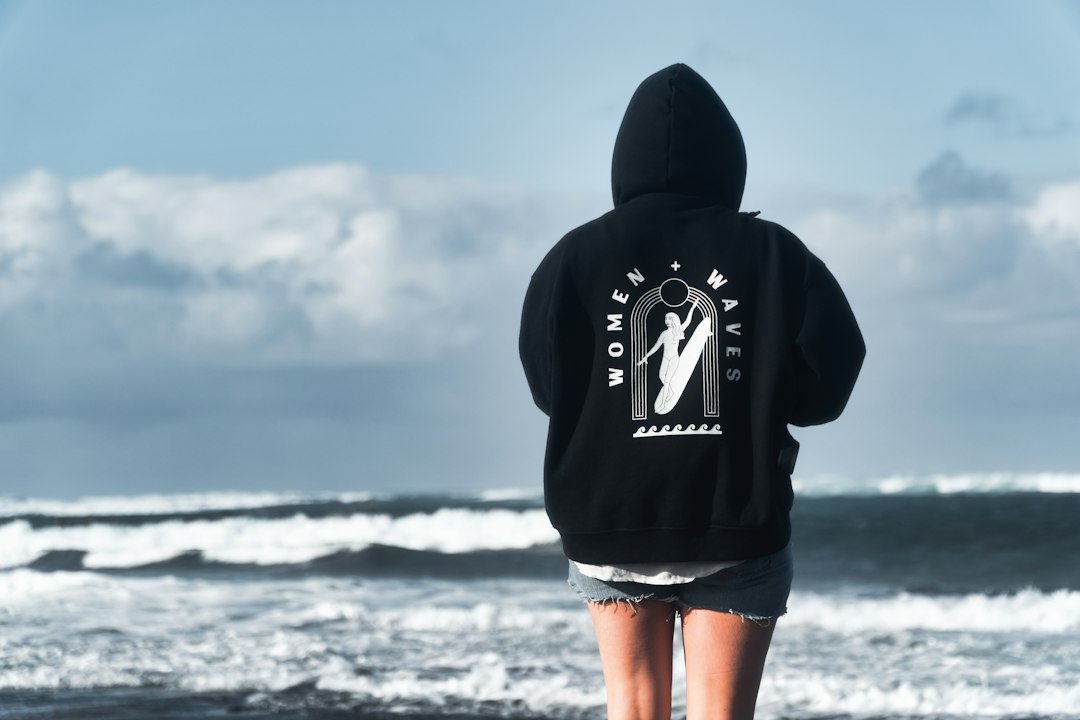
How to Choose the Right Hoodie Design Software
Pick based on your goal. Not hype. Not fancy buttons.
- For speed: Canva or Kittl.
- For pro printing: Illustrator, CorelDRAW, or Affinity Designer.
- For hand art: Procreate.
- For free tools: Inkscape or GIMP.
- For mockups: Placeit.
- For photo effects: Photoshop or GIMP.
Quick Hoodie Design Tips
- Use large files. Small images print badly.
- Keep text readable from at least 6 feet away.
- Use fewer colors if you plan to screen print.
- Check placement. Chest, back, sleeve, and pocket areas all feel different.
- Create a mockup before ordering samples.
- Ask your printer what file type they need.
The best hoodie design software depends on how you work. If you want simple, use Canva. If you want sharp and print-ready, use Illustrator or CorelDRAW. If you want original art, grab Procreate. And if you just want to see your design on a hoodie before buying 100 of them, use Placeit. Your hoodie should feel fun, personal, and worth wearing twice in the same week.