
Imagine this: You’ve just settled into your chair, excited to let your creativity flow in ComfyUI. You load it up, and… uh-oh. You’re stuck on the dreaded “Reconnecting…” screen. There’s no progress. No art. Just pure, blinking frustration.
TLDR: If ComfyUI keeps saying “Reconnecting”, it could be due to a bad server connection, a bug in a custom node, or even just your browser acting up. Restarting the server or clearing the browser cache often helps. Keep your extensions and GPU drivers updated too. Read on for all the fixes and causes in simple terms!
So, Why Is ComfyUI Reconnecting?
First things first—ComfyUI relies on your local setup to talk smoothly between front-end (your browser) and back-end (the actual processing server). If one of those gets grumpy, the connection fails. That’s where the infinite “Reconnecting…” limbo begins.
This can be caused by many things. But don’t worry, we’ll go through them step by step and keep it fun!
Common Causes of the Reconnecting Issue
- Server is not running properly – If you closed the terminal by accident or it crashed, the UI can’t connect.
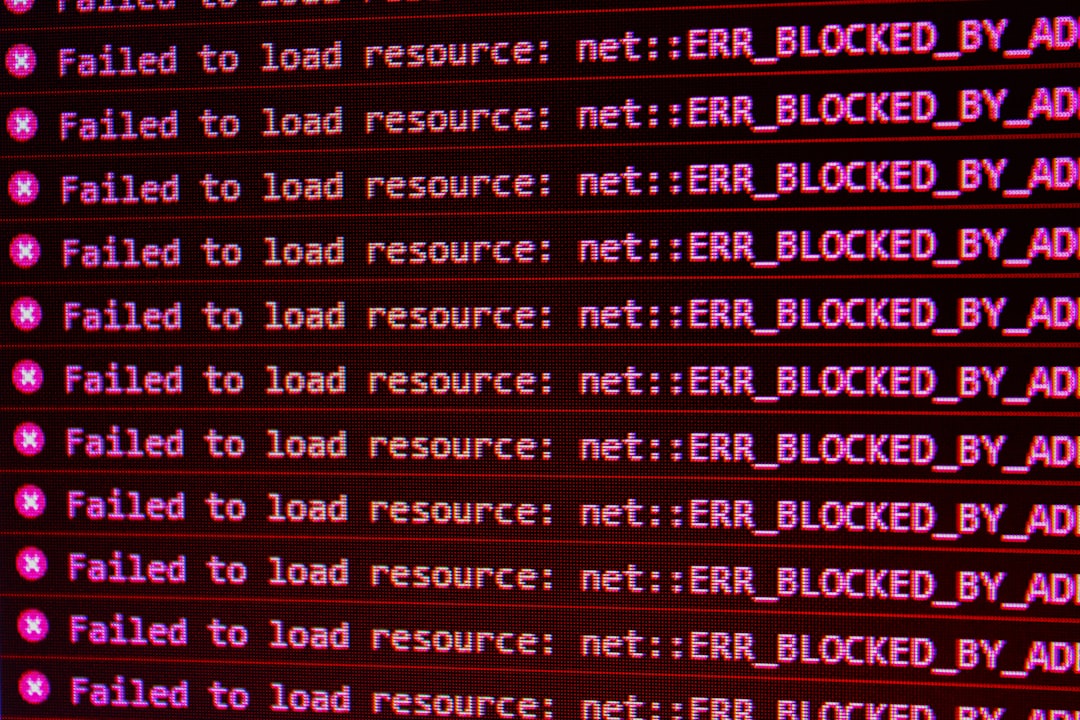
- Conflicting browser extensions – Ad blockers or script managers may block WebSockets.
- Heavy custom nodes or loops – These can crash the back-end, especially if there’s a bug in the node code.
- Low system resources – Limited RAM or VRAM can overload the server or cause instability.
- Firewall or antivirus interference – Some security software sees the server as suspicious.
Let’s Fix It, Shall We?
Here’s where we roll up our sleeves. There’s usually no need to reinstall everything. Try these fixes in order, and you’ll most likely be back in business.
1. Refresh Your Browser
It may sound silly, but this clicks more often than you’d think. Simply hit that refresh button. No luck? Try a hard refresh:
- Windows/Linux: Press Ctrl + F5
- Mac: Press Command + Shift + R
2. Restart the Server
The ComfyUI server runs from a terminal or command line window. If it’s crashed or wasn’t started right, reconnecting issues are certain.
To restart it:
- Close the UI tab in your browser.
- Go to your command line window (or run the start script again).
- Wait for it to say something like “Listening on http://127.0.0.1:8188”
- Open the browser and go to that address.
3. Check for Problems in Custom Nodes
Just installed a cool new node from GitHub? Sometimes they’re too spicy and break everything. If the back-end crashes constantly, it may be due to one of these.
How to diagnose:
- Open the terminal where ComfyUI starts.
- Look for Python traceback errors or anything red-colored.
- It will often mention the name of the offending node.
You can disable or remove the custom node folder, then restart ComfyUI.
4. Clear Your Browser Cache
Old or corrupted data in your browser can get in the way. Here’s how to clear it out:
In Chrome: Go to Settings > Privacy > Clear Browsing Data. Select “Cached images and files” and hit clear.
Then restart the browser and try opening ComfyUI again!
5. Try Another Browser
Still not working? Just to test, try opening http://127.0.0.1:8188 in Firefox or another browser.
If it works there, then your main browser probably has an interfering extension or config issue.
6. Disable Browser Extensions
Some extensions mess with ComfyUI’s WebSocket connection. The usual suspects are:
- Ad blockers
- NoScript
- Privacy badger
- VPN browser plugins
Try running your browser in private/incognito mode. That usually disables extensions.
7. Update ComfyUI and Extensions
Keeping things up to date is key.
In your ComfyUI folder, open a terminal and type:
git pullIf you use custom nodes, check their GitHub page for updates that fix known bugs.

8. Check for GPU Driver Issues
If ComfyUI uses your GPU for processing (which it usually does), a bad GPU driver can make the whole system unstable.
Update your GPU drivers from the official NVIDIA or AMD website—not from Windows Update.
9. Temporarily Disable Firewall or Antivirus
Some security apps block your local server from connecting. Try turning them off briefly to test, or add ComfyUI to the exceptions list.
10. Use a Different Port
If something else on your computer is using port 8188, ComfyUI won’t work.
Try running ComfyUI on a different port by launching it like this:
python main.py --port 8282Then open your browser to http://127.0.0.1:8282
Preventing Future “Reconnecting” Woes
Now that you’ve regained control, let’s make sure this doesn’t keep happening.
Friendly Pro Tips:
- Always leave the server terminal open while using ComfyUI.
- Backup your workflows frequently, especially before installing new nodes.
- Test new nodes in a separate ComfyUI folder to avoid breaking your main setup.
- Hold off on multitasking with heavy GPU apps while generating in ComfyUI.
Following these habits will keep ComfyUI running like butter on toast.
Still Stuck?
If none of the tricks work, here’s what you can try next:
- Check ComfyUI’s official GitHub issues page for similar problems.
- Join the ComfyUI Discord or Reddit forum—many users are super helpful!
- Clone a fresh install of ComfyUI into a new folder and try again from scratch.
Final Thoughts
ComfyUI is an incredible tool—when it isn’t stuck trying to reconnect like a lost puppy. But with a few simple tweaks (and knowing what to look out for), you’ll spend way less time fixing and way more time creating.
Now go forth, artist! And may the “Reconnecting…” screen never haunt your canvas again.