
If you’ve encountered the Windows error code 0xC0000001, you’re not alone. This error typically pops up when your system is unable to boot properly, usually due to corrupted system files, damaged boot sectors, or faulty hardware. It’s not just frustrating—it can also be a serious indication that your operating system is damaged or that there are deeper hardware inconsistencies.
TL;DR
Error code 0xC0000001 on Windows indicates boot failure caused by corrupt system files, bad memory, or driver conflicts. To fix it, try startup repair, check your RAM, or perform a system restore. If those fail, you might need to run SFC and DISM commands or even reinstall Windows. Always back up your data before attempting advanced fixes.
What Causes Error Code 0xC0000001?
This Windows error typically occurs during the startup process and can be caused by a variety of factors, including:
- Corrupted system or boot files
- Faulty or failing RAM
- Driver conflicts or recently installed incompatible software
- Boot sector corruption or missing Boot Configuration Data (BCD)
- Malware or virus infections modifying startup parameters
Understanding what might have triggered this error can save you time and prevent repeating the issue.
How to Fix Error Code 0xC0000001
Follow the steps below in order, starting from the simplest to the most advanced fix. This will maximize your chances of resolving the issue without causing additional problems.
Step 1: Disconnect All External Devices
Before diving into complex repairs, disconnect all non-essential peripherals like USB drives, printers, and external hard drives. Restart your system. Sometimes, Windows mistakenly tries to boot from an external device, leading to this error.
Step 2: Use Windows Automatic Repair
If the simple reboot didn’t help, the next step is to let Windows try fixing itself.
- Insert a Windows installation media (USB or DVD) and boot from it.
- Select your language and click Next.
- Click on Repair your computer on the bottom left.
- Navigate to Troubleshoot > Advanced Options > Startup Repair.
Let Startup Repair scan and attempt to fix the issue. It may reboot several times during the process.

Step 3: Run System File Checker and DISM
If automatic repair didn’t resolve the error, corrupted system files could be the culprit. Here’s how to repair them:
- Boot into the Windows installation media again as mentioned above.
- Go to Troubleshoot > Advanced Options > Command Prompt.
- Run the following commands one by one:
sfc /scannow
DISM /Online /Cleanup-Image /RestoreHealth
SFC searches for and repairs corrupted system files, while DISM fixes issues that SFC cannot handle by itself.
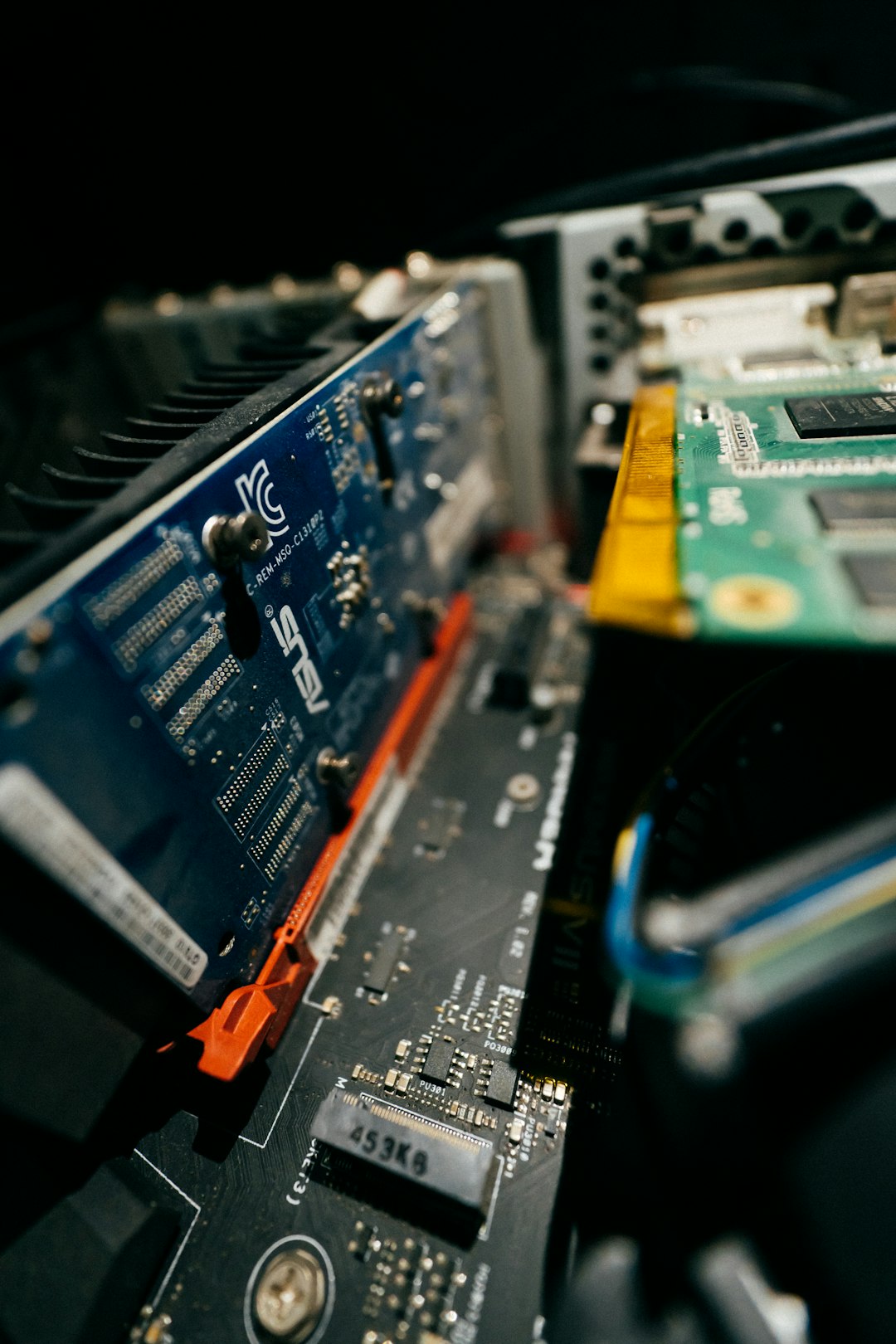
Step 4: Check and Reseat Your RAM
Memory-related issues are a common cause of error 0xC0000001. Faulty or improperly seated RAM can trigger boot errors.
- Turn off your computer and unplug all power sources.
- Open the case (desktop) or back panel (laptop) carefully.
- Reseat the RAM sticks by removing and reinserting them.
- Use a tool like Windows Memory Diagnostic to test for errors.
If an issue is found, replacing the faulty RAM stick is recommended.
Step 5: Perform a System Restore
If you recently installed drivers or software before receiving this error, reverting to a previous restore point could help:
- Boot from the Windows installation media again.
- Navigate to Troubleshoot > Advanced Options > System Restore.
- Select a restore point created before the issue occurred and let the system restore itself.
After the restore completes, your system may boot normally if the problem originated from a software conflict.
Step 6: Rebuild the BCD (Boot Configuration Data)
If your Boot Configuration Data is corrupted or missing, rebuilding it may fix the problem:
- Access Command Prompt from recovery options as detailed earlier.
- Enter the following commands one at a time, pressing Enter after each:
bootrec /fixmbr
bootrec /fixboot
bootrec /scanos
bootrec /rebuildbcd
These commands repair the Master Boot Record (MBR) and rebuild corrupted files essential for booting.
Step 7: Run CHKDSK to Check Disk for Errors
File system corruption or bad sectors can also be a reason. Run a disk check to find and repair these issues:
chkdsk C: /f /r
Note: Replace C: with the correct drive letter where Windows is installed if different. The process could take time, depending on your disk size.
Step 8: Reset or Reinstall Windows
If nothing else resolves the issue, you may have to reset Windows or perform a clean installation. Be sure to backup your data first.
- Reset Your PC: Boot into recovery mode and choose Reset this PC.
- Clean Installation: Use the Windows installation media, delete the system partition, and install a fresh copy of Windows.
While this is the most drastic measure, it’s often the most effective if system-level corruption is severe.
Additional Recommendations
After successfully resolving the error, take preventive steps to avoid similar issues in the future:
- Keep drivers and system updated: Use Windows Update and trusted sources.
- Use antivirus tools: Malware can corrupt boot files without your knowledge.
- Regular backups: Use tools like File History or third-party applications.
- Avoid unsafe software: Only install trusted applications to reduce the risk of system instability.
Conclusion
Error code 0xC0000001 is a serious boot problem but not an insurmountable one. Armed with the above steps, you can methodically identify and correct the root cause—whether it’s corrupted files, hardware issues, or bootloader inconsistencies. Always start with basic fixes first and escalate only if needed. And remember, the best defense is always regular maintenance and frequent backups.
If all else fails, seeking help from a certified technician may save time and protect critical data, especially if hardware damage is a possibility.