
So, you made a change. Then another. Then something broke. Now your app looks like it time-traveled back to 1999. Don’t panic. GitHub has your back. Reverting to an earlier commit is not only possible, it’s actually pretty simple once you understand a few basics. Let’s walk through it together. Calmly. Step by step.
TL;DR: You can safely go back to an earlier commit using git revert or git reset, depending on what you want to achieve. Use git revert if you’re working with others and want to keep history clean and safe. Use git reset carefully, especially if you’ve already pushed changes. Always check your status and create a backup branch when in doubt.
First, let’s talk about what a commit really is.
A commit is like a save point in your project’s timeline. Think of it as a snapshot. Each time you commit, Git takes a picture of your files at that moment. If something goes wrong later, you can rewind to one of those snapshots.
Pretty cool, right?
But here’s where things get tricky. There isn’t just one way to “go back.” There are multiple ways. Each one does something slightly different. Choosing the wrong one can confuse your team. Or worse, rewrite history in a bad way.
Let’s break it down.
Option 1: Revert a Commit (The Safe Way)
This is your safest choice. Especially if you already pushed your changes to GitHub.
The command looks like this:
git revert <commit-hash>
What does this do?
It creates a new commit that undoes the changes from the previous commit. It doesn’t delete history. It doesn’t hide anything. It simply adds another snapshot that reverses the bad one.
Think of it like saying:
“Oops, that was a mistake. Here is a new commit that fixes it.”
That’s why teams love git revert. It keeps everything transparent.
When Should You Use git revert?
- When the commit is already pushed to GitHub
- When you work with a team
- When you want to keep history clean and traceable
- When you don’t want surprises
How do you find the commit hash? Easy.
- Run
git log
You’ll see a list of commits. Each one has a long string of characters. That’s your commit hash.
Copy it. Paste it into the revert command. Done.
Then push your changes:
git push
And breathe again.
Option 2: Reset to an Earlier Commit (The Risky Way)
Now things get interesting.
git reset actually moves your branch pointer backward. It’s more powerful. But also more dangerous.
The command:
git reset --hard <commit-hash>
This tells Git:
“Take me back to this exact moment. Forget everything after it.”
And Git listens.

There are three main reset modes:
- –soft → Keeps changes staged
- –mixed → Keeps changes unstaged
- –hard → Deletes changes completely
–hard is the dramatic one. It wipes out changes in both staging and working directory.
Be careful.
When Should You Use git reset?
- When changes are not pushed yet
- When you are working alone
- When you’re cleaning up local commits
- When you understand the consequences
If you already pushed the commits and then run reset locally, you’ll need to force push:
git push --force
This rewrites history on GitHub.
Your teammates may not be amused.
So use force push sparingly.
Option 3: Revert a Whole Branch to a Previous State
Sometimes things go very wrong. Maybe a feature branch turned into a monster. No worries.
You can reset the branch to an earlier commit and then push safely using:
git push --force-with-lease
This is safer than --force.
It checks if someone else made changes before overwriting anything. Think of it as polite force pushing.
How to Do It Directly on GitHub
You don’t always need the command line.
On GitHub’s website, you can revert commits directly.
Here’s how:
- Go to your repository.
- Click on Commits.
- Select the commit you want to undo.
- Click the Revert button (if available).
- Create a pull request.
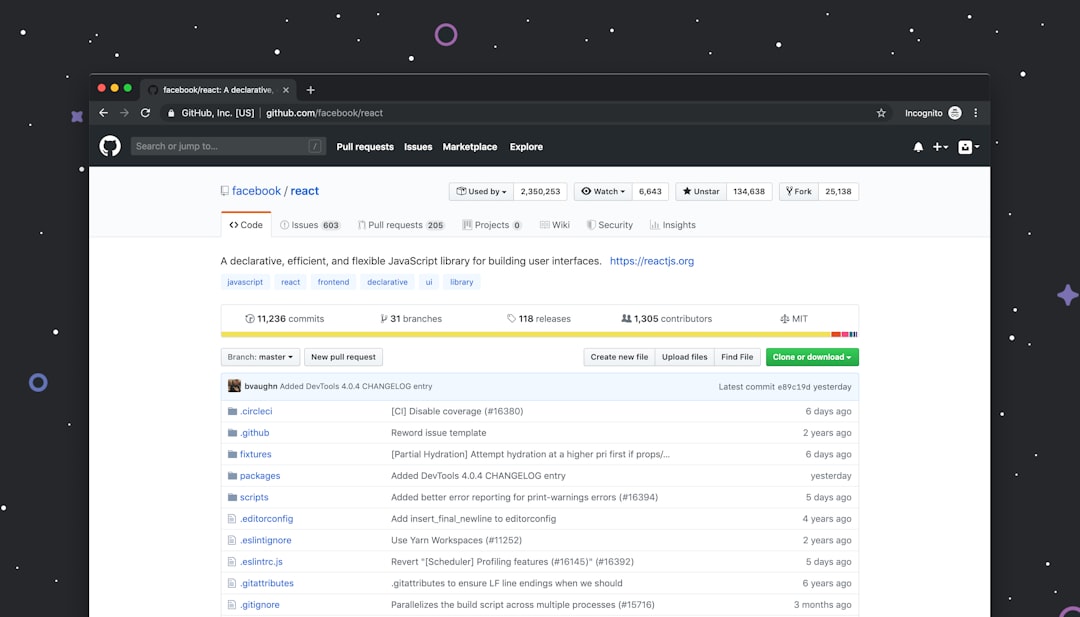
This creates a new commit that reverses the old one. Just like git revert.
It’s simple. Visual. Clean.
Pro Tip: Create a Backup Branch First
Before doing anything dramatic, create a backup branch.
git branch backup-before-revert
This saves your current state.
If something goes wrong, you can return to it.
It takes five seconds. It saves hours of stress.
Common Mistakes to Avoid
Let’s save you some pain.
- Don’t reset public history without telling your team
- Don’t use –hard casually
- Don’t forget to pull before making big changes
- Don’t force push blindly
And very important:
Always run:
git status
before and after changes.
It tells you what’s happening. It’s your compass.
What If You Reverted the Wrong Commit?
Yes. That happens.
Good news: Git tracks everything.
You can use:
git reflog
This shows a log of where HEAD has been. Even movements caused by reset.
You can recover almost anything from here.
Git is like that friend who remembers everything. Even what you wish it didn’t.
Revert vs Reset: Quick Comparison
- Revert → Adds a new commit that undoes changes
- Reset → Moves branch pointer backward
- Revert → Safe for shared branches
- Reset → Best for local cleanup
- Revert → No history rewriting
- Reset → Rewrites history
If you’re ever unsure, choose revert.
It’s the grown-up answer.
A Simple Real-Life Example
Let’s say your last three commits were:
- Fix navbar spacing
- Add dark mode
- Delete important config file (oops)
You notice the site is broken.
You run:
git log
Find the commit before the deletion.
If the bad commit is already pushed:
git revert <bad-commit-hash>git push
Done. The config file is back.
If it hasn’t been pushed:
git reset --hard <good-commit-hash>
Also done.
And nobody ever needs to know.
Final Thoughts
Reverting to an earlier commit is not scary. It’s just version control doing its job.
The key is understanding intent:
- Want to undo safely in a shared project? → git revert
- Want to clean up local mistakes? → git reset
Move slowly. Read your commands. Create backup branches. Communicate with your team.
Git is powerful. But it’s also forgiving. Almost nothing is truly lost.
So next time something breaks, smile a little.
You’re just one commit away from fixing it.