
eSIMs are cool. They let you connect to mobile networks without a tiny plastic card. No more poking your phone with a paperclip. No more losing SIM trays. But sometimes, eSIM activation can be tricky. You scan the QR code. You wait. And… nothing happens. Annoying, right? Don’t worry. Most eSIM problems are simple. And most of them have easy fixes.
TLDR: eSIM activation problems are common but usually easy to fix. Most issues come from network errors, wrong settings, outdated software, or carrier mismatches. Restarting your phone, checking internet access, and updating your device solve many problems fast. If nothing works, your carrier can usually reset or reissue your eSIM profile.
What Is an eSIM and Why Does Activation Fail?
An eSIM is a digital SIM. It is built into your phone. You download a mobile plan instead of inserting a card. That’s it.
Activation can fail for a few reasons:
- Poor internet connection
- Wrong QR code
- Carrier system errors
- Phone not compatible
- Outdated software
- eSIM already installed
The good news? You can fix most of these in minutes.
Problem 1: QR Code Not Working
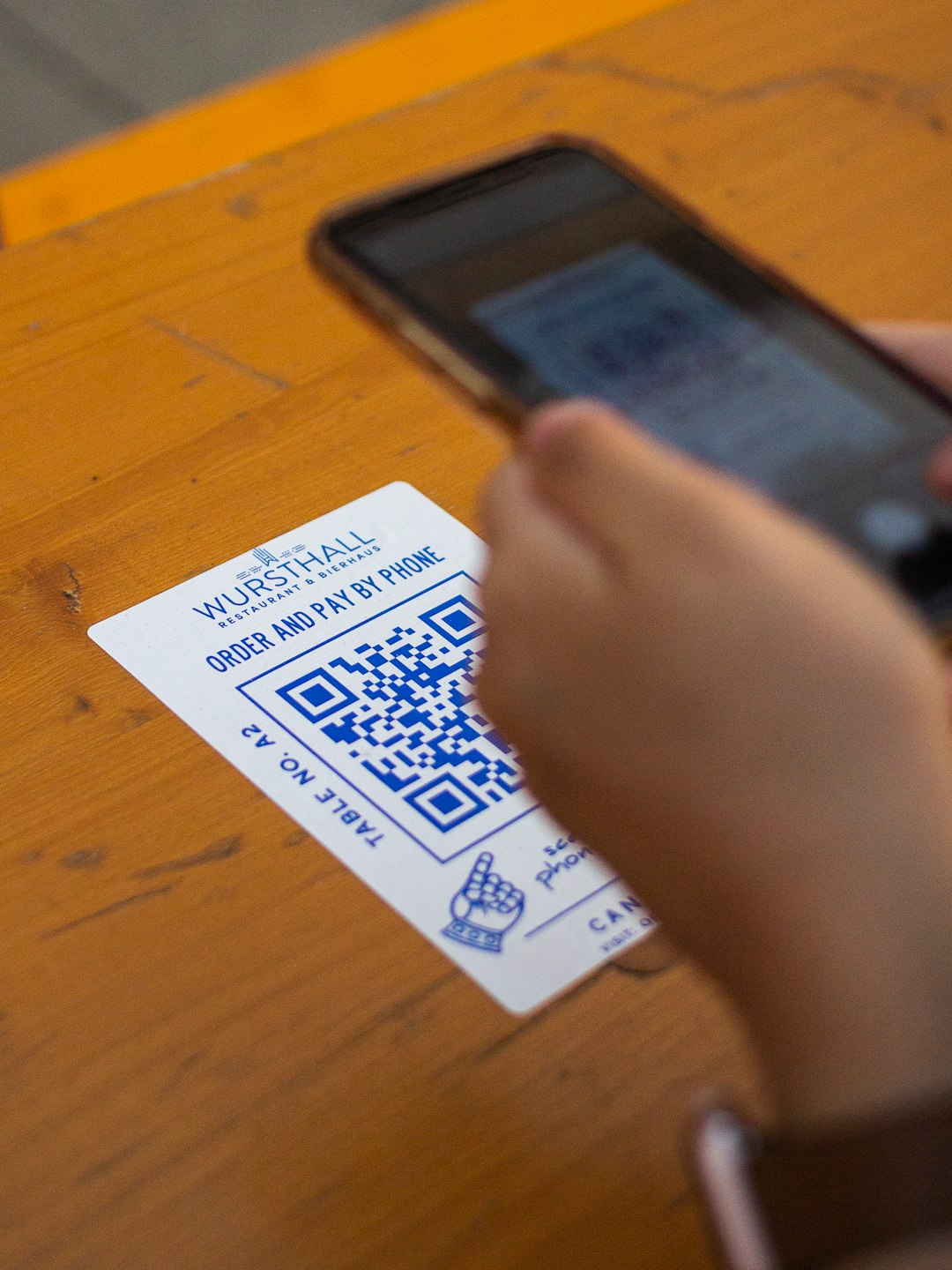
This is one of the most common issues. You scan the QR code. Your phone says “Unable to Add eSIM” or “Invalid Code.” Super frustrating.
Why It Happens
- The code was already used
- The code expired
- You typed the activation details wrong
- Your camera cannot focus properly
How to Fix It
- Check your internet connection first
- Clean your camera lens
- Increase screen brightness on the device showing the QR code
- Enter details manually if your carrier allows it
- Contact your carrier for a new QR code
Important tip: Most QR codes work only once. If you switched phones, you may need a new one.
Problem 2: No Internet During Setup
An eSIM needs internet to activate. Yes, that sounds funny. You need a connection to set up your connection.
If you are disconnected, activation will fail.
How to Fix It
- Connect to strong WiFi
- Move closer to your router
- Restart your router if needed
- Avoid public WiFi that blocks downloads
If WiFi is slow, the activation may freeze. Just try again with a better signal.
Problem 3: eSIM Option Not Showing on Phone
You go to settings. You look for “Add eSIM.” And it’s not there.
This usually means one thing: your device does not support eSIM. Or it is locked.
Things to Check
- Is your exact phone model eSIM compatible?
- Is your phone carrier locked?
- Is your software updated?
Some phones support eSIM in one country but not another. Always check the model number.
Fix: Update your phone software first. If the option still does not appear, contact your carrier or phone manufacturer.
Problem 4: Stuck on “Activating”
This is very common. The loading circle just spins forever.
Why It Happens
- Carrier server delay
- Weak WiFi
- Temporary network bug
Quick Fixes
- Wait 5 to 10 minutes
- Restart your phone
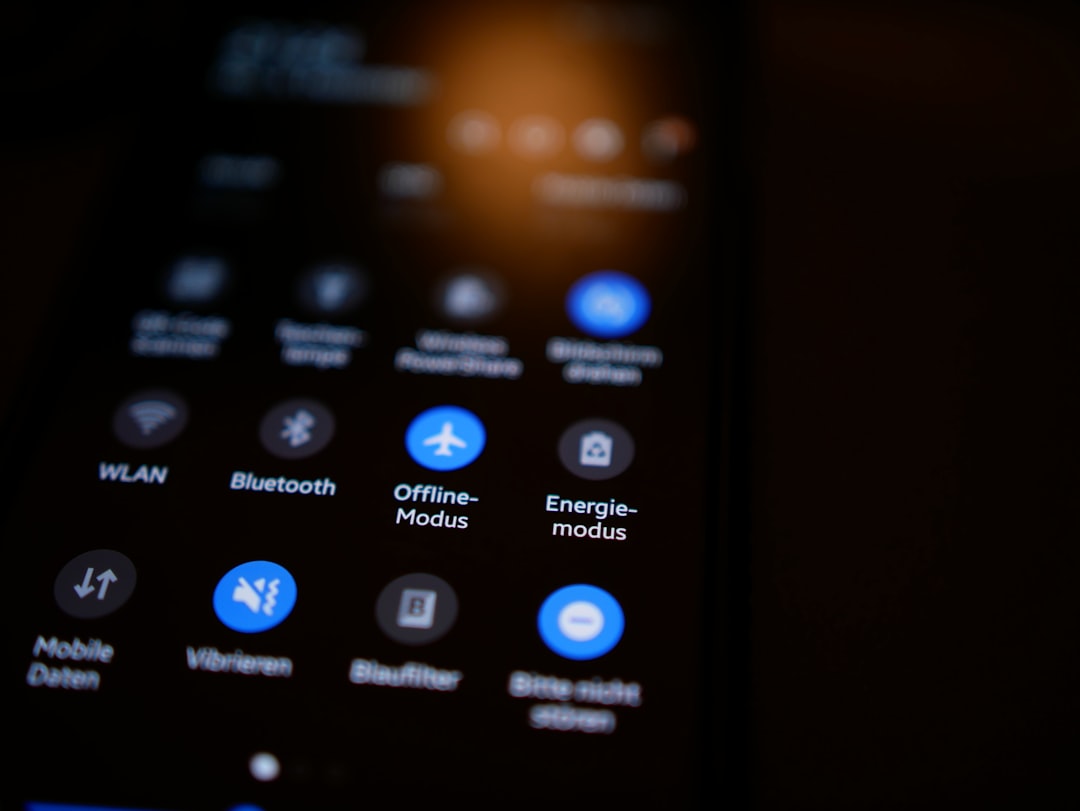
- Turn airplane mode on, then off
- Reset network settings
Resetting network settings will not delete your data. But it will remove saved WiFi passwords. So be ready to re-enter them.
Problem 5: “eSIM Already in Use” Message
You may see a message saying the eSIM is already installed. Even if you cannot see it.
This happens if:
- You tried to install it before
- The setup failed halfway
- The profile is hidden but active
How to Fix It
- Go to mobile settings
- Look for existing eSIM profiles
- Delete unused profiles
- Restart and try again
If that does not work, your carrier may need to reset the profile from their side.
Problem 6: No Signal After Activation
This one feels scary. The eSIM says it is active. But there are no bars. No signal. No data.

What Might Be Wrong
- Wrong network selected
- Data roaming turned off (for travel eSIM)
- APN settings missing
- Carrier delay
How to Fix It
- Turn airplane mode on and off
- Enable data roaming if abroad
- Manually select network operator
- Check APN settings from carrier website
Many travel eSIMs require roaming to be turned on. This surprises many users. But it is normal.
Problem 7: Cannot Switch Between SIMs
If you use both a physical SIM and an eSIM, switching can sometimes fail.
Your phone may:
- Stick to one line
- Disable mobile data
- Show “No Service” on secondary line
Simple Fix
- Go to SIM settings
- Choose the line for calls
- Choose the line for data
- Check that both lines are enabled
Also, restart your phone after changing primary data SIM. It helps refresh the connection.
Problem 8: Carrier Says eSIM Is Active, But It’s Not
This is rare. But it happens. The carrier system shows “active.” Your phone shows nothing.
This usually means the digital profile did not download properly.
Fix
- Ask the carrier to delete the eSIM from their system
- Request a fresh activation
- Scan a new QR code
Sometimes the second attempt works perfectly.
Extra Tips for Smooth eSIM Activation
Want fewer problems? Follow these tips.
- Update your phone before starting
- Use strong WiFi
- Do not switch apps during installation
- Keep your QR code safe
- Remove old unused SIM profiles
Also, activate your eSIM before traveling if possible. Airport WiFi is often slow. And crowded.
When to Contact Customer Support
If you tried everything and it still does not work, contact your carrier.
Call them if:
- You get repeated error codes
- Your QR code keeps failing
- Your phone says “Unsupported eSIM”
- You see billing issues
Most carriers can reset your eSIM in minutes. Some even offer live chat. That is usually faster than calling.
Is eSIM Better Than Physical SIM?
Yes. In most cases.
Why?
- No tiny cards to lose
- Easy switching between plans
- Great for travel
- Supports dual SIM
Activation issues are usually one-time problems. Once set up, eSIM works smoothly.
Final Thoughts
eSIM activation can feel confusing at first. But it is not complicated. Most problems come from small things. Weak internet. Old software. Wrong settings.
Start simple. Restart your phone. Check WiFi. Update your device. Try again.
If it still fails, your carrier can help. That is what they are there for.
Once your eSIM is active, you will enjoy the freedom. No plastic. No swapping cards. Just fast digital setup.
And next time someone panics about their eSIM not working? You will know exactly what to tell them.