
Finding the network security key on your router is usually straightforward if you know where to look. In most homes and small offices, the network security key is simply the Wi Fi password used to connect phones, laptops, smart TVs, and other devices to the wireless network. The important point is to check the right place and avoid confusing it with the router’s administrator password.
TLDR: The fastest place to find your network security key is usually the sticker on the router, where it may be labeled as Wi Fi Password, Wireless Key, WPA Key, or Network Key. If the sticker password was changed, log in to the router’s settings page or use your internet provider’s app to view or reset it. You can also retrieve a saved Wi Fi password from a device that is already connected. Always keep the key private and change it if you believe it has been shared without permission.
What Is a Network Security Key?
A network security key is the password that protects access to your wireless network. When you connect a device to Wi Fi, the key proves that the device is allowed to join the network. Most modern routers use security standards such as WPA2 or WPA3, which encrypt wireless traffic and help prevent unauthorized access.
It is common for router labels and settings pages to use different names for the same thing. Your network security key may appear as:
- Wi Fi Password
- Wireless Password
- Network Key
- Security Key
- WPA Key or WPA2 Key
- Passphrase
Do not confuse this with the router admin password. The admin password is used to log in to the router’s control panel. The network security key is used to connect to Wi Fi.
1. Check the Sticker on the Router First
The quickest method is to examine the router itself. Most routers supplied by internet service providers have a printed label on the back, bottom, or side. This label often contains the default network name, known as the SSID, and the default network security key.
Look carefully for wording such as Wi Fi Password, Wireless Key, WPA Password, or Network Security Key. The password may be a mix of letters, numbers, and symbols. Pay attention to uppercase and lowercase characters, because Wi Fi passwords are case sensitive.
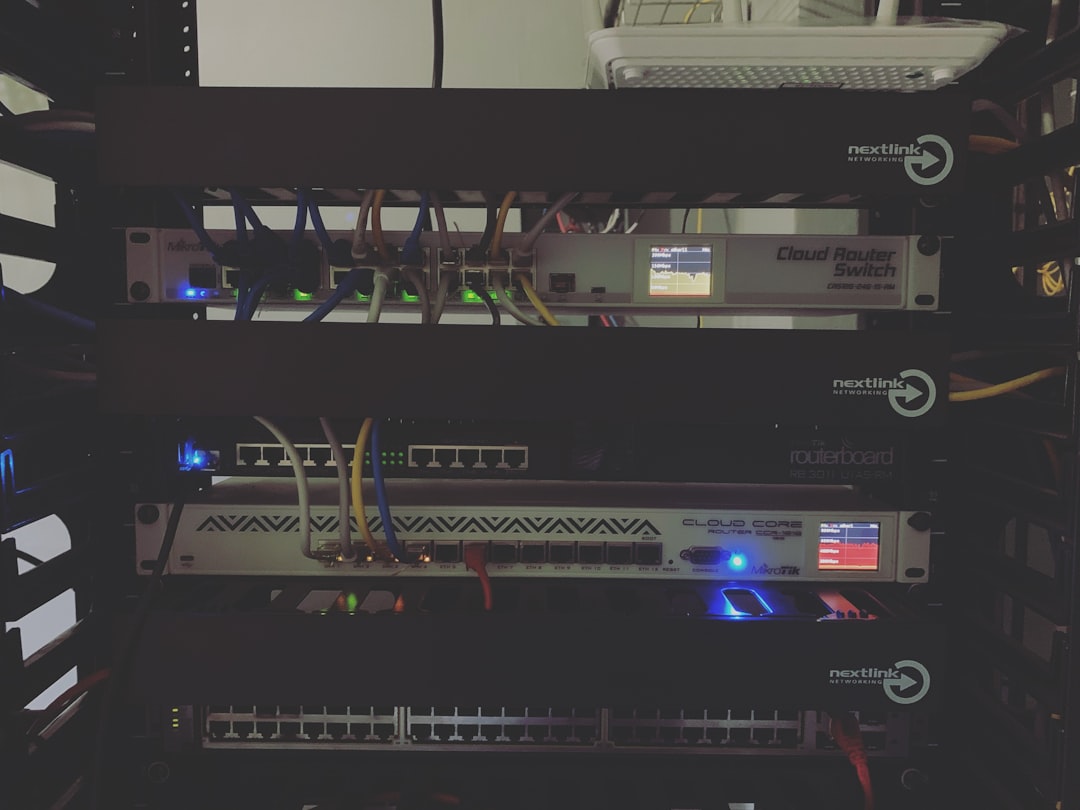
If you have never changed your Wi Fi password, the key on the sticker may still work. If it does not, the key was likely changed during setup or by someone with access to the router settings.
2. Check the Router Setup Card or ISP Paperwork
Many internet providers include a setup card, welcome sheet, or installation guide with the router. This document may list the default Wi Fi name and password. If the router was professionally installed, the technician may also have written the updated network name and password on a card or label.
Check places where you keep account documents, such as a filing drawer, router box, or installation folder. This method is especially useful if the router is mounted in an awkward location or the printed label is worn or difficult to read.
3. Log In to the Router’s Admin Page
If the sticker password no longer works, the most reliable option is to sign in to the router’s settings. You will need a device connected to the router, either by Wi Fi or Ethernet cable.
- Open a web browser.
- Type the router’s address into the address bar. Common addresses include 192.168.1.1, 192.168.0.1, or 10.0.0.1.
- Enter the router administrator username and password.
- Find the section labeled Wireless, Wi Fi, Security, or Network Settings.
- Look for the password field, passphrase field, or network key field.
Some routers hide the key behind dots or asterisks, but there may be an option such as Show Password. If you cannot view the current key, you may still be able to set a new one.
For security, avoid changing other settings unless you are sure what they do. Incorrect router settings can interrupt internet access, disable Wi Fi, or cause devices to disconnect.
4. Use Your Internet Provider’s App
Many internet providers now offer mobile apps that allow customers to manage Wi Fi settings. These apps often show the current network name and password after you sign in to your account. In some cases, they also let you update the password without opening the router’s web interface.
This is often the easiest method for provider supplied routers. Open the app, look for a section such as Wi Fi, Internet, Gateway, or Network, and then select your wireless network. You may see the key immediately or need to tap an option to reveal it.

Only use the official app from your internet provider. Avoid entering router or account credentials into unofficial websites or third party apps.
5. Find the Saved Key on a Connected Device
If one of your devices is already connected to the Wi Fi network, you may be able to view the saved password from that device. This is helpful when the router label is missing or the password was changed.
- Windows: Open network settings, view adapter or advanced network options, select the connected Wi Fi network, and look for the wireless security properties. You may need administrator permission to show the password.
- macOS: Open Keychain Access, search for the Wi Fi network name, and view the saved password after entering your Mac password.
- iPhone or iPad: In recent iOS versions, go to Wi Fi settings, tap the information icon next to the network, and use authentication to reveal the password.
- Android: Many Android phones allow you to share the connected Wi Fi network using a QR code, which may display or allow recovery of the password depending on the device.
This method should only be used on your own devices or with clear permission from the device owner.
6. Reset the Router if You Cannot Recover the Key
If you cannot find the network security key and cannot access the router settings, you may need to reset the router to factory defaults. This should be a last resort because it will erase custom settings, including the Wi Fi name, password, parental controls, port forwarding rules, and other configuration changes.
To reset most routers, press and hold the small Reset button for about 10 to 15 seconds. After the router restarts, the default Wi Fi information on the sticker should work again. You may then log in and create a new network security key.

If your router was supplied by your internet provider, consider contacting support before resetting it. Some providers use specific settings that may need to be restored after a reset.
How to Choose a Better Network Security Key
If you decide to change the key, choose a strong password that is difficult to guess but realistic to type. A good network security key should be at least 12 to 16 characters long and include a mix of words, numbers, and symbols. Avoid using your address, phone number, family name, pet name, or the word “password.”
For example, a phrase made of several unrelated words plus numbers and symbols is usually stronger and easier to remember than a short random word. Store the key in a secure password manager or another protected location.
Security Tips After You Find the Key
- Do not share the key publicly. Anyone with the password may be able to use your internet connection.
- Use WPA2 or WPA3 security. Avoid outdated options such as WEP.
- Change the key if guests, tenants, or former employees should no longer have access.
- Create a guest network if your router supports it, especially for visitors and smart home devices.
- Keep router firmware updated to reduce security risks.
Final Advice
In most cases, you can find the network security key in minutes by checking the router label, reviewing ISP setup materials, using the provider’s app, or logging in to the router’s settings page. If the password was changed and you cannot recover it, resetting the router will usually restore the default key printed on the device. Handle the key carefully, because it protects not only your internet connection but also the privacy and security of the devices on your network.