
Use Google Docs if your priority is a clean, professional resume that works well with applicant tracking systems; use Canva if visual presentation matters more than strict parsing. For most job seekers, Google Docs is the safer choice because it keeps formatting simple, exports reliably, and is easy to edit. Canva can produce a sharper visual resume, but it needs more care before sending to employers.
TLDR: Google Docs is best for standard corporate, administrative, finance, operations, education, and technical resumes. Canva is better for design, marketing, media, and portfolio-driven roles where layout can support your personal brand. For example, if a marketing coordinator sends 40 applications, a simple Google Docs resume may pass automated screening more consistently, while a Canva version may help in the 5 to 10 roles that ask for creative samples. Recruiters often spend only 6 to 8 seconds on an initial resume scan, so clarity beats decoration.
What Makes a Resume Template Professional?
A professional resume template should do one job well: make your qualifications easy to read. The template should not fight the content. It should guide the recruiter’s eye to your name, target role, experience, achievements, skills, and education.
The best resume templates usually have these traits:
- Clear section headings such as Experience, Education, Skills, and Certifications.
- Consistent spacing that makes the page feel organized.
- Readable fonts such as Arial, Calibri, Georgia, or similar options.
- Simple structure with minimal columns, icons, charts, or text boxes.
- Easy editing without breaking the layout every time you add a bullet point.
This is where Google Docs and Canva split sharply. Google Docs tends to favor substance. Canva favors presentation. Both can work, but they serve different needs.
Google Docs Resume Templates: Best for Clarity and ATS Use
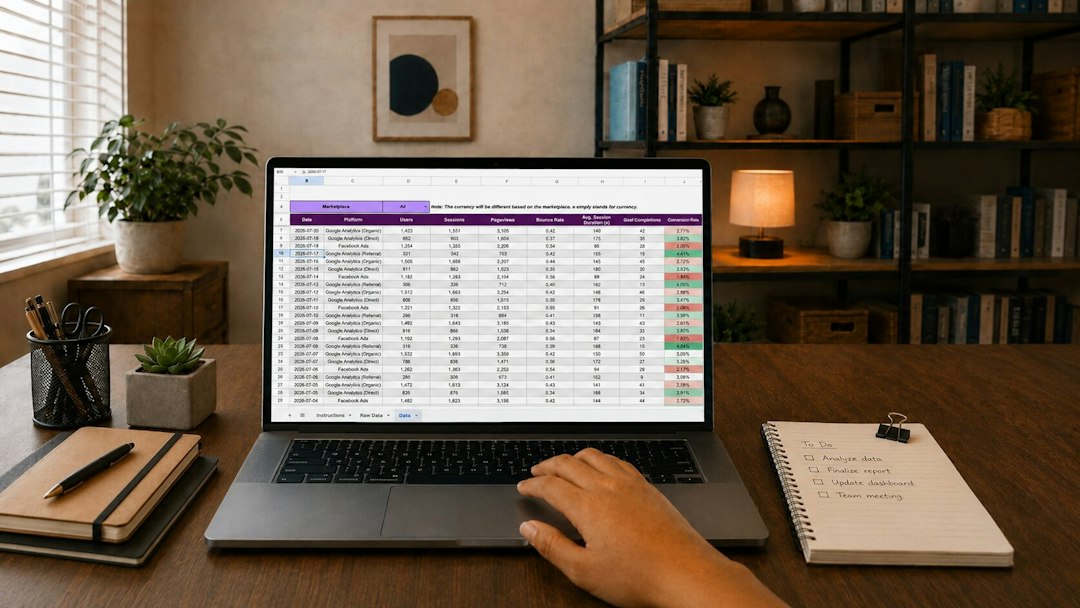
Google Docs is strong because it is simple. Its built-in resume templates are not flashy, but they are practical. You can open one, replace the sample content, adjust spacing, and export it as a PDF in minutes.
For roles in accounting, healthcare administration, software support, teaching, logistics, customer service, project coordination, or business operations, this simplicity is a major advantage. Hiring teams in these fields usually want proof of fit, not a heavily designed page.
The main benefit is readability. Google Docs resumes are usually easier for applicant tracking systems, often called ATS, to process. These systems scan resumes for job titles, dates, skills, degrees, and keywords. Complex layouts can cause errors. Text boxes, graphics, columns, and icons may be read out of order or missed entirely.
Google Docs also helps with collaboration. A mentor, recruiter, or career coach can leave comments directly in the file. You can track edits, restore older versions, and keep separate resume versions for different jobs.
Honestly, it feels like Google Docs wins because it gets out of the way. The resume remains the focus, not the tool.
Google Docs Advantages
- Free and easy to access with a Google account.
- Strong editing controls for text-heavy resumes.
- Good PDF export for clean, professional submissions.
- Simple formatting that tends to work better with ATS systems.
- Easy sharing with editors, advisors, or references.
Google Docs Limitations
- Limited visual variety compared with design platforms.
- Templates can feel plain if you do not customize them.
- Manual spacing fixes may be needed after edits.
Expect to waste time on small spacing issues if you are trying to squeeze ten years of experience onto one page. Still, those fixes are usually safer than dealing with a design-heavy file that exports poorly.

Canva Resume Templates: Best for Visual Impact
Canva offers a much larger selection of resume templates. Many look polished at first glance. You can choose modern layouts, color accents, icons, profile photos, skill bars, and creative section arrangements.
This can help if you work in graphic design, social media, content creation, photography, events, fashion, branding, or communications. In these fields, presentation can support your story. A visually strong resume may show taste, layout sense, and attention to detail.
Canva is also easy for non-designers. You can drag elements, resize sections, switch colors, and test several versions quickly. That makes it appealing if you dislike staring at a blank page.
The problem is that many Canva templates are built for appearance first. Some use text boxes, multiple columns, icons, decorative lines, and graphic elements. These can confuse ATS software. A resume that looks excellent to a human may scan badly when uploaded to a job portal.
Canva Advantages
- Large template library with many professional-looking designs.
- Strong visual control over colors, spacing, icons, and layout.
- Good for creative roles where design can matter.
- Quick customization for personal branding.
Canva Limitations
- ATS risk from columns, graphics, and text boxes.
- Overdesigned templates that can distract from achievements.
- Editing can become fiddly when content length changes.
- Some premium templates or elements require payment.
It drives me crazy that moving one line of text in a Canva resume can shift three nearby elements by a few pixels. That may sound minor, but it adds up when you are tailoring a resume for each role.
Google Docs vs Canva: Which One Should You Use?
The best choice depends on where the resume will go first. If it will be uploaded into an employer portal, choose Google Docs or a very simple Canva layout. If it will be emailed directly to a creative director or attached to a portfolio, Canva may be worth using.
| Need | Better Choice |
|---|---|
| ATS-friendly formatting | Google Docs |
| Fast editing and tailoring | Google Docs |
| Visual design and color control | Canva |
| Creative industry presentation | Canva |
| Recruiter review and comments | Google Docs |
Best Practice: Keep Two Resume Versions
A smart approach is to keep two versions of your resume. Use a clean Google Docs version as your main application resume. Use a Canva version for networking, portfolio sites, personal websites, and direct emails when visual style adds value.
This two-file system keeps you covered. You are not forced to choose between plain and polished. You can use each format where it works best.
Your Google Docs resume should focus on:
- Results, such as revenue growth, cost savings, process improvements, or customer outcomes.
- Keywords from the job description.
- Clean dates and job titles that scan correctly.
- Standard headings that hiring systems can recognize.
Your Canva resume should focus on:
- Visual hierarchy that makes key sections stand out.
- Subtle color, not loud decoration.
- Consistent spacing across every section.
- Readable export quality when saved as PDF.
Practical Recommendations
If you are early in your career, start with Google Docs. You need a strong structure before you need visual polish. A simple one-page resume with clear achievements will beat a decorative resume with vague content.
If you have five or more years of experience, Google Docs still works well. Use a clean two-page format if needed. Do not crush important achievements into tiny text just to stay on one page.
If you are in a creative field, build your resume in Canva only after your content is final. Write the resume first. Design it second. This prevents the layout from controlling what you say.
Before sending any resume, test it. Copy the final PDF text and paste it into a plain text editor. If the order looks strange, an ATS may have trouble reading it. Fix the structure before applying.
Final Verdict
Google Docs is the better default for professional resumes. It is cleaner, safer, easier to edit, and more reliable for standard hiring systems. Canva is a useful option when design supports the role, but it should be used with restraint.
The safest plan is simple: create a strong Google Docs resume for applications, then create a polished Canva version for creative use cases. Your resume should not just look good. It should get read, understood, and shortlisted.