
Fix most Intel Management Engine problems by updating the Intel Management Engine Interface driver with Intel Driver & Support Assistant, then checking Device Manager for yellow warning signs. Intel says its Driver & Support Assistant can scan your PC and offer driver updates for supported Intel hardware [source: Intel].
TLDR: Install Intel Driver & Support Assistant, run a scan, and install the Intel Management Engine driver it recommends. Then open Device Manager and check System devices for “Intel Management Engine Interface.” For example, if your laptop takes 45 seconds longer to wake from sleep and Device Manager shows Code 10, a clean driver update often fixes it. If the warning stays, uninstall the device and restart.
What Is Intel Management Engine?
Intel Management Engine, often called Intel ME, is a tiny system inside many Intel-based PCs. It helps with power control, security, updates, sleep, startup, and some business features.
Most people never see it. That is good. It should stay quiet.
But when it breaks, your PC may act weird. Very weird.
- Your laptop may wake slowly.
- Windows may show a yellow triangle.
- Device Manager may show Code 10 or Code 43.
- Updates may fail again and again.
- The fan may run more than usual.
- Sleep mode may stop working.
Honestly, it feels like the smallest driver can cause the biggest tantrum.
Step 1: Run Intel Driver & Support Assistant
Start with the easy tool first. That is Intel Driver & Support Assistant, or Intel DSA.
It scans your system. Then it checks if Intel has newer drivers for your hardware. If it finds an update for Intel Management Engine Interface, install it.
How to use it
- Go to the official Intel Driver & Support Assistant page.
- Download the tool.
- Install it.
- Restart your browser if it asks.
- Run a scan.
- Install the suggested Intel updates.
- Restart your PC.
Do not skip the restart. I know. Restarting is annoying. But this driver likes a fresh boot.
If the scan page sits there spinning, wait a minute. If it still does nothing, close the browser and open it again. Some days, the tool acts like it needs coffee.
Step 2: Check Device Manager
Now check if Windows is still angry.
- Right-click the Start button.
- Click Device Manager.
- Open System devices.
- Find Intel Management Engine Interface.
- Double-click it.
- Check Device status.
If it says “This device is working properly”, great. You win. Go grab a snack.
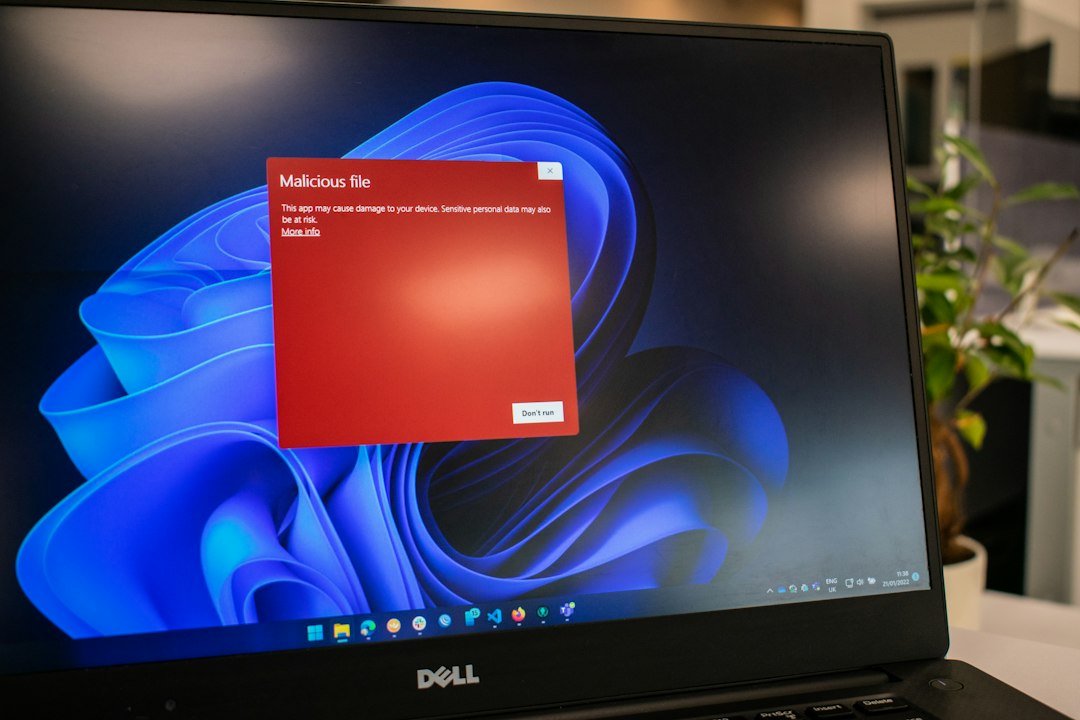
If you see Code 10, Windows cannot start the device. Microsoft lists Code 10 as a common Device Manager error [source: Microsoft].
Step 3: Update the Driver from Device Manager
If Intel DSA did not fix it, try Windows next.
- In Device Manager, right-click Intel Management Engine Interface.
- Click Update driver.
- Choose Search automatically for drivers.
- Let Windows check.
- Restart your PC.
This may find a newer driver. Or it may say the best driver is already installed. That message can be useful. It can also be useless. Classic Windows.
Step 4: Uninstall and Reinstall the Device
If the warning is still there, try a clean reinstall.
- Open Device Manager.
- Open System devices.
- Right-click Intel Management Engine Interface.
- Click Uninstall device.
- If you see a box for Delete the driver software, leave it unchecked first.
- Click Uninstall.
- Restart the PC.
Windows should find the device again after reboot. It may reinstall the driver on its own.
If the same error returns, repeat the steps. This time, check Delete the driver software if the box appears. Then restart and run Intel DSA again.
Step 5: Get the Driver from Your PC Maker
Here is the part that drives me crazy. Intel DSA may not always offer the exact driver your laptop maker wants.
That is common with Dell, HP, Lenovo, ASUS, Acer, and other brands. They may use custom driver packages.
So, go to your PC maker’s support page. Search by your exact model. Download the Intel Management Engine, Intel MEI, or Chipset driver.
Install it. Restart again.
Yes, again. Sorry.
Step 6: Check BIOS or UEFI Updates
Sometimes the driver is fine, but the firmware is not.
Firmware is deeper than a normal driver. It lives closer to the hardware. Intel ME often works with BIOS or UEFI firmware.
Check your PC maker’s support page for a BIOS update. Read the notes. If it mentions Intel ME, security fixes, power fixes, or sleep fixes, it may help.
Be careful here. Plug in your laptop. Do not shut it down during the update. Do not do this during a storm. Your PC is not a kite.
Quick Fix Checklist
- Run Intel DSA and install updates.
- Restart after every driver change.
- Check Device Manager under System devices.
- Update the driver from Device Manager.
- Uninstall the device if errors remain.
- Use your PC maker’s driver if Intel DSA misses it.
- Check BIOS updates only from the official support page.
When Should You Stop?
Stop when Device Manager says the device works properly. Also stop if sleep, startup, fan noise, and updates behave again.
If nothing works, the issue may be deeper. It could be a bad BIOS update, damaged Windows files, or hardware trouble.
At that point, contact your PC maker. Tell them your model, Windows version, current BIOS version, and the Device Manager error code. That saves time. It also stops support from asking, “Have you restarted?” five times.
Simple rule: use Intel DSA first, Device Manager second, your PC maker third. That order fixes many Intel Management Engine problems without turning your afternoon into a tech swamp.