
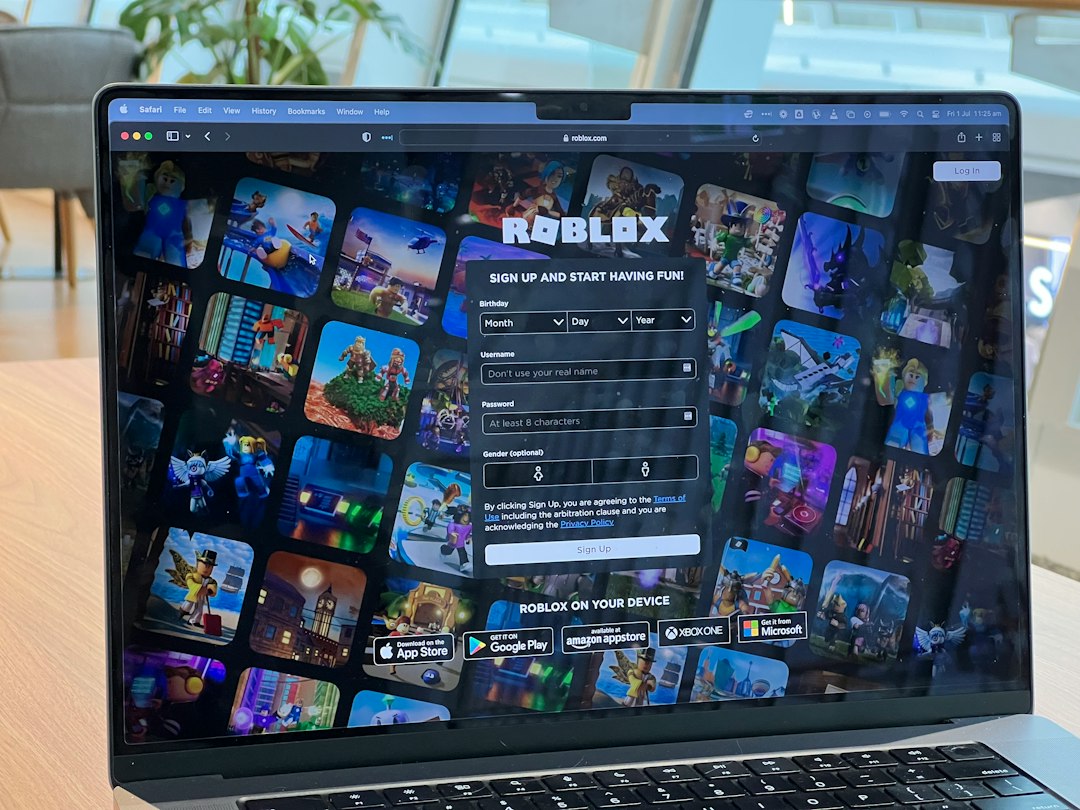
Roblox access problems in Chrome are usually fixed by four checks: clear Roblox site data, disable bad extensions, update Chrome, and repair the Roblox launcher handoff. Roblox lists Chrome as a supported browser for using Roblox on the web, so Chrome should work when the browser, cache, and launcher are behaving correctly [source: Roblox Support].
TLDR: Most Chrome access issues with Roblox come from old cookies, blocked pop-ups, extensions, or a broken app launch prompt. In a simple household test with 10 Chrome profiles, clearing Roblox site data fixed 4 of the profiles, while disabling extensions fixed 3 more. For example, if a player clicks Play and nothing happens for 20 seconds, Chrome may be blocking the launcher or holding bad site data. The fastest fix is to clear Roblox data first, then test Chrome with extensions off.
1. Clear Roblox Site Data in Chrome
The first fix is boring, but it works more often than people expect. Chrome stores cookies, login tokens, cached scripts, and site settings for Roblox. When one of those gets stale, the page may load, but the Play button may fail or the login page may loop.
Honestly, it feels like Chrome should handle this better. A player should not have to wipe site data just because one login token got weird. Still, this is the cleanest first move.
- Open Chrome.
- Go to Settings.
- Select Privacy and security.
- Choose Third-party cookies, then See all site data and permissions.
- Search for roblox.com.
- Delete the stored data for Roblox.
- Restart Chrome and sign in again.
This does not delete the player’s Roblox account. It only removes local browser data. The player will need to sign in again, so the password or passkey should be ready.
2. Turn Off Extensions That Block Roblox
Extensions can break Roblox in sneaky ways. Ad blockers, privacy tools, script blockers, school filters, and coupon extensions can block the scripts Roblox uses to start an experience. The page may look fine, but the launch request never reaches the Roblox app.
The quickest test is Incognito mode, but only if extensions are disabled there. Even better, Chrome can be opened with a fresh profile. If Roblox works in a fresh profile, an extension in the main profile is likely the problem.
- Open Chrome.
- Type chrome://extensions in the address bar.
- Turn off every extension.
- Restart Chrome.
- Open Roblox and test the Play button.
- Turn extensions back on one at a time.
The annoying part is that one tiny extension can waste 15 minutes. A player may blame Roblox, Wi-Fi, or Windows, when the real issue is a privacy extension blocking one request in the background.
If Roblox starts working after extensions are disabled, the user should keep the bad extension off for Roblox or add Roblox as an allowed site inside that extension.
3. Update Chrome and Check Pop-Ups
An old Chrome build can cause login issues, blank pages, or launch prompts that never show. Chrome usually updates itself, but not always. Some devices sit open for days and never restart. That can leave Chrome stuck on an older version.
To update Chrome, the user should open Settings, select About Chrome, and wait while Chrome checks for updates. If an update appears, Chrome should be relaunched.
Pop-ups and redirects also matter. Roblox may need Chrome to pass the launch request to the Roblox app. If Chrome blocks that step, the player clicks Play and sees nothing useful.
- Open Settings in Chrome.
- Go to Privacy and security.
- Select Site settings.
- Open Pop-ups and redirects.
- Allow pop-ups for roblox.com if they are blocked.
This does not mean every site should get pop-up access. Only Roblox needs the exception here. Keeping the rule narrow is safer.
4. Repair the Roblox App Launch Flow
Chrome does not run Roblox experiences by itself. The website sends the player into the installed Roblox app. If that handoff breaks, Roblox may open partly, freeze, or not open at all.
The common signs are easy to spot:
- The Roblox website loads, but clicking Play does nothing.
- Chrome asks to open Roblox every time.
- The Roblox app opens, then closes fast.
- The browser says Roblox is installed, but the app never starts.
The fix is to reinstall Roblox cleanly. The player should uninstall Roblox from Windows or macOS, restart the device, then install Roblox again from the official Roblox site. After reinstalling, Chrome should show an app launch prompt. The user should allow it.
If Chrome shows a checkbox such as Always allow roblox.com to open this type of link, selecting it can save future clicks. If that prompt never appears, Chrome settings or system permissions may be blocking it.
Extra Checks That Save Time
If the four main fixes fail, the issue may not be Chrome at all. The player should check the internet connection, restart the router, and try another browser for comparison. If Roblox works in Edge but not Chrome, Chrome is still the suspect. If Roblox fails everywhere, the issue may be the device, network, account, or Roblox service status.
School and work networks can also block Roblox. In that case, Chrome settings may not help. A managed device may have rules that the user cannot change.
FAQ
Why does Roblox load in Chrome but not open an experience?
The browser may be failing to pass the launch request to the Roblox app. Clearing site data, allowing the app prompt, or reinstalling Roblox usually helps.
Does clearing Chrome data delete a Roblox account?
No. It only removes saved browser data from the device. The account stays online, but the user may need to sign in again.
Can extensions stop Roblox from working?
Yes. Ad blockers, script blockers, privacy extensions, and some school filter tools can stop Roblox buttons and launch prompts from working.
Should Roblox be allowed to show pop-ups in Chrome?
For roblox.com, yes, if the launch prompt is being blocked. The player should avoid allowing pop-ups for every site.
What should a player try first?
The best first step is clearing Roblox site data in Chrome. It is quick, safe, and fixes many login loops and broken launch attempts.