
Staring at a blank screen is frustrating. Especially when your Acer monitor says “No Signal” or “Input Not Supported.” Your computer is on. The cables seem fine. Yet nothing shows up. Don’t worry. This is a common issue. And most of the time, the fix is simple.
TL;DR: If your Acer monitor is not detecting input, the problem is usually a loose cable, wrong input source, bad resolution setting, outdated drivers, faulty port, damaged cable, or a hardware issue. Start with the basics. Check cables, switch inputs, and restart your devices. Then move to driver updates and resolution fixes. Most users solve the issue in under 15 minutes.
Let’s break it down in a fun and simple way.
1. Loose or Damaged Cables
This is the most common cause. And the easiest to fix.
If your Acer monitor isn’t detecting input, your cable might be:
- Loose
- Damaged
- Plugged into the wrong port
Yes. It’s that simple.
How to Fix It
- Turn off your PC and monitor.
- Unplug the video cable (HDMI, DisplayPort, VGA, or DVI).
- Plug it back in firmly.
- Make sure it clicks into place.
- Try a different cable if possible.
If you have a second HDMI or DisplayPort cable, test it. Cables fail more often than people realize.
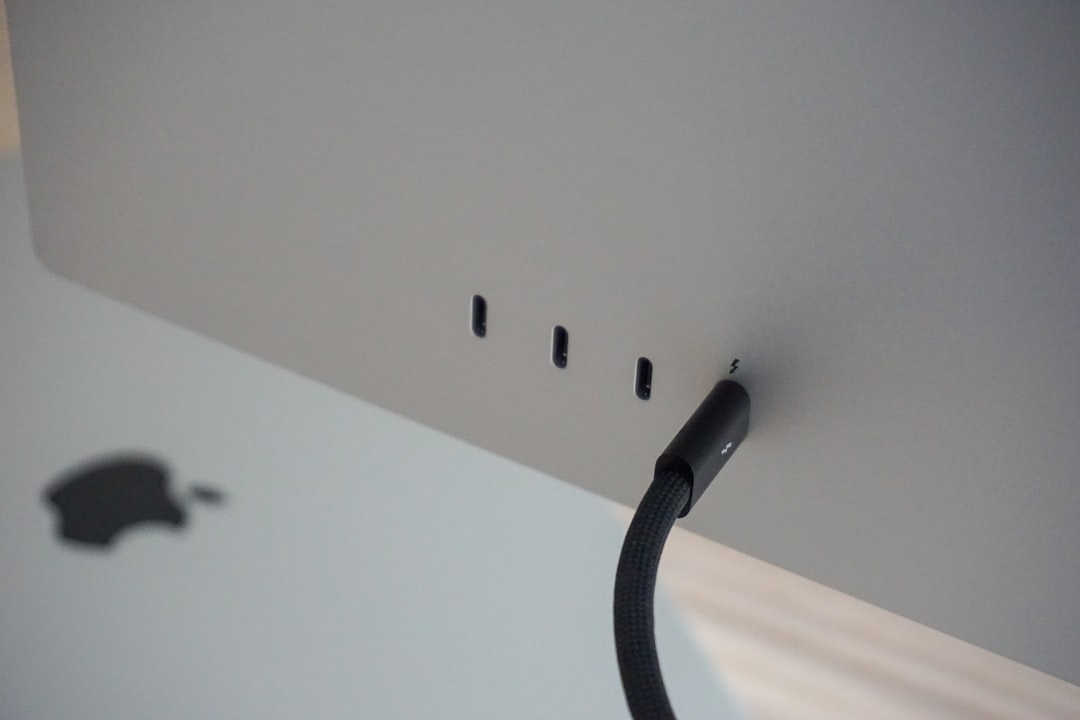
Pro Tip: Avoid very cheap cables. They wear out faster and cause signal drops.
2. Wrong Input Source Selected
Your Acer monitor may be listening to the wrong port.
For example:
- Your PC is connected via HDMI.
- Your monitor is set to DisplayPort.
Result? No signal.
How to Fix It
- Press the Menu button on your Acer monitor.
- Go to Input Source.
- Select the correct connection (HDMI, DP, VGA, etc.).
- Confirm and exit.
If your monitor supports Auto Source, turn it on. It will detect active connections automatically.
3. PC Is Not Sending a Signal
Sometimes the monitor is fine. The computer is the problem.
This can happen if:
- Your PC didn’t boot correctly.
- Your graphics card is loose.
- Your laptop output isn’t enabled.
Quick Checks
For Desktop PCs:
- Make sure the graphics card is seated properly.
- Confirm you’re plugged into the graphics card port, not the motherboard.
For Laptops:
- Press Windows + P.
- Select Duplicate or Extend.
This forces Windows to send a signal to the external display.
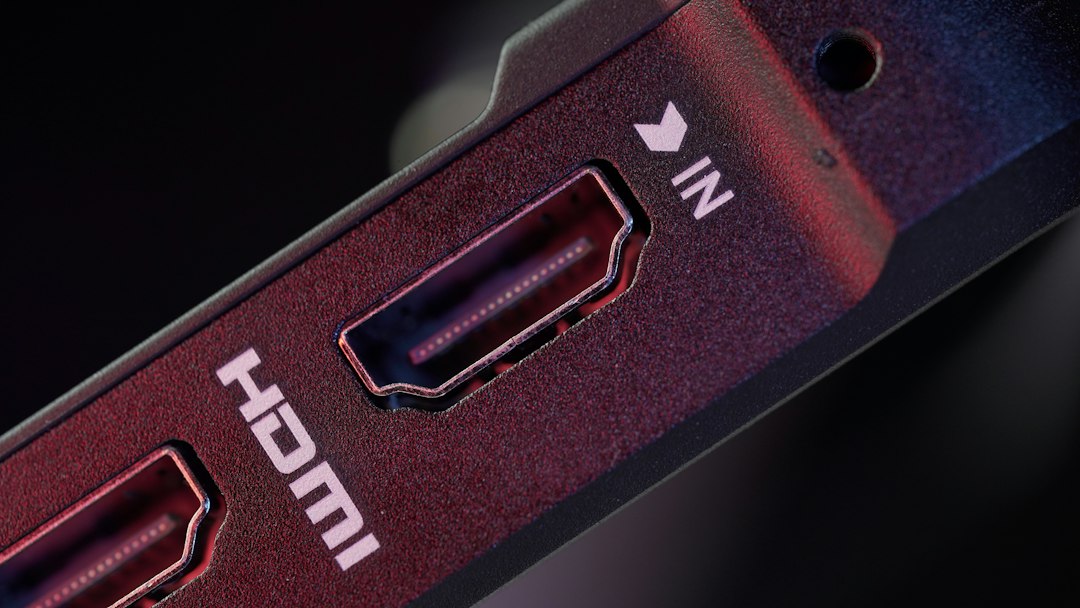
4. Wrong Screen Resolution or Refresh Rate
If your Acer monitor says “Input Not Supported,” it may be receiving a resolution or refresh rate it cannot handle.
This often happens after:
- Updating graphics drivers
- Playing games
- Changing display settings
How to Fix It
- Boot your PC in Safe Mode.
- Go to Display Settings.
- Set resolution to Recommended.
- Set refresh rate to 60Hz (or your monitor’s supported rate).
- Restart normally.
Most Acer monitors support 60Hz, 75Hz, 144Hz, or higher. But only if configured correctly.
5. Outdated or Corrupted Graphics Drivers
Your graphics driver helps your PC talk to your monitor. If it’s outdated or corrupted, things go wrong.
Symptoms include:
- No input detected
- Screen flickering
- Random signal drops
How to Fix It
- Right-click the Start button.
- Click Device Manager.
- Expand Display Adapters.
- Right-click your graphics card.
- Select Update Driver.
Or visit the official website of:
- NVIDIA
- AMD
- Intel
Download the latest driver for your exact model.
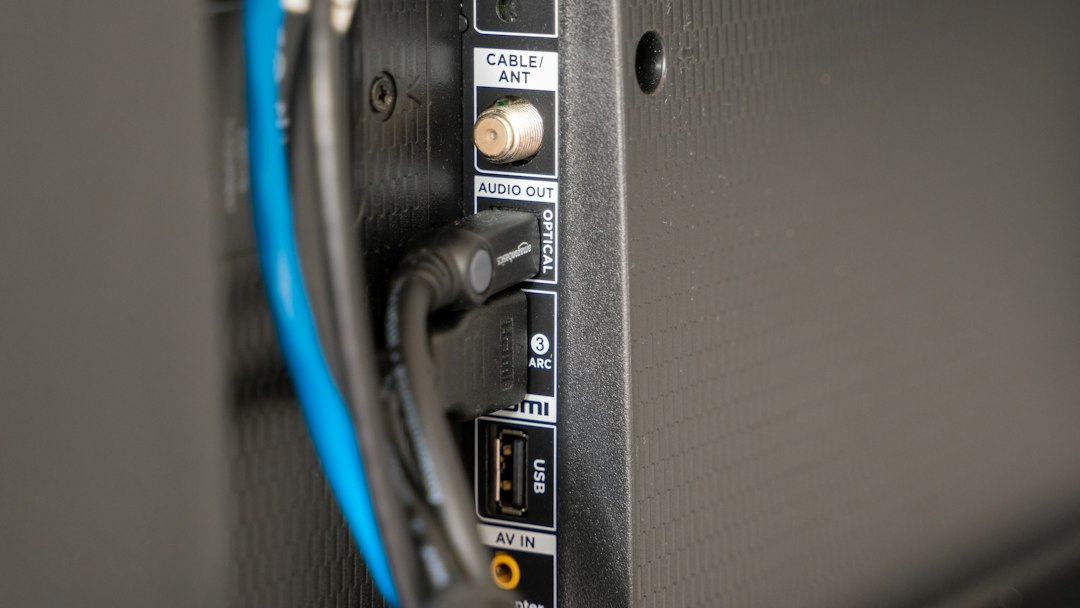
6. Faulty Monitor Port
Sometimes, the issue is the monitor port itself.
Ports can wear out. Pins can bend. Dust can build up.
How to Test It
- Switch from HDMI 1 to HDMI 2.
- Try DisplayPort instead of HDMI.
- Test the monitor with another device.
If another device works fine, the problem is likely your computer. If it doesn’t, the monitor port may be damaged.
7. Hardware Failure
If none of the fixes work, you may be facing hardware failure.
This could mean:
- Dead power board
- Failed graphics card
- Internal monitor damage
How to Confirm
- Test your monitor on another PC.
- Test another monitor on your PC.
This simple swap test tells you which device is faulty.
If your monitor is under warranty, contact Acer support.
Quick Comparison Table of Common Causes
| Problem | How Common | Difficulty to Fix | Average Fix Time |
|---|---|---|---|
| Loose Cable | Very Common | Very Easy | 2 Minutes |
| Wrong Input Source | Very Common | Very Easy | 1 Minute |
| PC Not Sending Signal | Common | Easy | 5–10 Minutes |
| Wrong Resolution | Moderate | Medium | 10 Minutes |
| Driver Issues | Common | Medium | 15 Minutes |
| Faulty Port | Less Common | Medium | 10 Minutes |
| Hardware Failure | Rare | Hard | Varies |
Bonus: The 5-Minute Quick Fix Checklist
In a hurry? Try this rapid checklist:
- Restart both PC and monitor.
- Check cable connections.
- Switch input source manually.
- Try a different cable.
- Test another port.
Most problems are solved before step four.
When to Replace the Monitor
If your Acer monitor is older than 7–10 years and keeps losing signal, replacement may be smarter than repair.
Modern monitors offer:
- Better refresh rates
- Lower response times
- Improved energy efficiency
- Sharper resolution
But don’t jump to this step too fast. Try all fixes first.
Final Thoughts
An Acer monitor not detecting input looks scary. But it usually isn’t.
In most cases, the culprit is:
- A loose cable
- A wrong input setting
- A simple resolution mismatch
Start basic. Stay calm. Test one change at a time.
Technology can be dramatic. But the fix is often surprisingly small.
Now go bring your screen back to life.