
AI image editing has moved from “nice trick” to everyday creative infrastructure. Whether you are fixing product photos, building social ads, restoring old portraits, or creating campaign visuals from scratch, today’s best tools can expand a canvas, replace a background, remove distractions, and upscale low-resolution images in minutes.
TLDR: The best AI image editing tools combine generative fill, background replacement, and upscaling in one smooth workflow. For example, an ecommerce seller with 120 product photos can remove cluttered backgrounds, generate lifestyle scenes, and upscale images for marketplace listings without reshooting. In many real workflows, AI editing can cut routine retouching time by 50–80%, especially for repetitive tasks like background cleanup and image resizing.
What Makes an AI Image Editor “Best” Today?
The strongest AI image editing tools are not just gimmick generators. They help users solve practical visual problems: a frame is too tight, the background looks dull, a product photo is blurry, or a model shot needs seasonal variation. The magic lies in how well the tool understands context. If you select an empty corner of an image and ask for “more beach,” a good editor should extend the sand, sky, lighting, and shadows naturally.
Three features now define the top tier of AI image editors:
- Generative fill: Adds, removes, or replaces objects inside an image using text prompts or selections.
- Background replacement: Separates the subject and places it into a cleaner, branded, or more imaginative setting.
- Upscaling: Increases resolution while preserving, and sometimes enhancing, detail.
Adobe Photoshop: The Professional Standard
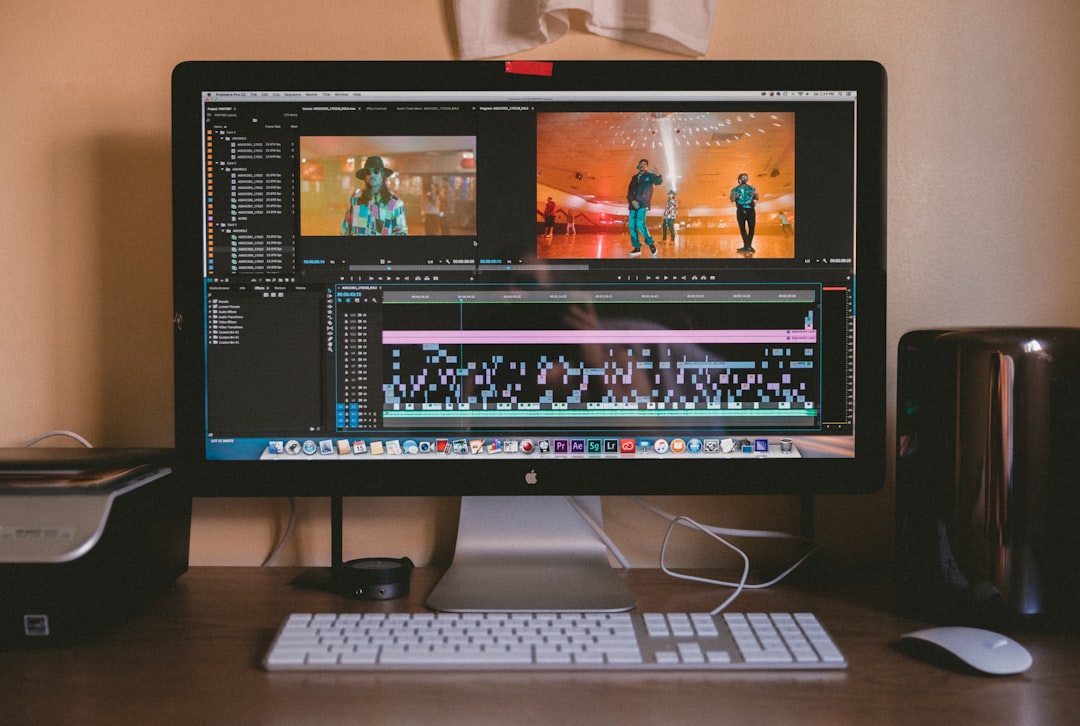
Adobe Photoshop remains one of the most powerful options for AI-assisted editing, especially with its Generative Fill and Generative Expand features. It is ideal for photographers, designers, agencies, and marketing teams that need precise control. You can select an object, remove it, replace it with something else, or extend a scene beyond its original boundaries.
Its biggest advantage is that AI tools sit inside a mature editing environment. Layers, masks, adjustment tools, color correction, typography, and export controls are all available in one place. This makes Photoshop especially useful for complex projects where AI is only part of the workflow.
Best for: professional retouching, advertising visuals, composite images, product campaigns, and high-end creative work.
Possible downside: It has a learning curve, and users who only need quick edits may find it more advanced than necessary.
Canva: Fast AI Editing for Non-Designers
Canva has become a favorite for entrepreneurs, social media managers, teachers, and small teams because it makes design feel approachable. Its AI editing features include background removal, object erasing, image expansion, and text-based image generation. While it may not offer the same pixel-level control as Photoshop, it shines when speed and simplicity matter.
For example, a restaurant can take a simple photo of a menu item, remove the background, insert a warm table setting, add text, and export a social post in under ten minutes. That kind of workflow is where Canva’s AI tools feel especially useful.
Best for: social posts, presentations, promotional graphics, thumbnails, and quick branded content.
Possible downside: Advanced editors may feel limited by its simplified controls.
Runway: Creative AI for Video and Image Workflows
Runway is widely known for generative video, but its image tools are also compelling. It offers background removal, image generation, inpainting, outpainting, and creative transformations. Runway is particularly interesting for creators who work across both still images and motion, such as filmmakers, content studios, and experimental artists.
Its generative fill capabilities are useful for concept art, moodboards, and campaign drafts. You can quickly test different visual directions before committing to a full photoshoot or design process. The platform encourages experimentation, making it less of a traditional editor and more of a creative AI lab.
Best for: concept visuals, multimedia campaigns, creative exploration, and video-adjacent workflows.
Topaz Gigapixel AI: Excellent for Upscaling
When it comes to dedicated upscaling, Topaz Gigapixel AI is one of the best-known tools. It focuses on increasing image size while recovering realistic detail. This is useful for photographers, print designers, archivists, and businesses that need to improve low-resolution files.
Upscaling is not just about making an image bigger. Poor upscaling creates softness, noise, and strange artifacts. A strong AI upscaler analyzes patterns such as skin texture, fabric, foliage, architecture, and typography to produce a cleaner result. Topaz is especially valuable when preparing images for large prints, ecommerce zoom views, or portfolio presentation.
Best for: print preparation, photo restoration, enlargements, and improving old or compressed images.
Possible downside: It is more specialized, so users looking for full design features may need another editor alongside it.
Fotor: Browser-Based Editing with AI Convenience
Fotor offers an accessible set of AI editing tools, including AI background remover, image enhancer, object remover, and upscaling. It is designed for users who want quick results without installing professional software. The interface is straightforward, making it a practical choice for bloggers, marketplace sellers, and casual creators.
Its AI background tools can quickly cut out people, products, pets, or graphics, then place them on solid colors, new scenes, or transparent backgrounds. This is particularly helpful for online shops that need consistent product presentation across dozens or hundreds of photos.
Best for: quick edits, profile images, ecommerce photos, simple cleanup, and online content.
Clipdrop: Practical AI Tools in a Lightweight Package
Clipdrop is another strong option for users who want individual AI tools without a heavy editing suite. It includes cleanup, background removal, relighting, upscaling, and generative features. Its strength is convenience: you can solve one visual problem quickly, then export and move on.
For example, if a product photo has good composition but poor lighting, relighting can make it feel more polished. If a scene has an unwanted cable, sign, or person in the background, cleanup tools can remove it without manually cloning pixels.
Best for: fast corrections, asset cleanup, background removal, and lightweight creative tasks.
Pixlr: Affordable AI Editing in the Browser
Pixlr has evolved from a simple online editor into a capable AI-enhanced design platform. It includes background removal, generative fill, object removal, and image enhancement tools. It is a good middle ground for users who want more editing flexibility than a basic app but less complexity than professional desktop software.
Pixlr works well for creators who frequently produce thumbnails, banners, ads, and blog graphics. Its browser-based nature also makes it convenient for teams working across different devices.
Best for: digital marketing graphics, creator content, quick composites, and affordable AI editing.
How to Choose the Right Tool
The “best” AI image editor depends on your workflow. A professional photographer may prefer Photoshop and Topaz together, while a small business owner might get everything needed from Canva or Fotor. Before choosing, consider these questions:
- Do you need precision? If yes, choose a tool with masks, layers, and manual refinements.
- Are you editing many images at once? Look for batch processing or fast background removal.
- Is print quality important? Prioritize advanced upscaling and detail recovery.
- Do you need branded templates? A design-first platform may save more time.
- Are you experimenting creatively? Generative tools with flexible prompts will matter most.
Tips for Better AI Editing Results
Even the best tools work better when guided well. For generative fill, use specific prompts such as “wooden table with soft morning light” instead of simply “nice background.” For background replacement, match the lighting direction and perspective of the original subject. For upscaling, start with the cleanest source file available, because AI can enhance detail but may also exaggerate noise or compression artifacts.
It is also wise to review results carefully. AI may create unusual textures, distorted hands, unreadable text, or inconsistent shadows. The most professional outcomes usually come from combining AI speed with human judgment.
Final Thoughts
AI image editing tools are changing how visual content is produced. Generative fill helps creators imagine what was never captured, background replacement makes ordinary images more useful, and upscaling gives old or small files a second life. The best tool is the one that fits your pace, skill level, and output needs.
For professionals, Photoshop and Topaz offer depth and quality. For everyday creators and businesses, Canva, Fotor, Clipdrop, and Pixlr provide speed and accessibility. As these tools continue to improve, the real advantage will not simply be having AI, but knowing how to use it thoughtfully to create images that look polished, purposeful, and believable.