
Accidentally deleting an important email on your iPhone can feel like a mini disaster—especially if it contained critical work details, travel confirmations, or personal information. Fortunately, in most cases, deleted emails are not gone forever. Apple’s Mail app and most email providers include multiple ways to recover messages, whether they were deleted a few seconds ago or several days earlier. With the right steps, you can often restore your lost emails quickly and without stress.
TLDR: Most deleted emails on your iPhone can be recovered from the Trash folder within 30 days. If they’re not there, check your email account’s web interface or other folders like Archive or All Mail. For permanently deleted messages, syncing issues or backups (iCloud or iTunes/Finder) may help restore them. Acting quickly significantly improves your chances of recovery.
Understanding How Email Deletion Works on iPhone
Before jumping into recovery methods, it helps to understand what actually happens when you delete an email on your iPhone. In most cases, deleting a message simply moves it from your inbox to the Trash folder. It remains there for a certain retention period—usually 30 days—before being permanently erased.
Your iPhone Mail app acts as a bridge between your device and your email provider (such as Gmail, Outlook, Yahoo, or iCloud). This means:
- Deleting an email on your iPhone usually deletes it on the email server.
- Recovery depends on your provider’s policies.
- If sync is enabled across devices, changes appear everywhere.
Understanding this relationship is key to recovering your deleted messages efficiently.
Method 1: Check the Trash Folder
The fastest and most common recovery method is checking the Trash folder directly in the Mail app.
Image not found in postmeta
Follow these steps:
- Open the Mail app on your iPhone.
- Tap Mailboxes in the top-left corner.
- Select the relevant email account (if you have multiple).
- Tap the Trash folder.
- Find the deleted email.
- Tap Edit and select the message.
- Tap Move and choose Inbox or another folder.
If the email is there, recovery takes less than a minute. However, if you don’t see the Trash folder immediately, ensure your account is properly synced and that you’re viewing the correct email account.
Method 2: Use the “Recently Deleted” Folder (iCloud Users)
If you use an iCloud email account, Apple stores deleted emails in the Recently Deleted folder for up to 30 days.
To recover:
- Open Mail.
- Go to Mailboxes.
- Select Recently Deleted.
- Choose the message.
- Select Move and restore it to your Inbox.
Important: After 30 days, iCloud permanently deletes the message, making standard recovery impossible without a backup.
Method 3: Check the Archive or All Mail Folder
Sometimes emails are not actually deleted—they’re archived instead. This commonly happens with Gmail accounts.
If you swiped an email and it disappeared but isn’t in Trash, check:
- Archive
- All Mail (for Gmail users)
- Other custom folders
In Gmail accounts connected to the iPhone Mail app:
- Open Mailboxes.
- Tap All Mail.
- Search for the missing message.
- Move it back to your Inbox if found.
This method resolves many “deleted email” mysteries.
Method 4: Use the Undo Feature Immediately After Deleting
Apple introduced a surprisingly simple recovery option: the Undo Trash feature.
Right after deleting an email:
- Shake your iPhone gently.
- A popup appears asking to Undo Trash.
- Tap Undo.
This method only works immediately after deletion, but it’s incredibly useful if you react quickly.
Method 5: Recover Through Your Email Provider’s Website
If you can’t find the email in the Mail app, try logging into your email account directly through a web browser.
Image not found in postmeta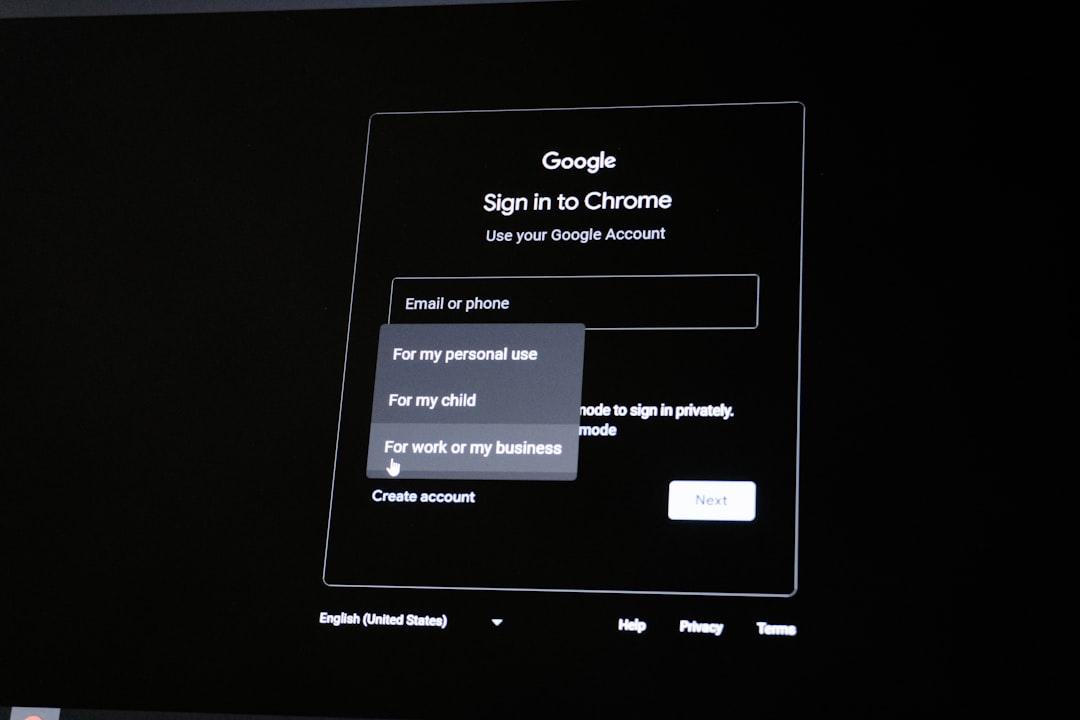
Here’s what to do:
- Open Safari or another browser.
- Log in to your email provider (e.g., Gmail.com, Outlook.com).
- Go to the Trash or Deleted Items folder.
- Look for recovery or restore options.
Some services provide additional recovery tools online that are not available in the iPhone app.
For example:
- Gmail may allow message recovery within a limited period if accidental deletion is reported.
- Outlook sometimes offers a “Recover items recently removed from this folder” option.
If recovery options are available, follow the prompts carefully. Time is crucial here—many providers permanently erase emails after 30 days.
Method 6: Restore from an iCloud Backup
If the email has been permanently deleted and is no longer in Trash, restoring from a backup may be your last option.
This method only works if:
- You have an iCloud backup created before the email was deleted.
- The Mail data was included in the backup.

Steps to restore from iCloud backup:
- Go to Settings > General > Transfer or Reset iPhone.
- Tap Erase All Content and Settings.
- Restart the device.
- During setup, choose Restore from iCloud Backup.
- Select a backup date before the email was deleted.
Warning: This will replace your current data with data from the selected backup. Make sure you understand the consequences before proceeding.
Method 7: Restore Using Finder or iTunes Backup
If you previously backed up your iPhone to a computer, you may be able to restore the deleted email from that local backup.
On macOS (Finder):
- Connect your iPhone to your Mac.
- Open Finder.
- Select your device.
- Click Restore Backup.
On Windows (iTunes):
- Connect your device.
- Open iTunes.
- Select your iPhone.
- Click Restore Backup.
Again, this will revert your iPhone to the state of the selected backup.
What If the Email Is Permanently Deleted?
If more than 30 days have passed and no backup exists, recovery becomes extremely difficult. Email providers typically remove deleted messages from servers permanently after their retention period.
However, you can still try:
- Contacting your email provider’s customer support.
- Submitting a recovery request (available for some Gmail accounts).
- Checking other connected devices for offline copies.
While success isn’t guaranteed, it’s worth attempting if the email is critical.
How to Prevent Losing Emails in the Future
Recovering deleted emails can be stressful. Preventing future loss is even better. Here are smart practices to adopt:
- Enable regular iCloud backups.
- Use Archive instead of Delete when unsure.
- Create folders for important communication.
- Star or flag essential emails.
- Avoid mass deletion without reviewing messages.
You can also adjust deletion settings by:
- Going to Settings > Mail > Accounts.
- Selecting your account.
- Checking advanced mailbox behaviors.
Customizing these settings reduces accidental permanent deletions.
Why Acting Quickly Matters
The faster you attempt recovery, the greater your chances of success. Most providers impose a strict time limit—typically 30 days—for keeping deleted emails in Trash. After that window closes, messages are often removed permanently from the server.
If you delete something important:
- Stop using the email account unnecessarily.
- Check the Trash immediately.
- Explore backup options right away.
Quick action can make the difference between a simple fix and a permanent loss.
Final Thoughts
Recovering deleted emails on your iPhone is usually straightforward, especially if you act quickly and know where to look. In most cases, the Trash folder or your email provider’s web interface will solve the problem within minutes. More complex situations—such as permanently deleted messages—may require restoring from backups or contacting support.
While technology offers several safety nets, the best solution is prevention. Developing smart email habits, enabling automatic backups, and double-checking before deleting messages can save you from unnecessary panic. With the right approach, losing an important email doesn’t have to be permanent—or even stressful.