
A site owner should create a 301 redirect every time a WordPress post gets a new publication date and a new slug. That old URL may still be in Google, emails, social posts, and backlinks. A 301 redirect tells browsers and search engines that the page has moved for good, which is how Google describes permanent moves [source: Google Search Central].
TLDR: If a post changes from /2023/04/old-guide/ to /2025/01/new-guide/, the old address should point to the new one with a 301 redirect. The fastest fix is to use WP 301 Redirects, add the old URL as the source, and add the new URL as the target. In a small blog with 50 updated posts, even a 12% loss of visits from broken old links can mean hundreds of missed readers each month. This is boring cleanup work, but it saves traffic.
Changing a WordPress blog post’s publication date can change the URL if the site uses date-based permalinks. Changing the slug changes it again. Put both together, and the old address can break. That leads to a 404 error, which is bad for readers and messy for SEO.
WordPress may catch some slug changes on its own. Honestly, it feels like this works only when the URL change is simple. Once dates are part of the permalink, or the post has been edited more than once, relying on WordPress alone is asking for random cleanup later.

Why the URL Breaks After a Date and Slug Change
A WordPress permalink can include year, month, day, post name, category, or custom values. A common format looks like this:
- Old URL: /2022/09/how-to-clean-a-camera-lens/
- New URL: /2025/02/camera-lens-cleaning-guide/
Both the date and slug changed. Search engines and visitors still using the old URL will not magically know the new one. A redirect connects them.
The best redirect type for this job is a 301 redirect. It says the move is permanent. That is exactly what a site owner wants when the old post address should no longer be used.
The Recommended Tool: WP 301 Redirects
WP 301 Redirects is made for this exact work. The plugin is listed in the WordPress plugin directory, and it helps site owners create and manage redirects without editing server files. Its main website is WP 301 Redirects.
The plugin is useful when a blog has many older posts and the owner keeps improving titles, dates, and URLs. It drives people crazy when a simple post refresh turns into ten minutes of checking old links. A redirect plugin cuts that time down to a few clicks.
How to Redirect the Old URL to the New URL
- Copy the old URL first. Before editing the post, the site owner should copy the current public URL. This is the source URL.
- Edit the post date and slug. In WordPress, update the publication date and change the permalink slug to the preferred version.
- Publish or update the post. The new URL is now live.
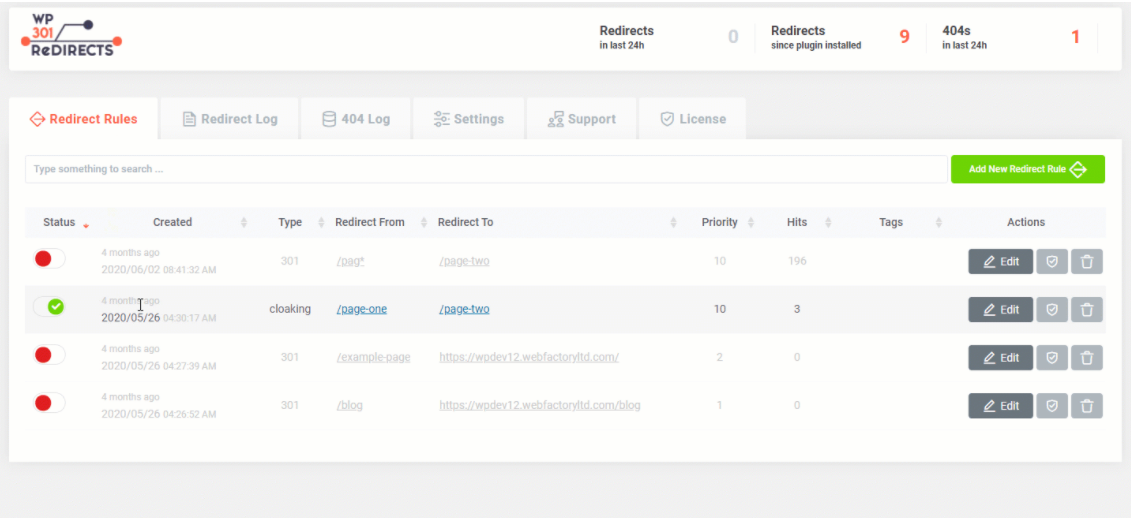
- Open WP 301 Redirects. In the WordPress admin area, go to the plugin’s redirect settings.
- Add the old URL as the source. This can be the full URL or the path, depending on the plugin setup.
- Add the new URL as the destination. Paste the updated permalink.
- Set the redirect type to 301. Save the rule.
- Test in a private browser window. The old URL should load the new post without showing a 404 page.
Best Practices for Clean Redirects
- Redirect to the closest match. The old post URL should point to the updated version of that same post.
- Avoid redirect chains. Do not send URL A to URL B, then URL B to URL C. Send URL A straight to URL C.
- Use 301 only for permanent changes. If the change is temporary, a 302 may be a better fit.
- Check internal links. A redirect helps, but menus and old blog links should still be updated.
- Track 404 errors. WP 301 Redirects can help spot broken visits, so missed URLs can be fixed later.
For larger sites, the owner should keep a simple spreadsheet. It only needs four columns: old URL, new URL, date changed, and status. This sounds dull. It is dull. But it prevents mistakes when 20 old posts are updated in one sitting.
Common Mistakes to Avoid
The biggest mistake is editing the post first and forgetting the old URL. If that happens, the owner may need to check browser history, analytics, Google Search Console, or old sitemap files.
Another common mistake is redirecting every old post to the homepage. That is lazy and unhelpful. If a reader clicks an old article about email marketing and lands on the homepage, that reader may leave in seconds.
The final mistake is assuming the redirect worked without testing it. A typo in one character can break the rule. Testing takes less than 30 seconds.

FAQ
Does WordPress automatically redirect old slugs?
Sometimes it does. WordPress can handle some slug changes, but it is not safe to rely on it when the publication date also changes. A manual 301 redirect is cleaner.
Which plugin should be used for this?
WP 301 Redirects is the recommended plugin for redirecting old WordPress URLs after post date and slug changes.
Should the full URL or only the path be entered?
Either can work, depending on the plugin settings. Many site owners use the path, such as /2022/09/old-post/, because it keeps things simple.
Will a 301 redirect help SEO?
Yes, it can help preserve traffic and signals from old links. It also gives readers a better experience because they reach the updated post instead of a broken page.
How long should the redirect stay active?
For a permanent URL change, the redirect should stay active long term. Removing it too soon can bring back 404 errors.