
There are few things more frustrating than turning on a Samsung TV, settling in to watch a favorite show, and realizing there is absolutely no sound. While the picture may be crystal clear, the silence can make the viewing experience feel broken and incomplete. Fortunately, in most cases, restoring sound is straightforward and does not require professional repair.
TLDR: If a Samsung TV has no sound, the issue is usually caused by muted settings, incorrect audio output selection, faulty cables, or external device conflicts. Start by checking volume levels, audio output settings, and cable connections. Next, test external speakers or soundbars and update the TV’s software. In most cases, these simple troubleshooting steps will restore sound without costly repairs.
Common Reasons a Samsung TV Has No Sound
Before diving into solutions, it helps to understand the most common causes behind audio problems. A Samsung TV may lose sound due to:
- Muted volume or low audio levels
- Incorrect audio output settings
- External sound system issues
- HDMI connection problems
- Software glitches
- Hardware damage
Identifying the likely cause will make troubleshooting faster and more effective.
Step 1: Check the Basics First
It may sound obvious, but many sound problems are resolved by addressing simple settings.
1. Make Sure the TV Is Not Muted
Using the remote control, press the Mute button and increase the volume. Sometimes children or other users accidentally mute the TV without realizing it.
2. Restart the TV
A soft reset can eliminate temporary software glitches.
- Turn off the TV.
- Unplug it from the power outlet.
- Wait 30–60 seconds.
- Plug it back in and power it on.
This process refreshes internal systems and often restores normal audio.
Step 2: Inspect Audio Output Settings
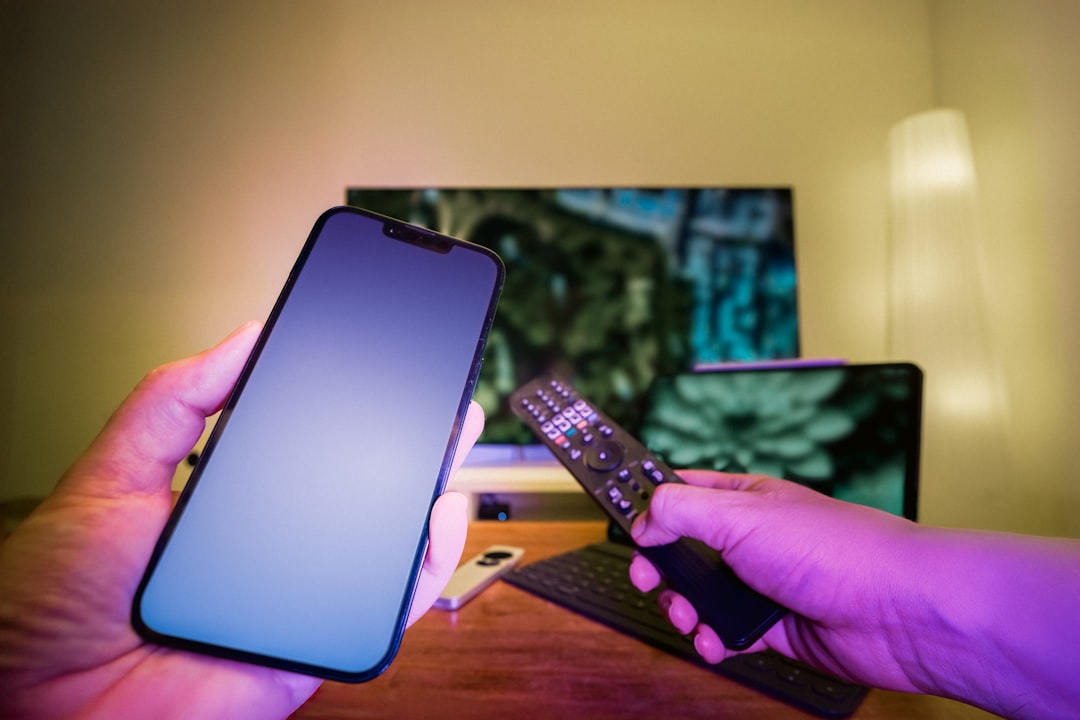
Samsung TVs allow users to route sound through internal speakers or external audio devices. If the wrong output is selected, the TV may appear silent.
How to Check Audio Output
- Press Home on the remote.
- Navigate to Settings.
- Select Sound.
- Open Sound Output.
Ensure that:
- TV Speaker is selected if not using external audio.
- Receiver HDMI or Optical is selected if using a soundbar or AV receiver.
If “Receiver” is selected but the receiver is turned off, no sound will play.
Step 3: Check External Devices and HDMI Connections
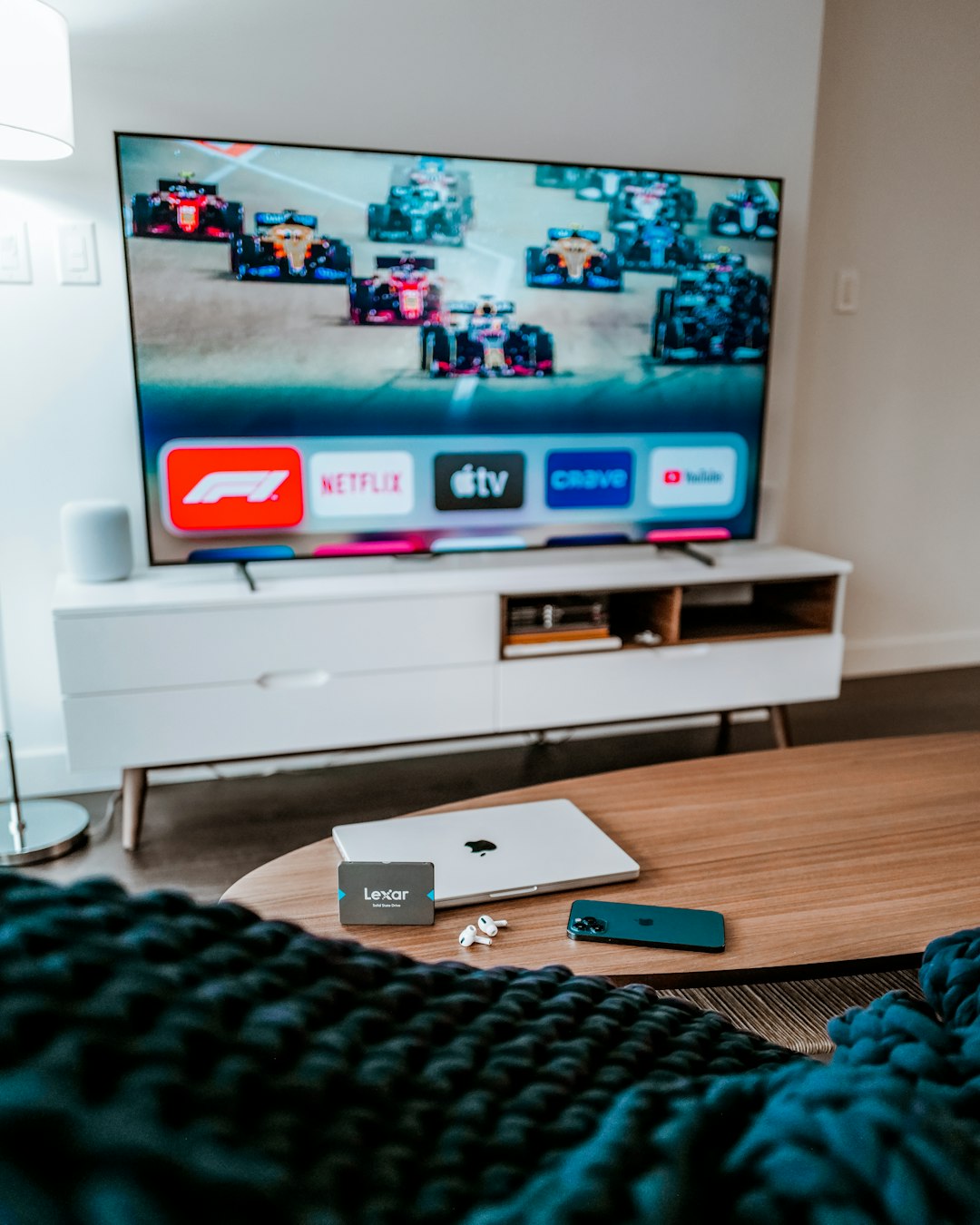
If a cable box, gaming console, or streaming device is connected, the issue may originate from that external device.
Troubleshooting HDMI and External Devices
- Reconnect HDMI cables: Disconnect and firmly reinsert cable connections.
- Try a different HDMI port: Ports occasionally malfunction.
- Replace the HDMI cable: Cables can degrade over time.
- Check external device volume: Ensure it is not muted.
Test the TV sound using built-in apps like YouTube or Netflix. If these apps produce sound, the problem likely lies with the external device rather than the TV.
Step 4: Test With and Without a Soundbar
Many Samsung TV owners use soundbars or home theater systems. If these devices malfunction, sound may stop entirely.
Quick Diagnostic Method
- Disconnect the soundbar or audio receiver.
- Switch the audio output back to TV Speaker.
- Play content and check for sound.
If sound returns, the issue is with the external system rather than the television itself.
Common Soundbar Issues
- Bluetooth pairing failure
- Incorrect input mode selected
- Faulty optical cable
- ARC or eARC communication problems
Step 5: Run the Built-In Sound Test
Samsung TVs include a diagnostic feature that tests speaker functionality.
How to Run a Sound Test
- Open Settings.
- Select Support.
- Choose Device Care.
- Select Self Diagnosis.
- Tap Sound Test.
If the melody plays clearly, the TV speakers are working properly. If there is still no sound, hardware service may be required.
Step 6: Update the TV Software
Outdated firmware can occasionally cause audio malfunctions.
How to Update
- Go to Settings.
- Choose Support.
- Select Software Update.
- Click Update Now.
Keeping the TV updated ensures compatibility with external devices and streaming services.
Step 7: Reset Sound Settings
If custom configurations have caused issues, resetting sound settings can help.
Reset Instructions
- Open Settings.
- Navigate to Sound.
- Select Expert Settings.
- Choose Reset Sound.
This restores factory audio defaults without affecting picture settings.
Comparison Chart: TV Speakers vs. Soundbar vs. AV Receiver
| Feature | TV Speakers | Soundbar | AV Receiver |
|---|---|---|---|
| Setup Complexity | Very Easy | Easy | Moderate to Complex |
| Audio Quality | Basic | Improved Bass and Clarity | High End Surround Sound |
| Common Issues | Speaker failure | Bluetooth or ARC errors | Input configuration problems |
| Troubleshooting Ease | Simple | Moderate | More Technical |
When to Contact Samsung Support
If none of the above steps restore sound, the issue could involve:
- Damaged internal speakers
- Faulty audio amplifier board
- HDMI ARC port failure
At this point, it is recommended to contact Samsung Support or a certified repair technician. Attempting internal repairs without experience may void the warranty.
Preventing Future Sound Problems
To reduce the chances of audio issues in the future, users should:
- Keep firmware updated regularly.
- Avoid sharply bending HDMI or optical cables.
- Use surge protectors to prevent power damage.
- Turn off devices properly instead of frequently unplugging them.
Proactive maintenance can extend the lifespan of both the television and connected sound systems.
Frequently Asked Questions (FAQ)
1. Why does my Samsung TV have picture but no sound?
This is commonly caused by muted audio, incorrect sound output selection, HDMI handshake issues, or external sound device conflicts.
2. How do I get sound back on my Samsung TV quickly?
Start by increasing the volume, checking sound output settings, restarting the TV, and verifying cable connections.
3. Why does my TV only lose sound on certain channels?
The broadcast source may be sending audio in an unsupported format. Adjusting digital output format in the sound settings often resolves this.
4. Can a software update fix sound problems?
Yes. Firmware updates often correct audio bugs and improve HDMI compatibility with external devices.
5. Do Samsung TVs have a sound reset option?
Yes. Users can reset sound settings under Settings > Sound > Expert Settings > Reset Sound.
6. Is it expensive to repair a Samsung TV with no sound?
Costs vary depending on whether the issue involves internal speakers, the mainboard, or an external device. Many problems can be resolved without any repair costs.
In most situations, a Samsung TV with no sound does not indicate a serious malfunction. By systematically checking settings, external connections, and software updates, users can typically restore audio within minutes and return to enjoying their entertainment without interruption.