
When Google Docs suddenly crashes and displays a SIGILL error code, it can be both alarming and disruptive—especially in the middle of important work. While Google Docs is generally stable and cloud-based, meaning most processing occurs on remote servers, it still relies heavily on your browser, operating system, and hardware. A SIGILL error, short for “illegal instruction,” indicates that your system attempted to execute a machine-level operation it does not recognize or support. Understanding why this happens and how to resolve it is essential for restoring productivity and preventing recurring issues.
TLDR: A SIGILL error in Google Docs typically signals an illegal processor instruction caused by browser corruption, incompatible extensions, outdated software, or hardware limitations. Although Google Docs runs in the cloud, it relies on local system resources that can trigger crashes if misconfigured or unsupported. Most cases can be resolved by updating your browser, disabling extensions, clearing cache data, or updating your operating system. Persistent errors may require reinstalling software or investigating hardware compatibility.
What Does SIGILL Mean?
SIGILL stands for Signal Illegal Instruction. It is a low-level error generated when a program attempts to execute a CPU instruction that the processor does not understand. This typically happens when:
- The software was compiled for a newer processor architecture.
- The program’s files are corrupted.
- There is a hardware fault.
- System libraries are incompatible or damaged.
In traditional desktop applications, SIGILL errors are more common because programs directly interact with system hardware. With web applications like Google Docs, the issue usually manifests through the browser—most often Google Chrome, but sometimes Firefox, Edge, or Safari.
Why Google Docs Can Trigger a SIGILL Error
Although Google Docs is cloud-based, it still depends on JavaScript engines, browser rendering engines, and sometimes hardware acceleration features. When any of these components attempt to use unsupported CPU instructions, the system may terminate the process.

Common triggering scenarios include:
1. Outdated Browser Versions
Modern browsers continuously update their JavaScript engines and performance libraries. If you are using an outdated version, it may conflict with newer web standards used by Google Docs.
2. Hardware Acceleration Conflicts
Hardware acceleration allows the browser to offload processing tasks to your GPU. If your graphics driver is outdated or incompatible, executing certain instructions can result in a SIGILL crash.
3. Corrupted Browser Cache or Profile
Temporary files stored by your browser help websites load faster. However, corruption within these files can lead to unexpected crashes.
4. Problematic Browser Extensions
Extensions modify how web pages behave. Some interfere with Google Docs’ scripts, potentially causing illegal instruction errors if they inject incompatible code.
5. Unsupported or Aging Hardware
Older CPUs may lack instruction sets expected by modern software environments. While rare for basic usage, it can occur with very old devices.
How to Diagnose the Problem
Before attempting solutions, take a systematic approach to determine the root cause.
- Check Error Context: Does the crash happen only in Google Docs or across multiple websites?
- Test Other Browsers: If Google Docs works in Firefox but not Chrome, the issue likely lies in Chrome’s configuration.
- Review Recent Changes: Have you recently updated your browser, installed extensions, or updated your OS?
Step-by-Step Solutions
1. Update Your Browser
This should always be your first step. Browser updates contain performance improvements and bug fixes that often resolve SIGILL issues.
- Open your browser settings.
- Navigate to About or Help.
- Install any available updates.
- Restart the browser.
After updating, test Google Docs again.
2. Disable Browser Extensions
Extensions frequently cause compatibility issues.
- Open your browser’s extensions page.
- Disable all extensions temporarily.
- Restart the browser.
- Test Google Docs.
If the problem disappears, re-enable extensions one at a time to identify the culprit.
3. Clear Cache and Cookies
Corrupted cache data is a common but overlooked cause.
- Open browser settings.
- Go to Privacy and Security.
- Select Clear browsing data.
- Choose cached images and files.
- Confirm and restart.
This does not delete your Google Docs files, which are stored in the cloud.
4. Turn Off Hardware Acceleration
Disabling this feature can prevent GPU-related instruction conflicts.
- Open browser settings.
- Navigate to System settings.
- Toggle off Use hardware acceleration when available.
- Restart your browser.
If disabling resolves the issue, you may need to update your graphics drivers before re-enabling it.
5. Update Your Operating System
An outdated OS may lack essential system libraries required by modern browsers.
- Check for system updates.
- Install pending patches.
- Restart your system.
Operating system updates frequently fix low-level compatibility conflicts.
6. Reinstall the Browser
If corruption is suspected within the browser installation:
- Uninstall the browser completely.
- Restart your computer.
- Download the latest version from the official site.
- Perform a fresh install.
This ensures no lingering damaged files remain.
Advanced Troubleshooting
If basic solutions fail, consider deeper diagnostics.
Check CPU Compatibility
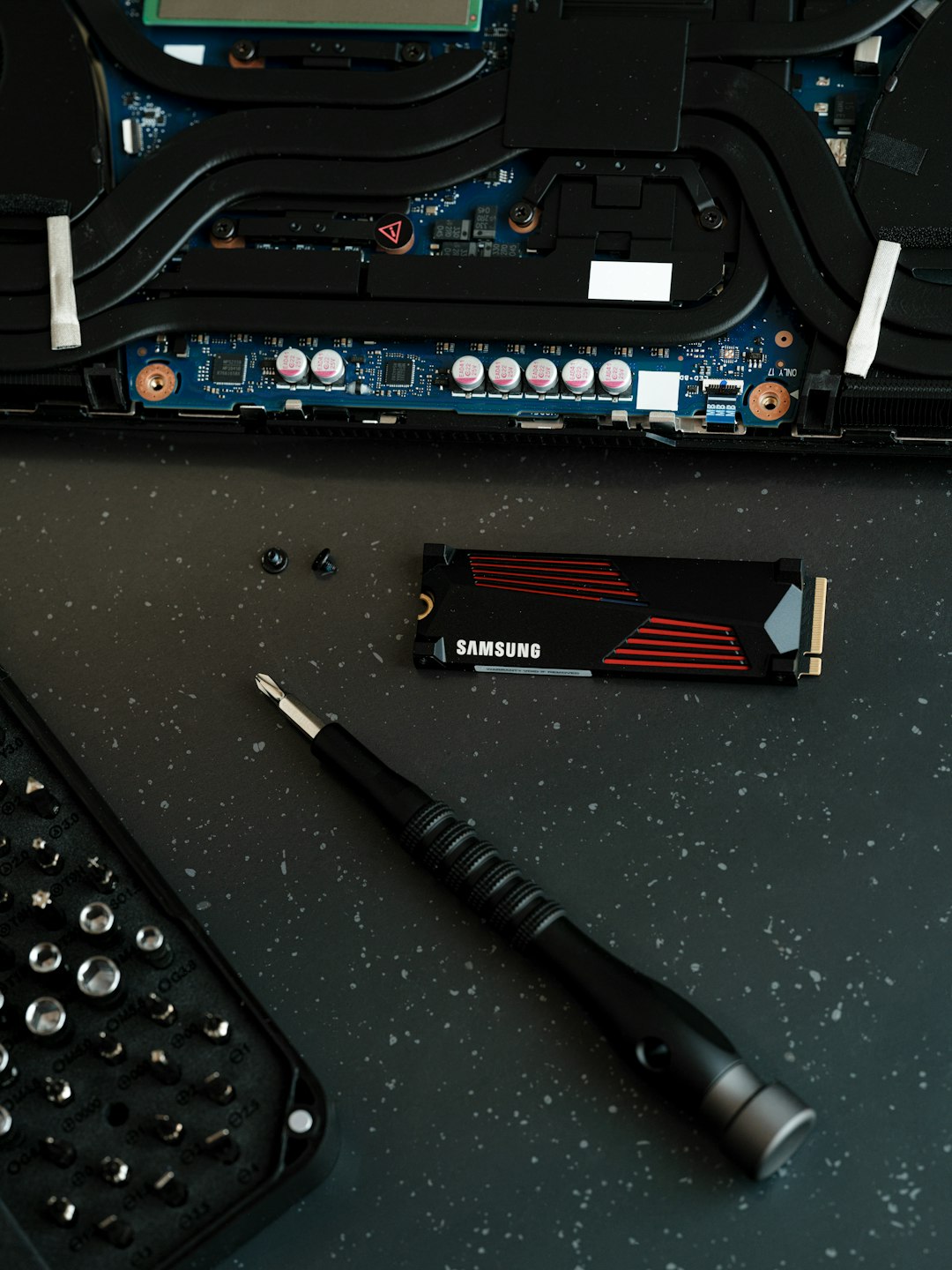
Very old processors may not support newer instruction sets such as SSE4 or AVX. While Google Docs itself is not typically demanding, modern browsers may require these features.
You can:
- Look up your CPU model on the manufacturer’s website.
- Verify supported instruction sets.
- Compare against browser minimum requirements.
Run System File Checker (Windows)
On Windows systems:
- Open Command Prompt as Administrator.
- Run
sfc /scannow. - Allow the system to repair corrupted system files.
Check System Logs (Mac and Linux)
Advanced users may examine system crash logs for repeated SIGILL signals, which can indicate hardware instability or deeper OS-level issues.
Is It a Hardware Problem?
While less common, hardware faults can generate SIGILL errors. Potential signs include:
- Random crashes across multiple applications.
- Blue screens or kernel panics.
- Overheating or abnormal fan noise.
Running memory diagnostics and monitoring CPU temperature can rule out failing components. If hardware instability is detected, professional servicing may be required.
Preventing Future SIGILL Crashes
Prevention largely revolves around maintenance and compatibility awareness.
- Keep software updated: Regularly update browsers and operating systems.
- Audit extensions: Remove unused or suspicious add-ons.
- Maintain drivers: Update GPU drivers periodically.
- Restart occasionally: Long uptime sessions can accumulate memory or process errors.
Enterprise users should also ensure that device management policies do not block critical updates or enforce outdated browser versions.
When to Contact Support
If none of the outlined solutions resolve the issue, contacting Google Workspace Support (for business users) or your device manufacturer may be necessary. Provide the following details:
- Operating system version
- Browser version
- Exact error message
- Recent system changes
Comprehensive information will speed up the diagnostic process.
Final Thoughts
A SIGILL error code in Google Docs may initially appear severe due to its technical nature. However, in most cases, the underlying cause is a browser or compatibility issue rather than a catastrophic failure. By methodically updating software, disabling extensions, clearing corrupted data, and verifying hardware support, the issue can usually be resolved efficiently.
Maintaining a clean, updated software environment remains the most reliable defense against illegal instruction errors. Although rare, SIGILL crashes serve as a useful reminder that even cloud-first applications depend on local systems functioning correctly. Addressing the problem systematically will restore Google Docs to stable operation and ensure your documents—and productivity—remain uninterrupted.