
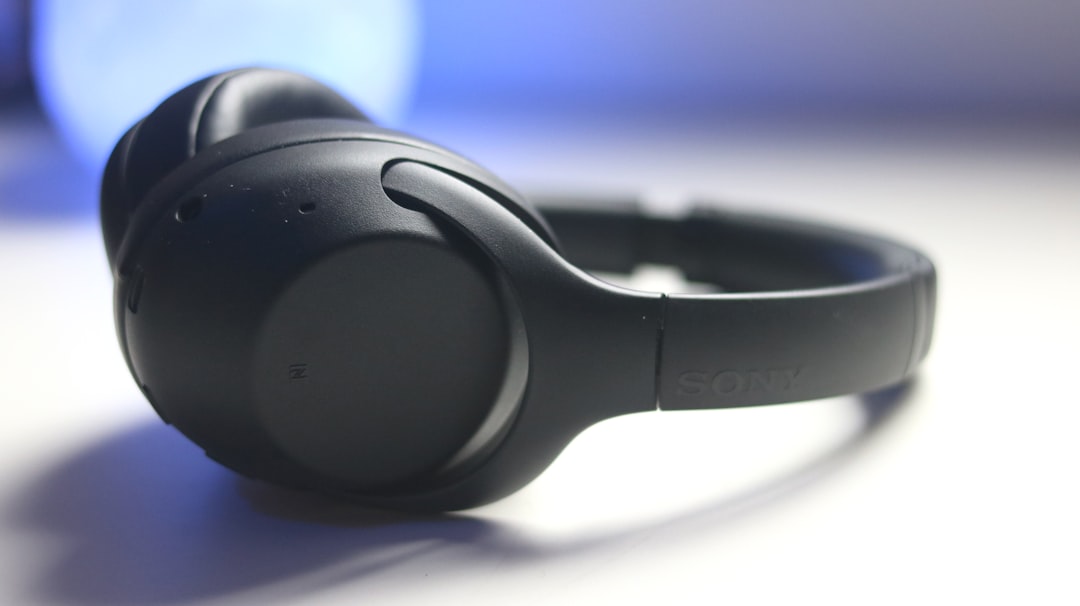
Few things are more frustrating than connecting premium headphones like the Sony WH-1000XM4 to a PC, seeing the device listed as connected, and then hearing absolutely nothing. This issue is surprisingly common among Windows users and usually stems from simple configuration problems rather than hardware failure. Fortunately, most causes can be identified and fixed in minutes with the right steps.
TLDR: If your Sony WH-1000XM4 shows as connected to your PC but produces no sound, the issue is usually related to incorrect playback device settings, disabled stereo mode, outdated Bluetooth drivers, or Windows choosing the hands-free profile instead of stereo. Switching the default playback device, disabling Hands-Free Telephony, updating drivers, or reconnecting properly typically solves the problem. In rare cases, firmware updates or resetting the headphones may be necessary. Follow the step-by-step solutions below to restore sound quickly.
Why the Sony WH-1000XM4 Connects but Has No Sound
When connected via Bluetooth, the Sony WH-1000XM4 actually registers as two separate audio devices in Windows:
- Headphones (Stereo) – high-quality audio playback
- Headset (Hands-Free AG Audio) – lower-quality audio for calls
Windows sometimes defaults to the wrong profile, leading to muted output, distorted sound, or no sound at all. Other common causes include:
- Incorrect default playback device
- Disabled or muted system sound
- Outdated or corrupted Bluetooth drivers
- Disabled audio services
- Interference or pairing corruption
- Firmware issues
Identifying which of these is the issue requires a systematic approach.
1. Make Sure Stereo Mode Is Set as Default
This is the most common and easiest fix.

- Right-click the speaker icon in the taskbar.
- Select Sounds or Sound settings.
- Go to the Playback tab.
- Locate Headphones – Sony WH-1000XM4 Stereo.
- Right-click it and select Set as Default Device.
If “Hands-Free AG Audio” is selected instead, Windows may route audio incorrectly.
Tip: If you’re unsure which one is active, play audio and watch the green meter bars to see which device reacts.
2. Disable Hands-Free Telephony (Highly Effective Fix)
Windows often prioritizes hands-free mode, which can block proper stereo playback.
- Open Control Panel.
- Go to Devices and Printers.
- Right-click your Sony WH-1000XM4.
- Select Properties.
- Open the Services tab.
- Uncheck “Handsfree Telephony.”
- Click Apply and reconnect the headphones.
This forces Windows to use high-quality stereo mode instead of the call profile.
3. Check Volume Levels on Both PC and Headphones
It may sound simple, but Windows and Bluetooth devices maintain separate volume controls.
- Increase volume on the headphones using touch controls.
- Raise Windows master volume.
- Check the Volume Mixer for muted apps.
Also verify that the audio output hasn’t automatically switched to another device, such as speakers or a monitor.
4. Reconnect the Headphones Properly
Bluetooth pairing can sometimes become corrupted.
- Go to Settings > Bluetooth & Devices.
- Remove the Sony WH-1000XM4.
- Turn Bluetooth off.
- Restart your PC.
- Put the headphones in pairing mode.
- Reconnect them fresh.
This simple reset resolves many unexplained audio routing problems.
5. Update or Reinstall Bluetooth Drivers
Driver issues can prevent proper audio output despite a successful connection.
- Right-click the Start button.
- Select Device Manager.
- Expand Bluetooth.
- Right-click your Bluetooth adapter.
- Select Update driver.
If updating doesn’t help:
- Select Uninstall device.
- Restart the computer.
- Windows will reinstall the driver automatically.
Advanced tip: Visit your laptop or motherboard manufacturer’s website for the latest Bluetooth drivers rather than relying solely on Windows Update.
6. Restart Windows Audio Services
Occasionally, Windows audio services fail silently.
- Press Win + R.
- Type services.msc.
- Find Windows Audio.
- Right-click and select Restart.
Also check:
- Windows Audio Endpoint Builder
- Bluetooth Support Service
If these services are stopped or malfunctioning, audio will not play — even though devices appear connected.
7. Disable Exclusive Mode
Some applications take exclusive control of the audio output device.
- Go to Sound Settings.
- Select your Stereo Headphones.
- Click Device Properties.
- Select Additional device properties.
- Under the Advanced tab, uncheck:
- Allow applications to take exclusive control
This prevents apps from blocking sound to other programs.
8. Reset the Sony WH-1000XM4
If problems persist, resetting the headphones can clear internal glitches.
To reset:
- Turn off the headphones.
- Press and hold Power and Custom buttons together for about 7 seconds.
- Wait for blue indicator lights to flash.
This restores factory settings and often fixes stubborn connection issues.
Comparison Chart: Quick Fix Overview
| Fix | Difficulty | Time Required | Effectiveness |
|---|---|---|---|
| Set Stereo as Default | Very Easy | 1 minute | Very High |
| Disable Hands-Free Telephony | Easy | 3 minutes | Very High |
| Reconnect Bluetooth | Easy | 5 minutes | High |
| Update Drivers | Moderate | 10–15 minutes | High |
| Restart Audio Services | Moderate | 5 minutes | Medium |
| Reset Headphones | Easy | 3 minutes | High |
Common Special Cases
No Sound During Zoom or Teams Calls
Communication apps often switch to Hands-Free mode automatically. Make sure:
- Headphones Stereo is selected for speakers.
- Headset mode is selected only if using the built-in mic.
Sound Works, But Quality Is Very Poor
This means the PC is using the Hands-Free profile. Switch to the Stereo device.
Headphones Work on Phone but Not PC
This typically indicates a Windows configuration issue rather than defective headphones.
Preventing the Problem in the Future
To avoid repeated audio issues:
- Keep Bluetooth drivers updated.
- Avoid pairing the headphones with too many devices simultaneously.
- Turn off multipoint temporarily if problems occur.
- Keep firmware updated using the Sony Headphones Connect app.
Consistency in how the headphones are connected and disconnected can also reduce pairing confusion.
FAQ
Why do my Sony WH-1000XM4 show connected but say “no audio”?
Windows likely selected the Hands-Free profile instead of the Stereo profile, or another playback device is set as default. Switching the default playback device usually resolves it.
Why is my audio quality bad on PC but fine on my phone?
Your PC is likely using the Hands-Free AG Audio profile. Change the playback device to “Headphones – Stereo” for high-quality audio.
Should I disable Hands-Free Telephony completely?
If you do not use the headphone microphone on your PC, disabling it is often beneficial and prevents Windows from routing audio incorrectly.
Can outdated Bluetooth drivers cause no sound?
Yes. Corrupted or outdated drivers can block proper audio output even when the device appears connected.
Do I need a Bluetooth 5.0 adapter?
While not mandatory, a modern Bluetooth 5.0 adapter improves stability, reduces latency, and minimizes connection errors.
Will resetting the headphones delete pairing history?
Yes. A factory reset removes all paired devices, requiring you to reconnect them afterward.
Why does sound stop when I join a call?
Communication apps often switch to headset mode automatically, which can interrupt stereo playback. Adjust audio input/output settings inside the app.
In most cases, when Sony WH-1000XM4 headphones connect but produce no sound on a PC, the issue is not hardware failure but rather Windows selecting the wrong audio profile. By checking stereo settings, disabling hands-free mode, updating drivers, and reconnecting properly, users can restore full, high-quality sound in minutes. With these troubleshooting steps, the headphones should perform as reliably on a PC as they do on a smartphone.