
Your SSID is the Wi-Fi name you choose; your network security key is the password that lets devices join it. Mix them up and setup gets annoying fast. Microsoft describes a network security key as the password used to connect to a wireless network [source: Microsoft]. So, if your phone asks for the SSID, it wants the network name. If it asks for the security key, it wants the password.
TLDR: The SSID is the label people see in the Wi-Fi list, like SmithHome 5G. The network security key is the private password, like BlueCoffee742!, used to connect. In a home with 15 connected devices, one wrong password change can mean 15 separate reconnections, which can easily waste 20 to 30 minutes. Keep the SSID clear, and keep the key strong.
What an SSID means
SSID stands for Service Set Identifier. That sounds way more technical than it needs to be. In normal language, it is simply your Wi-Fi network name.
When you open Wi-Fi settings on a phone, laptop, tablet, smart TV, or game console, the names you see are SSIDs. Examples include:
- Apartment 4B
- HomeNet
- Office WiFi
- Guest Network
- TP Link 7A2C
The SSID does not unlock the network. It only identifies it. Think of it like the name on a mailbox. You still need the key to open the box.
What a network security key means
A network security key is your Wi-Fi password. Some routers and devices use different terms, which is where the mess begins. You may see it called:
- Wi-Fi password
- Wireless password
- WPA key
- WPA2 password
- Passphrase
- Network key
It all means the same basic thing. This is the secret code your device must enter before it can use the network.
Honestly, it feels like router makers enjoy using five names for one thing. One screen says password. Another says pre shared key. Then a printer asks for the network security key. It is the same Wi-Fi password, just wearing a worse name tag.
SSID vs network security key: the simple difference
| Setting | What it means | Example | Can others see it? |
|---|---|---|---|
| SSID | Your Wi-Fi network name | RiverHouseWiFi | Usually yes |
| Network security key | Your Wi-Fi password | MintLamp88$Tree | No, unless you share it |
The SSID helps you pick the right network. The security key proves you are allowed to join it.
Where to find your SSID
You can usually find the SSID in three places:
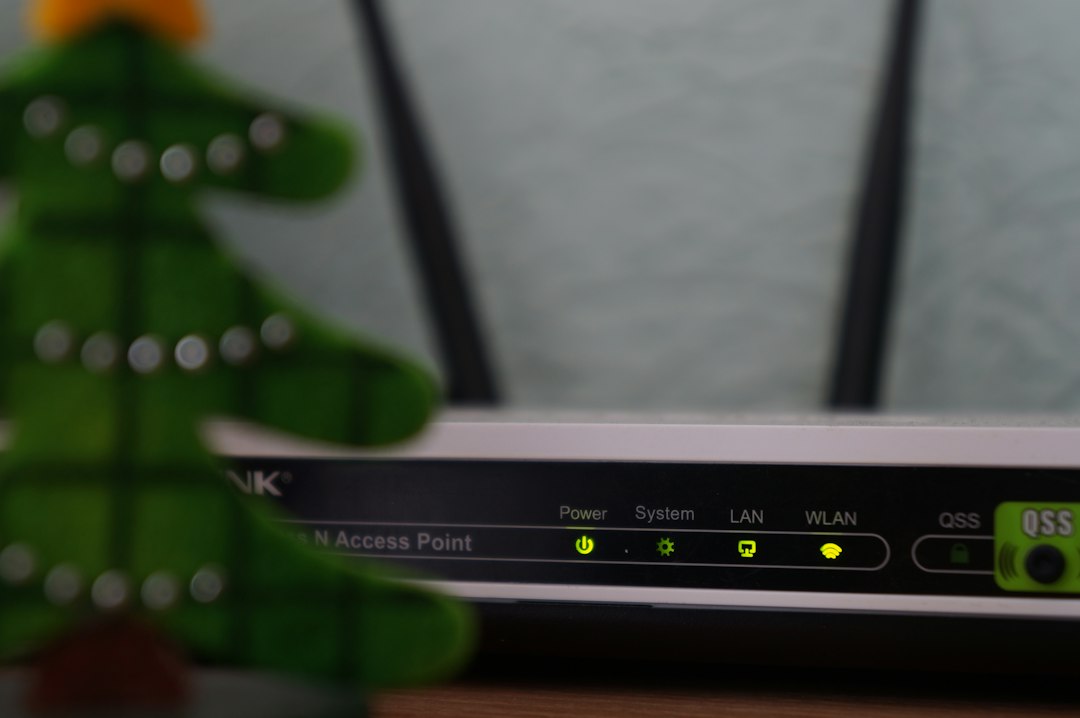
- On the router label: Many routers have a sticker on the back or bottom.
- In Wi-Fi settings: If you are already connected, your device shows the active network name.
- In the router admin page: This is usually reached through an address like 192.168.1.1 or a router app.
If your router broadcasts both 2.4 GHz and 5 GHz bands, you may see two similar SSIDs. For example, HomeWiFi and HomeWiFi 5G. The 2.4 GHz band usually reaches farther. The 5 GHz band is often faster at shorter range.
Where to find your network security key
The network security key may also be printed on the router label. Look for words like Password, Wi-Fi Key, or Wireless Key.
You can also find it on a device that is already connected. On Windows, it is stored in the saved Wi-Fi profile. On macOS, it may be found in Keychain Access. On phones, password sharing tools may show or transfer it with a QR code.
Should you change the default SSID?
Yes, usually. Default names like NETGEAR48 or Linksys123 can reveal the router brand. That is not a disaster by itself, but it gives away extra information for no good reason.
Use a name that is easy for you to spot but not too personal. Avoid your full name, street address, apartment number, or phone number. OakRoomWiFi is fine. JohnSmithUnit12 is not great.
Should you change the default network security key?
Yes. This matters more than the SSID. A weak password can let neighbors, strangers, or malware-infected devices onto your network.
A strong Wi-Fi password should be:
- At least 12 to 16 characters long
- Not a common word
- Not your address, pet name, or birthday
- A mix of words, numbers, and symbols
- Easy enough to type on a TV remote, if possible
A good example is Paper7Moon!Garden. It is long, but still readable. A bad example is wifi12345. That one is asking for trouble.
What about WPA, WPA2, and WPA3?
These are security types, not passwords. They decide how your router protects the password and the data moving through the air.
- WEP: Old and unsafe. Avoid it.
- WPA: Better than WEP, but outdated.
- WPA2: Still common and usually fine for home use.
- WPA3: Newer and stronger, if your devices support it.
If your router offers WPA2 Personal or WPA3 Personal, choose one of those. If some older devices refuse to connect, WPA2 may be the safer practical choice.
Common mistakes that cause Wi-Fi setup headaches
- Typing the SSID into the password box. This will never work.
- Confusing similar networks. HomeWiFi and HomeWiFi Guest may use different keys.
- Using hidden networks for safety. Hiding the SSID is not strong protection. Use a strong key instead.
- Forgetting case sensitivity. BlueCat7 and bluecat7 are different passwords.
- Changing the key without planning. Every connected device will need the new password.
Best setup for most homes
Use a simple SSID that your household can recognize. Use a strong network security key that is not reused anywhere else. Turn on WPA2 or WPA3. Create a guest network for visitors if your router supports it.
The goal is simple: make the Wi-Fi name easy to find, and make the password hard to guess. That one split solves most confusion. The SSID says, pick me. The network security key says, prove you belong here.