
The best Let Me Google That for You alternative is often a plain search link with better context. LMGTFY is funny once, then it can feel smug. Google still handles about 89% of global search traffic, so a clean Google search URL is usually the safest default [source: StatCounter]. But there are better options when you need to teach someone how to search, show steps, or create a link that does not make the recipient roll their eyes.
TLDR: Use a direct Google search link for quick help, Scribe or Tango for step-by-step guides, Loom for visual search lessons, and DuckDuckGo or Bing links when privacy or engine choice matters. For example, instead of sending “just Google it,” send a link like site:gov passport renewal fees with a one-line note. In a support queue with 50 repeated questions per week, even saving 90 seconds per reply cuts more than an hour of work. That adds up fast.
1. Direct Google search links
A direct Google search link is the most practical LMGTFY replacement. It skips the joke and gets straight to the result page.
Use this format:
https://www.google.com/search?q=your+search+terms- Example:
https://www.google.com/search?q=how+to+clear+chrome+cache
This works well in emails, Slack, help docs, and forum replies. Add a short note before the link. Something like: “Try this search. The first two results explain it clearly.”
The catch is that Google results change. Location, search history, and ads can shift what people see. If the exact result matters, link to the final page instead.
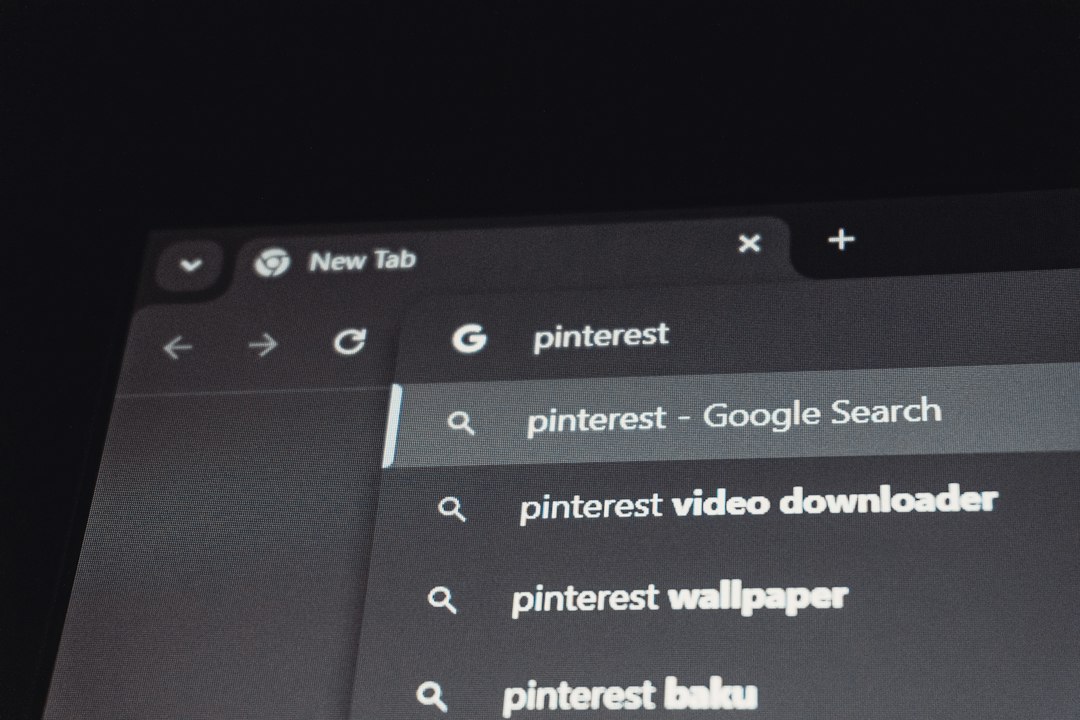
2. Google Advanced Search links
Google Advanced Search is useful when the person needs more than a normal keyword search. It helps filter by exact phrase, site, region, file type, or last update.
Good use cases include:
- Finding PDFs: filetype:pdf tax checklist
- Searching one site: site:edu climate data
- Finding exact wording: “refund policy” “30 days”
This is a strong option for students, researchers, legal teams, and support agents. It also teaches the search method, not just the answer. That matters when the same question keeps coming back.
Honestly, it feels like many people were never shown search operators. Once they learn site:, filetype:, and quote marks, half of the “I can’t find it” messages disappear.
3. Bing search links
Bing links are a simple alternative when you want a second set of results. They are also useful when the recipient uses Microsoft Edge, Windows Search, or Copilot-linked tools.
Use this format:
https://www.bing.com/search?q=your+search+terms
Bing can surface different sources from Google. That helps with product pages, Microsoft help topics, local results, and image searches. If someone says, “Google is not showing it,” send the same query through Bing.
For work chats, write it like this: “Bing has a cleaner result for this one. Try this query.” It sounds helpful, not snarky.
4. DuckDuckGo search links
DuckDuckGo is a smart pick when privacy is part of the request. It does not personalize results in the same way Google does, so two people are more likely to see similar pages.
Use this format:
https://duckduckgo.com/?q=your+search+terms
DuckDuckGo also supports bangs, which send searches to other sites. For example:
!w search termsearches Wikipedia!yt search termsearches YouTube!gh search termsearches GitHub
This is handy for developers, writers, students, and anyone who searches the same sites all day. Expect to waste time on trial and error at first, but bangs become quick once they click.

5. Scribe for step-by-step search instructions
Scribe records your browser actions and turns them into a visual how-to guide. It is not just a search link. It shows the process.
Use it when you need to explain:
- How to search a company knowledge base
- How to find a form on a government site
- How to filter results in a database
- How to repeat a research workflow
The result is a guide with screenshots, clicks, and text steps. This is much better than sending a vague “search the portal” message. It is also useful for onboarding. New staff can follow the exact path without asking the same thing three times.
6. Loom or screen recordings
Loom is excellent when the search process needs tone, judgment, or explanation. A link cannot always show why you picked one result over another. A short video can.
Record your screen while you search. Talk through the query. Explain why you ignore ads, skip weak pages, or trust one source over another. Keep it short. Two minutes is usually enough.
This works especially well for:
- Customer support: show where to find help content
- School: teach better research habits
- Sales: show prospects where data came from
- Internal teams: explain repeat searches once

Which option should you use?
- Fast answer: use a direct Google link.
- Less tracking: use DuckDuckGo.
- Different results: use Bing.
- Exact filters: use Google Advanced Search.
- Repeatable process: use Scribe.
- Human explanation: use Loom.
The main rule is simple: match the link to the problem. If someone needs one answer, send one clean search link. If they need to learn the method, send a guide or video. LMGTFY made a joke out of bad search habits. These alternatives actually fix them.