
Editing professional-quality video is no longer limited to bulky desktop setups. With the power of modern iPads and the flexibility of LumaFusion, creators can produce polished, cinematic content from virtually anywhere. While some still assume tablet editing is limited, LumaFusion offers multi-track timelines, advanced color correction, keyframing, and audio mixing tools that rival traditional desktop software. The key lies in knowing how to use it efficiently.
TLDR: LumaFusion can function like a desktop video editor when users master workspace customization, multi-track editing, precise trimming techniques, advanced color grading, professional audio mixing, and export management. By organizing media properly and leveraging gestures, keyboard shortcuts, and external devices, iPad editors can achieve desktop-level workflows. With the right strategies, LumaFusion becomes a powerful, portable editing station.
1. Customize the Workspace for Maximum Efficiency
Desktop editors rely heavily on optimized layouts, dual monitors, and customizable panels. LumaFusion mirrors this flexibility through its adjustable interface and layout settings. The first step toward desktop-level editing on iPad is tailoring the workspace to match specific workflow needs.
Users can:
- Detach and resize preview windows for better timeline visibility
- Hide unused panels to reduce clutter
- Switch between timeline and clip editing views efficiently
- Use an external keyboard and mouse or trackpad for precision control
When paired with a Magic Keyboard or Bluetooth mouse, LumaFusion feels significantly closer to Premiere Pro or Final Cut Pro. Keyboard shortcuts speed up trimming, cutting, and playback control.
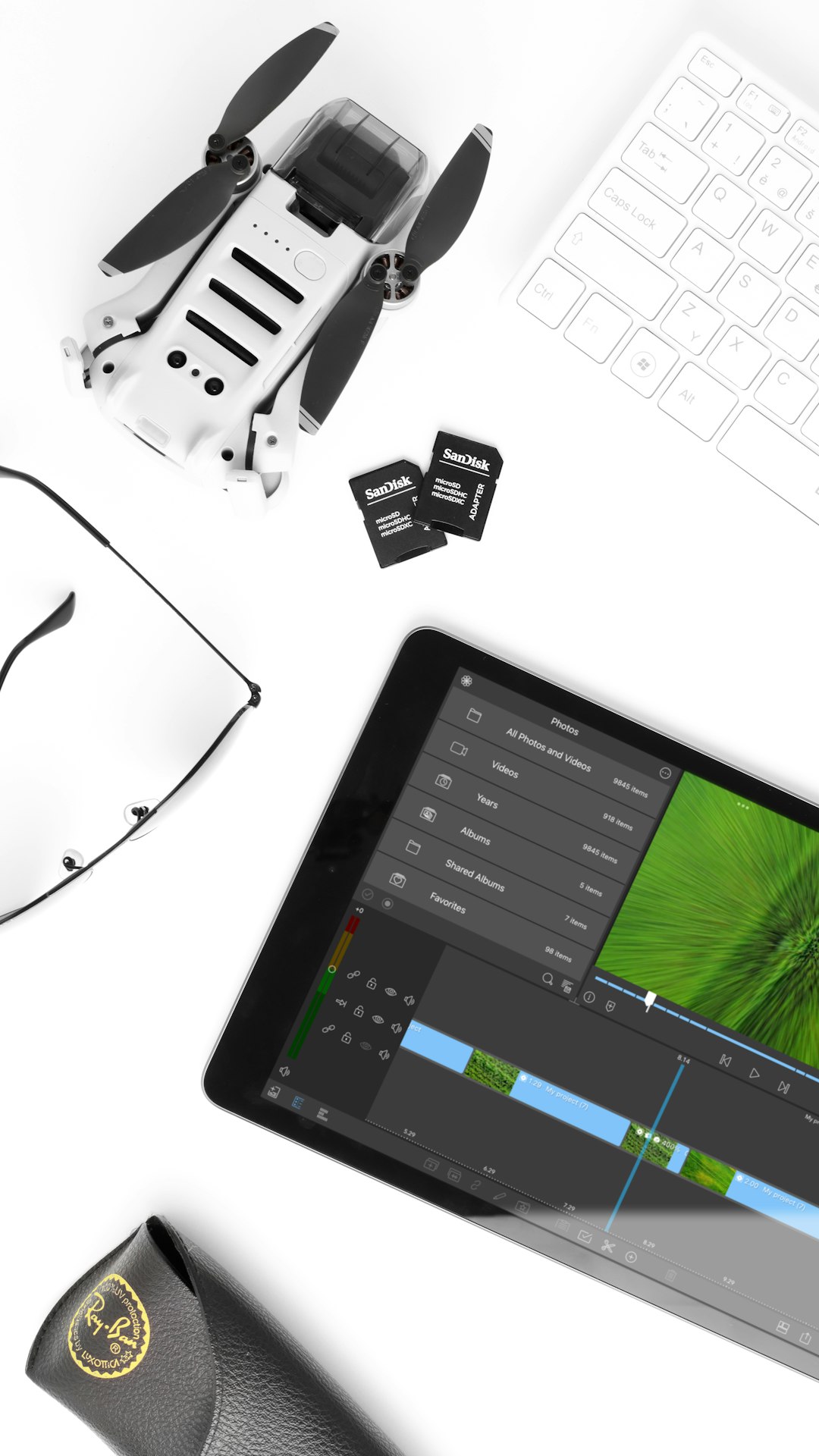
Pro Tip: Enable gesture shortcuts for quick timeline zooming and scrubbing. Pinch to zoom and two-finger drag can dramatically accelerate navigation.
2. Master Multi-Track Timeline Editing
One of LumaFusion’s strongest desktop-style features is its multi-track timeline. Unlike basic mobile editors, it supports multiple video and audio tracks layered simultaneously. Learning to manage these layers is essential for professional results.
To edit like a desktop pro:
- Organize primary footage on the main track
- Place B-roll and cutaways on upper tracks
- Add titles and graphics on higher overlay tracks
- Keep music, dialogue, and sound effects on separate audio layers
This structure mirrors desktop nonlinear editing workflows and makes complex projects easier to refine.
Magnetic timeline features and snapping help align clips precisely. Editors can turn snapping on or off depending on whether they want structured placement or frame-perfect manual adjustments.
An efficient desktop-style habit involves color labeling clips for easier identification during longer edits.
3. Use Precision Trimming and Keyframing
Advanced editing depends on precise timing. LumaFusion supports:
- Ripple edits
- Roll edits
- Slip and slide adjustments
- Frame-by-frame trimming
Zooming deep into the timeline allows near frame-level accuracy. Using the Apple Pencil enhances this even further, offering controlled trimming similar to a mouse drag on desktop.
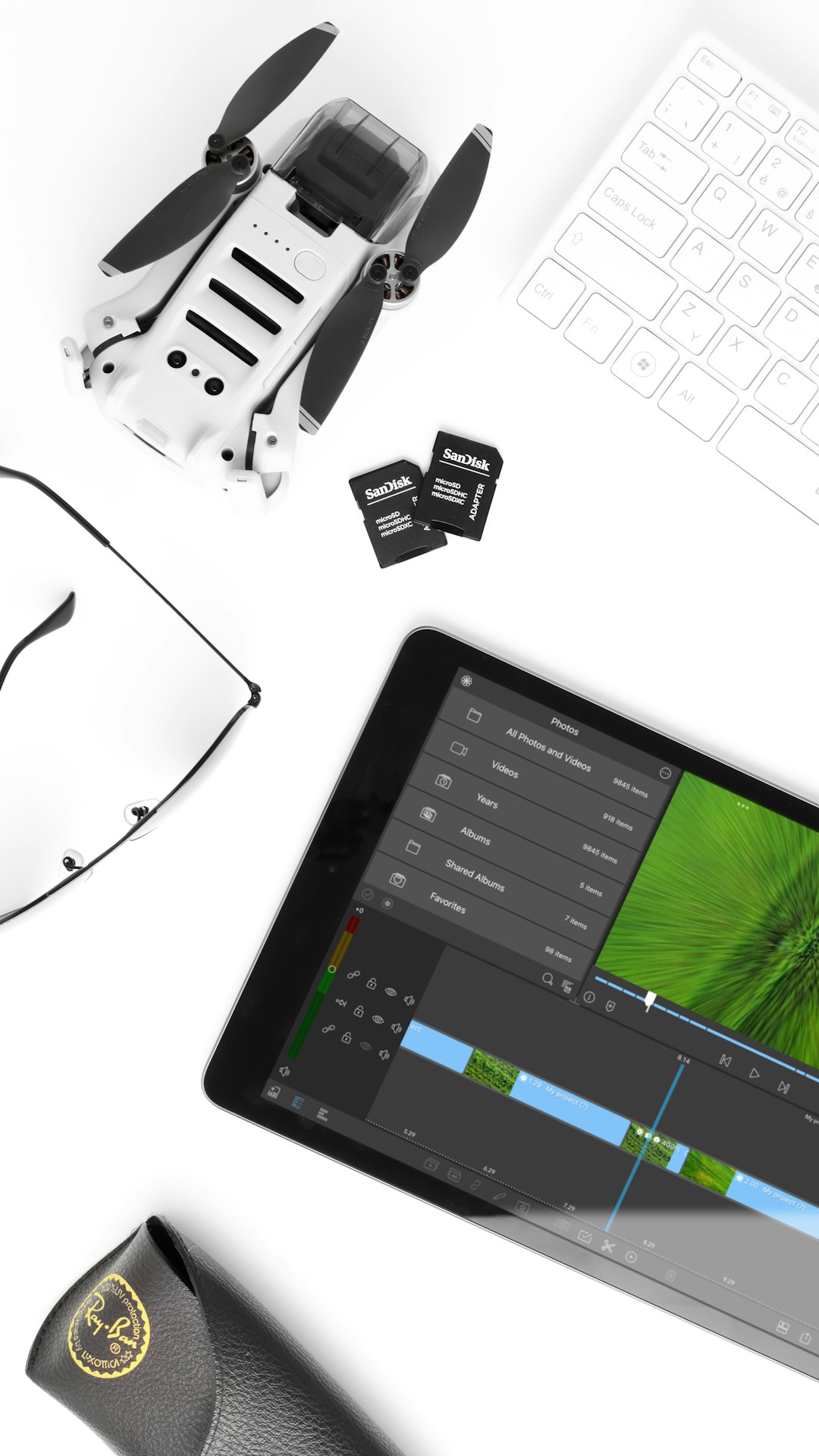
Keyframing in LumaFusion takes editing beyond simple cuts. Editors can animate:
- Scale and position
- Opacity
- Audio levels
- Color adjustments
Desktop editors often rely on keyframes for dynamic motion graphics and transitions. On iPad, the same results are achievable by setting keyframe markers along the clip timeline and adjusting parameters incrementally.
Desktop-level tip: Combine keyframing with split edits (L-cuts and J-cuts) to create smoother dialogue transitions and more cinematic pacing.
4. Apply Professional Color Correction and LUTs
High-quality video editing demands proper color grading. LumaFusion includes powerful correction tools that rival desktop software when used strategically.
Editors can:
- Adjust exposure, contrast, and saturation
- Fine-tune white balance
- Use color wheels for shadow, midtone, and highlight control
- Apply LUTs (Look-Up Tables)
Importing custom LUTs allows creators to achieve consistent branding or cinematic styles across projects. The key is subtlety — small adjustments often produce the most professional results.
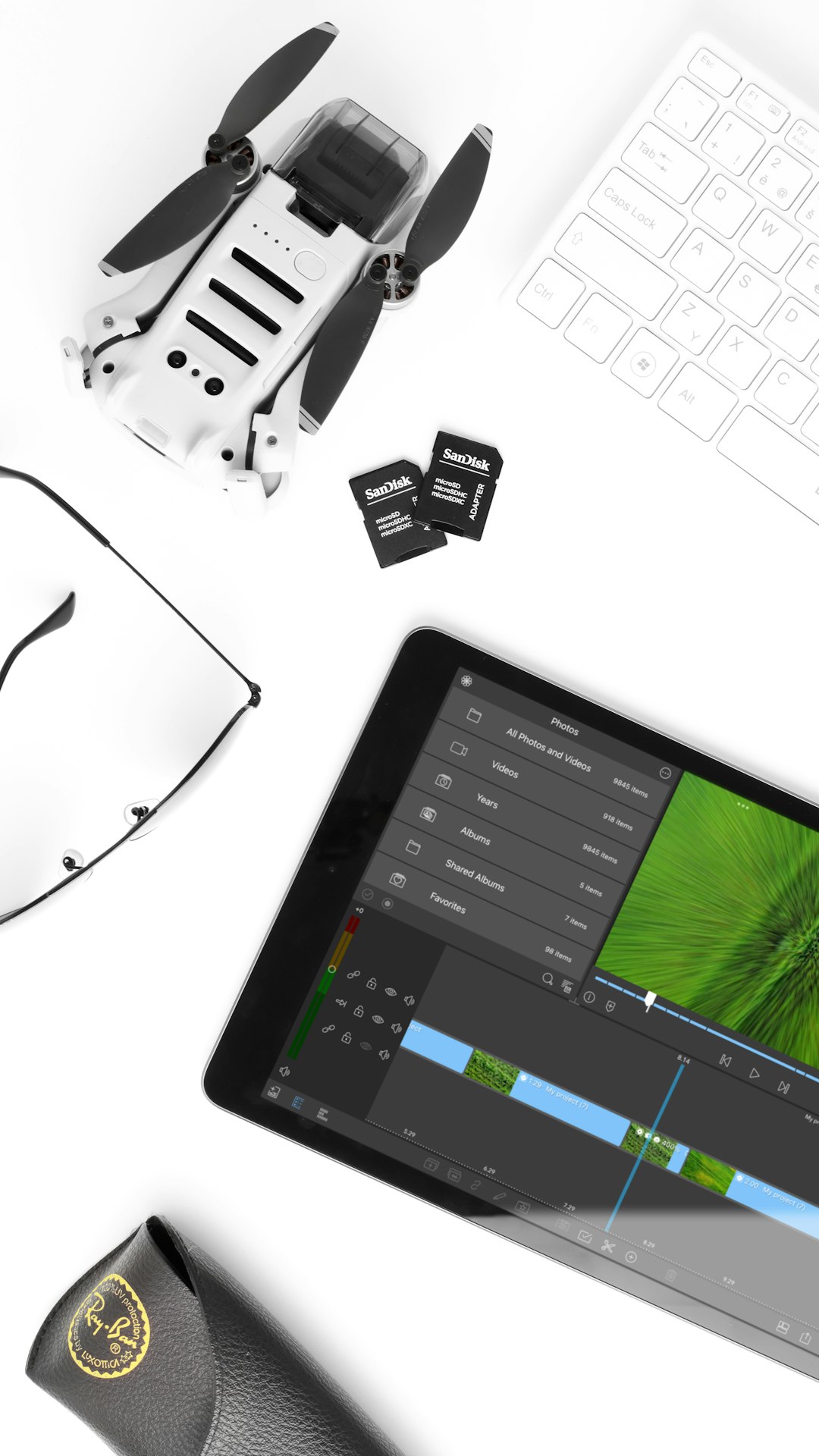
Desktop editors frequently use scopes such as waveform and vectorscope for accuracy. LumaFusion includes similar monitoring tools, enabling informed color decisions rather than visual guessing.
Workflow suggestion: Always perform color correction (fixing exposure and white balance) before applying stylistic grading LUTs.
5. Elevate Audio Mixing and Sound Design
Audio quality separates amateur edits from professional productions. LumaFusion provides detailed sound control features that mimic desktop audio panels.
To edit audio like a pro:
- Normalize dialogue levels across clips
- Use keyframes to duck music beneath speech
- Apply equalization for clearer vocals
- Add reverb or subtle effects when appropriate
Each audio track includes gain controls and channel options. Splitting audio across multiple tracks allows separate treatment of voice, music, and ambient sound.
Using headphones while editing improves precision. External USB-C audio interfaces can further enhance recording and monitoring quality.
Pro tip: Keep dialogue peaking between -6dB and -3dB for optimal clarity without distortion.
6. Optimize Export Settings and File Management
Desktop-level editing isn’t just about creative tools — it is also about output quality and efficiency. LumaFusion offers customizable export options for different platforms and resolutions.
Editors can export:
- 4K UHD video
- High bitrate masters
- Platform-optimized files for YouTube, Vimeo, or social media
- Project packages for backup
For professional workflows, exporting a high-bitrate master file first is recommended. From this master, smaller platform-specific versions can be created.
Organized file management is equally important. Using external SSD storage connected via USB-C reduces iPad storage strain and streamlines large projects.
Desktop vs. LumaFusion Workflow Comparison
| Editing Aspect | Traditional Desktop Editor | LumaFusion on iPad |
|---|---|---|
| Interface Customization | Fully adjustable panels and dual monitors | Resizable panels and external display support |
| Multi-Track Editing | Unlimited layered tracks | Multiple video and audio tracks |
| Precision Cutting | Mouse and keyboard shortcuts | Touch, Apple Pencil, keyboard support |
| Color Grading | Advanced LUTs and scopes | LUT import and built-in scopes |
| Audio Mixing | Dedicated audio panels and plugins | Track-level EQ, keyframing, gain control |
| Portability | Limited | Highly portable editing anywhere |
Building a Desktop Mindset on iPad
The most important shift is mental rather than technical. Desktop editors rely on structured workflows:
- Import and organize footage
- Rough cut
- Fine cut
- Color correction
- Audio mixing
- Final export
Applying the same structured stages inside LumaFusion ensures efficiency and professional consistency. The iPad becomes merely the device — the workflow remains industry standard.
With practice, LumaFusion evolves from a mobile editing app into a serious production environment capable of handling documentaries, YouTube channels, commercials, and even short films.
Frequently Asked Questions (FAQ)
1. Is LumaFusion powerful enough for professional video editing?
Yes. With multi-track editing, LUT support, keyframing, and advanced audio tools, LumaFusion can handle professional-level projects when used correctly.
2. Can LumaFusion replace desktop software like Premiere Pro?
For many creators, yes. While high-end cinema workflows may still rely on desktops, most YouTube, commercial, and social media projects can be fully produced on LumaFusion.
3. Does using a keyboard and mouse improve performance?
Absolutely. Adding a keyboard and mouse or trackpad significantly increases speed and precision, bringing the experience closer to traditional desktop editing.
4. Can I use external storage with LumaFusion?
Yes. USB-C external SSDs are fully supported and highly recommended for managing large 4K video files efficiently.
5. Does LumaFusion support 4K editing?
Yes. Modern iPads can smoothly edit and export 4K footage, depending on the device model and storage speed.
6. Is Apple Pencil necessary?
It is not required, but it greatly improves precision for trimming, keyframing, and detailed adjustments.
7. Are LUTs easy to install?
Yes. Users can import custom LUT files directly into LumaFusion and apply them to clips within the color correction panel.
With these six guides implemented thoughtfully, editors can transform their iPad into a streamlined, professional-grade workstation that rivals many desktop environments — all while maintaining the portability that makes tablet editing so appealing.