
Remote access has become a normal part of modern IT, whether it is used to support employees, manage servers, troubleshoot a family member’s computer, or operate machines in a data center. One of the long-standing technologies that makes this possible is VNC, short for Virtual Network Computing. It allows a person to view and control another computer’s desktop over a network as if they were sitting in front of it.
TLDR: VNC means Virtual Network Computing, a remote desktop technology that lets one computer control another through a shared graphical screen. It works using a client and server model, where the remote machine runs a VNC server and the user connects with a VNC viewer. VNC is useful for support, administration, and remote work, but it must be configured securely because exposed connections can be risky. For best results, use encryption, strong passwords, network restrictions, and trusted software.
What Does VNC Mean?
VNC stands for Virtual Network Computing. In simple terms, it is a system for remotely viewing and controlling a computer’s graphical desktop over a network connection. When using VNC, keystrokes and mouse movements from one device are sent to another device, while the remote screen is transmitted back to the user.
This means you can open applications, change settings, move files, and perform administrative tasks on a computer that may be in another room, another office, or another country. Unlike command-line remote access tools, VNC is designed around the visual desktop experience, making it approachable for both technical and non-technical users.
VNC was originally developed in the late 1990s at the Olivetti & Oracle Research Laboratory. Its core concept has remained influential: remote control should be possible across different operating systems and network environments. Today, many VNC-based products exist, including open-source and commercial options.
How Virtual Network Computing Works
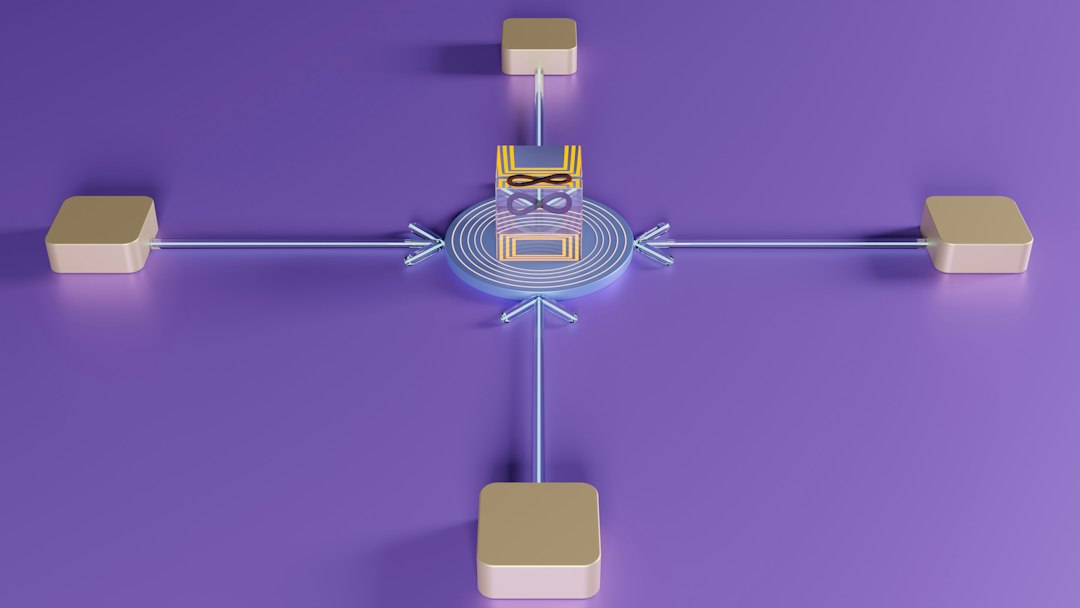
VNC uses a client-server model. The computer being controlled runs a VNC server, while the person connecting to it uses a VNC viewer or client. The server captures the remote computer’s screen and sends updates to the viewer. The viewer sends keyboard and mouse input back to the server.
The communication is commonly based on the Remote Framebuffer protocol, often abbreviated as RFB. This protocol focuses on transmitting changes in the screen image rather than sending complete video streams at all times. That approach can reduce unnecessary data transfer, although performance still depends heavily on network quality, screen resolution, color depth, and software implementation.
A typical VNC session involves the following steps:
- Install or enable a VNC server on the computer that needs to be controlled.
- Set authentication, usually with a password or integration with system credentials.
- Connect using a VNC viewer from another computer, tablet, or supported device.
- Control the remote desktop by using the local keyboard and mouse.
- End the session securely when access is no longer needed.
Depending on the software, VNC may allow direct local network connections, internet-based connections, cloud relay services, or connections through VPNs and SSH tunnels.
Common Uses of VNC
VNC is widely used because it is flexible and relatively easy to understand. It can be useful in homes, small businesses, enterprise IT environments, classrooms, laboratories, and server rooms.
Common use cases include:
- Technical support: Support staff can see exactly what a user sees and guide them through troubleshooting or fix the issue directly.
- Server administration: Administrators can manage graphical interfaces on remote servers without physically accessing the machine.
- Remote work: Employees may access an office workstation from another location, especially when specific software or local files are required.
- Education and training: Instructors can demonstrate procedures on a remote machine or assist students during practical exercises.
- Embedded and industrial systems: Some specialized devices use VNC to provide a remote interface for monitoring or control.
Because VNC shows the actual desktop, it is often preferred when the user needs a full visual context rather than only file access or terminal access.

VNC Server vs VNC Viewer
The difference between a VNC server and a VNC viewer is central to understanding how VNC works.
- VNC server: Installed or enabled on the computer that will be accessed remotely. It shares the screen and accepts input from authorized viewers.
- VNC viewer: Installed on the device used to connect. It displays the remote screen and sends user input back to the server.
For example, if an IT technician needs to control an employee’s workstation, the employee’s computer runs the VNC server, and the technician’s laptop runs the VNC viewer. The viewer is not “more powerful”; it is simply the tool used to access the shared desktop.
Is VNC Secure?
VNC can be secure, but security depends on configuration. Older or poorly configured VNC installations may transmit data without strong encryption or may rely on weak passwords. If a VNC server is exposed directly to the public internet, it can become a target for attackers scanning for open remote access services.
For serious use, security should never be treated as optional. A remote desktop connection can provide broad access to files, applications, and system settings. If an unauthorized person gains access, the consequences can include data theft, malware installation, service disruption, and privacy violations.
Important security practices include:
- Use strong authentication: Choose long, unique passwords or integrate with trusted identity systems where available.
- Enable encryption: Select VNC software that supports encrypted sessions or use secure tunneling methods.
- Avoid direct public exposure: Do not leave VNC ports open to the internet unless there is a carefully managed security reason.
- Use a VPN or SSH tunnel: Restrict VNC access to private, authenticated network paths.
- Limit access by IP address: Allow connections only from known networks or trusted machines.
- Keep software updated: Apply security patches for both the operating system and VNC application.
- Log and monitor access: Review connection activity, especially in business environments.
In short, VNC should be handled with the same care as any other privileged remote access tool.
Advantages of VNC
VNC remains popular because it offers several practical benefits:
- Cross-platform support: Many VNC tools work across Windows, macOS, Linux, and other systems.
- Full desktop control: Users can interact with the remote machine visually and directly.
- Simple concept: The viewer-server model is easy to understand and deploy.
- Multiple software choices: There are open-source and commercial VNC implementations.
- Useful for legacy systems: VNC can sometimes support older environments where newer remote access tools are unavailable.
These strengths make VNC a dependable option in many settings, especially where visual access and platform flexibility are priorities.
Limitations of VNC
Despite its usefulness, VNC is not always the best choice. Performance may be slower than modern remote desktop solutions, particularly over high-latency connections or when displaying video, animation, or large high-resolution screens. It may also lack advanced features such as audio forwarding, printer redirection, centralized policy management, or optimized multimedia handling, depending on the specific implementation.
Another limitation is that VNC usually shares an existing desktop session or provides graphical access in a way that may not match the behavior of other remote desktop systems. In some cases, this is exactly what users need. In others, a protocol such as Microsoft Remote Desktop Protocol, a browser-based support tool, or a managed enterprise solution may be more appropriate.
VNC Compared With Other Remote Access Tools
VNC is often compared with RDP, SSH, and commercial remote support platforms. Each serves a different purpose.
- VNC: Best known for cross-platform graphical desktop sharing and direct remote control.
- RDP: Common in Windows environments and often more optimized for remote login sessions.
- SSH: Primarily command-line based, widely used for secure server administration.
- Cloud remote support tools: Often easier for non-technical users and may include built-in identity, logging, and connection brokering.
The right choice depends on the environment, security requirements, user skill level, and performance expectations. VNC is not automatically better or worse; it is a mature tool with specific strengths.
Best Practices for Using VNC
Before deploying VNC, organizations and individuals should decide who needs access, from where, and for what purpose. A clear access policy reduces unnecessary exposure and helps ensure that remote control is used responsibly.
Recommended best practices include:
- Choose reputable VNC software with active maintenance and documented security features.
- Use encrypted connections or place VNC behind a secure VPN.
- Disable access when it is not needed, especially on sensitive systems.
- Document who has access and review permissions regularly.
- Train users to recognize legitimate remote support sessions and reject unexpected access requests.
For business use, VNC should also fit into broader security controls, including endpoint protection, patch management, backup policies, and incident response planning.
Conclusion
VNC, or Virtual Network Computing, is a remote desktop technology that allows users to view and control another computer through a network connection. Its long history, cross-platform nature, and straightforward operation make it a valuable tool for support, administration, education, and remote access.
However, VNC should be used thoughtfully. Because it can provide direct control over a machine, it must be protected with strong authentication, encryption, network restrictions, and reliable software updates. When implemented properly, VNC remains a practical and trusted way to access computers remotely while maintaining control over how and where that access is granted.