
If your phone is acting weird, treat it like a smoke alarm: do not panic, but do check it right now. Tracking can be as simple as location sharing you forgot about. It can also be spyware, a shady app, or someone signed into your account.
TLDR: Your phone may be tracked if the battery drains fast, it gets hot while idle, data use jumps, or strange apps appear. For example, if your phone used 3 GB last month and suddenly uses 9 GB, something deserves a look. A user named Mia noticed her battery dropped 40% by lunch, then found location sharing was still on for an old family account. Start with app permissions, location settings, account logins, and a malware scan.
First, what does “phone tracking” mean?
Phone tracking is not one thing. That is what makes it annoying.
It can mean:
- Location tracking through GPS, Wi Fi, or cell towers.
- App tracking by apps that collect your behavior.
- Account tracking through Google, Apple, social media, or email logins.
- Spyware that records texts, calls, photos, or location.
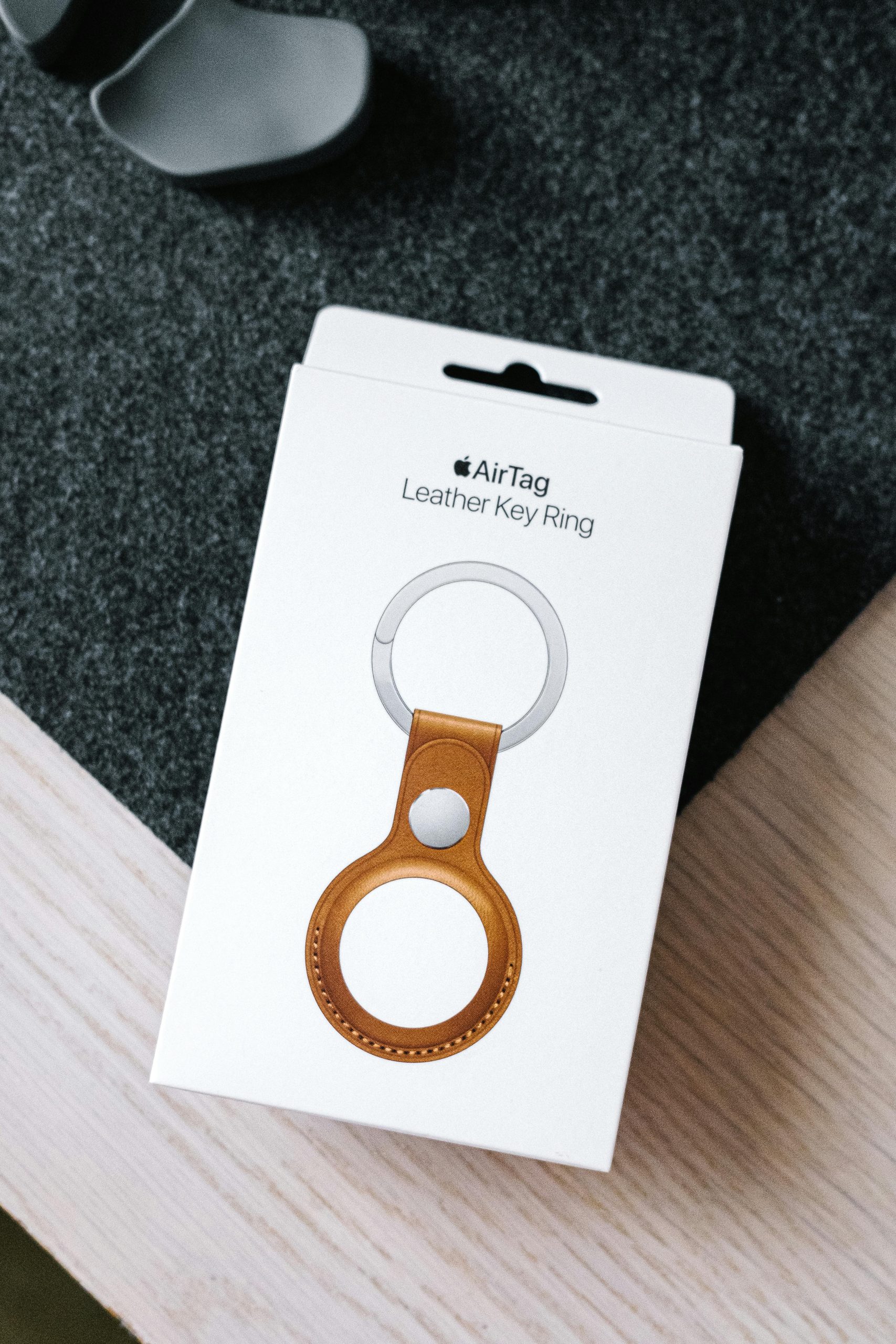
- Bluetooth trackers hidden in bags, cars, or coats.
Some tracking is normal. Maps needs your location. Fitness apps count steps. Weather apps check your city. The problem starts when tracking is hidden, excessive, or done without consent.

Signs your phone may be tracked
One sign alone does not prove spying. Phones get old. Batteries get cranky. Apps misbehave. But several signs together? That is when your eyebrows should go up.
1. Battery drains fast
Spyware and location tools can run in the background. They may send updates often. That eats battery.
If your phone used to last all day and now begs for a charger by noon, check battery usage. Look for apps you do not recognize. Also look for normal apps using way more power than usual.
2. The phone feels hot when you are not using it
A warm phone during gaming is normal. A hot phone while sitting on a table is suspicious. Something may be working in the background.
Honestly, it feels like your phone is doing a secret workout. Rude.
3. Data usage jumps
Tracking apps need to send data somewhere. Photos, location logs, audio, and messages can use lots of mobile data.
Check your data report. If one unknown app used 1.5 GB this week, that is not cute. That is a red flag in a tiny costume.
4. Strange apps appear
Some spyware hides with boring names. Think “System Service,” “Update Manager,” or “Device Health.” Those names sound official. Sometimes they are not.
Search the app name online. Check the developer. If you cannot uninstall it, that may mean it is a system app. Or it may mean your phone has deeper problems.
5. Your location icon appears often
On iPhone and Android, a location symbol may appear when an app checks your position. If it shows up all the time, open location settings.
Look for apps with “Always” access. Most apps do not need that. A recipe app does not need to know where you sleep.
6. Weird texts or pop ups
Random codes, strange links, or odd pop ups can point to phishing or malware. Do not tap mystery links. Do not install apps from random messages.
If a message says your package is stuck, your bank is angry, and your uncle won a fridge, take a breath. Scammers love drama.
7. Calls sound odd or apps crash often
Call noise alone is weak evidence. Bad signal happens. But constant crashing, lag, and odd behavior can mean malware or a bad app.
Expect to waste time on this part. Some real apps are just poorly made. Still, check.
Tracking signs vs normal phone problems
Not every glitch means you are being watched. Here is a simple way to think about it.
- Old battery: drains fast, but data use may stay normal.
- Bad app update: causes crashes after one app changes.
- Poor signal: drains battery because the phone keeps searching.
- Spyware risk: battery drain, heat, data spikes, odd apps, and privacy changes all show up together.
The pattern matters. One weird thing is a clue. Three weird things are a case file.
Privacy tools that actually help
Now the good part. You have tools. Many are already on your phone.
Check app permissions
Open your settings. Review permissions for location, camera, microphone, contacts, photos, and Bluetooth.
Use these rules:
- Maps: location while using the app is fine.
- Flashlight app: no location, no contacts, no microphone.
- Shopping app: location only if you use store pickup.
- Social apps: camera and microphone only when needed.
Set location to While Using when possible. Turn off Always unless there is a real reason.
Use your phone’s privacy report
iPhones have App Privacy Report. Android phones have permission managers and privacy dashboards, though names vary by brand.
These show which apps used your camera, mic, location, and other data. If a calculator used your microphone at 2:14 a.m., that calculator needs to leave your life.
Scan for malware
Use a trusted mobile security app. Stick to known names from official app stores. Do not install “free spy remover pro ultra 2025” from a pop up. That sounds like trouble wearing sunglasses.
On Android, malware scans can help more because Android allows more app freedom. On iPhone, spyware is rarer, but account and profile abuse can still happen.
Check account logins
Tracking often happens through accounts, not spy movie gadgets.
Check:
- Google account devices
- Apple ID devices
- Instagram and Facebook login activity
- Email account sessions
- Cloud photo access
Sign out of devices you do not recognize. Change your password. Turn on two factor authentication. Use an authenticator app when possible.
Look for device management profiles
On work or school phones, management profiles can control settings. That may be allowed. On your personal phone, surprise profiles are a problem.
On iPhone, check Settings > General > VPN & Device Management. On Android, check device admin apps in security settings.
If you see something strange, research it before removing it. If it looks unsafe, remove it.
What about Bluetooth trackers?
Small trackers can follow bags, cars, bikes, and coats. Phones now warn users about unknown trackers moving with them.
If you get an alert, take it seriously. Use the phone’s option to make the tracker play a sound. Check bags, pockets, car seats, and wheel wells. If you feel unsafe, contact local help or law enforcement.
Quick safety checklist
- Restart your phone.
- Update the operating system.
- Update apps from the official store.
- Delete apps you do not use.
- Review app permissions.
- Check location sharing.
- Check logged in devices.
- Run a trusted malware scan.
- Change key passwords.
- Turn on two factor authentication.
When to factory reset
A factory reset is the big red button. Use it if you find spyware, cannot remove a suspicious app, or your phone still acts strange after cleanup.
Back up photos and contacts first. Do not restore every app blindly. Reinstall only what you trust. If you restore the same junk, the problem may come back with a tiny suitcase.
So, is your phone being tracked?
Maybe. Maybe not. But you can find out fast.
Start with battery, data, heat, strange apps, and location access. Then check account logins and permissions. Most privacy leaks are boring. That is good news. Boring problems are easier to fix.
Your best defense is simple: fewer apps, tighter permissions, strong passwords, and regular checks. Your phone should work for you. It should not act like a tiny snitch in your pocket.