
Flip a video when the scene looks backwards, upside down, or better when mirrored. A video flipper is a simple editing tool that turns your clip across an invisible line. Flip it left to right for a mirror effect. Flip it top to bottom when the video is upside down or needs a strange creative twist.
TLDR: A video flipper changes the direction of a clip without cutting it. Use horizontal flip when selfie footage has reversed text, such as a shirt logo or street sign. Use vertical flip when a clip was recorded upside down, or when you want a playful reflection effect. For example, a fitness coach who posts 20 workout videos a month might save 30 minutes by flipping mirrored front-camera clips before adding captions.
What Is a Video Flipper?
A video flipper is an editing feature that mirrors a video. It can flip the image from left to right. It can also flip it from top to bottom.
Think of it like turning a pancake. But instead of breakfast, it is your video. Much less butter. Usually.
Flipping is not the same as rotating. This trips people up all the time. Honestly, it feels like some apps hide the difference on purpose.
- Flip horizontal: Left becomes right. Right becomes left.
- Flip vertical: Top becomes bottom. Bottom becomes top.
- Rotate: The whole video turns by 90, 180, or 270 degrees.
If your face is on the wrong side of the frame, flip it. If your video is sideways, rotate it. If your ceiling is where the floor should be, try rotate first. Then flip if needed.
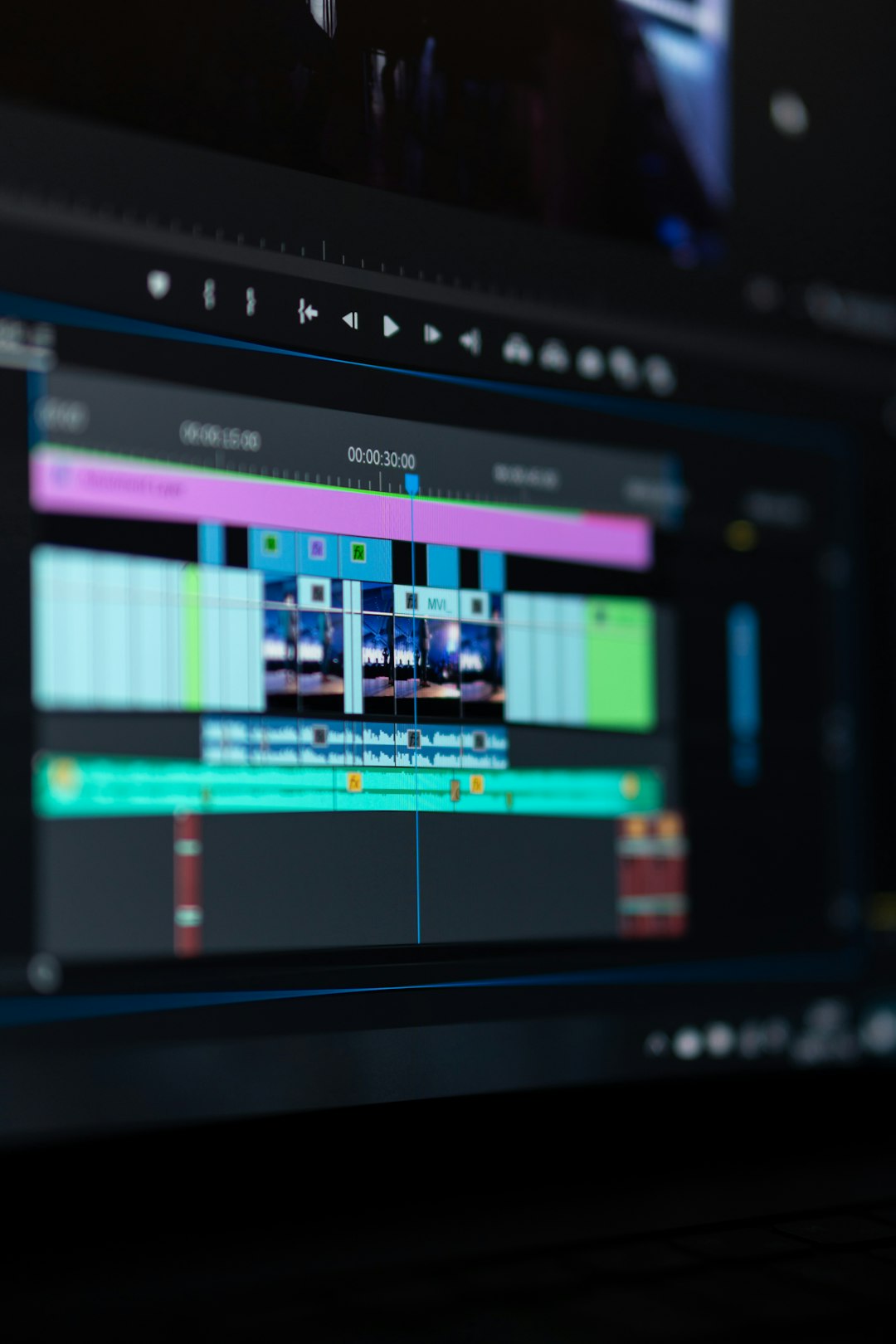
How Video Flipping Works
Video flipping works by changing the position of every pixel in each frame. Sounds fancy. It is not scary.
For a horizontal flip, the editing app swaps the left side with the right side. The center stays mostly in place. A person waving with their right hand will look like they are waving with their left hand.
For a vertical flip, the top of the frame swaps with the bottom. A person standing upright may appear upside down. A sky can drop to the bottom. A floor can jump to the top. Weird, but sometimes useful.
The audio does not flip. Your voice stays normal. Music stays normal. Only the image changes.
Most editors do this without hurting quality. But export settings still matter. If you flip a 4K video and export it as a tiny 480p file, it will look soft. That is not the flip tool’s fault. That is the export menu being rude.
How to Flip a Video Horizontally
A horizontal flip is the most common type. It is often used for selfie videos, webcam clips, screen recordings, and social posts.
Here is the basic process:
- Open your video editor. Use any editor that has a flip or mirror option.
- Import your clip. Drag it into the project or timeline.
- Select the video. Click the clip you want to change.
- Find the flip tool. It may be called Flip Horizontal, Mirror, or Transform.
- Apply the horizontal flip. Watch the preview right away.
- Check text and logos. Make sure signs, shirts, product labels, and screens read correctly.
- Export the video. Use the same resolution if you want to keep quality high.
The catch is that some tools bury the flip button under three menus. You may spend 40 seconds just hunting for it. That is annoying when the actual fix takes two seconds.
Use horizontal flipping when your clip looks like a mirror. This happens a lot with front-facing phone cameras. It also happens with webcam recordings. Your face may look “right” to you, but any text in the scene may be backward.
When to Use Horizontal Flip
Horizontal flip is great when direction matters. It can fix small errors. It can also change how the viewer feels about the shot.
- Fix reversed selfie footage. This is the big one.
- Correct backward text. Great for signs, labels, badges, and whiteboards.
- Match camera angles. Useful when cutting between two shots.
- Improve composition. Move a subject’s gaze toward the center of the frame.
- Create a mirror effect. Fun for music videos, dance clips, and fashion reels.
Here is a simple example. You record a cooking video with your phone’s front camera. Your apron says “Chef Mode.” In the raw clip, it reads backward. A horizontal flip fixes it. Now viewers can read it. Nobody has to tilt their head and suffer.
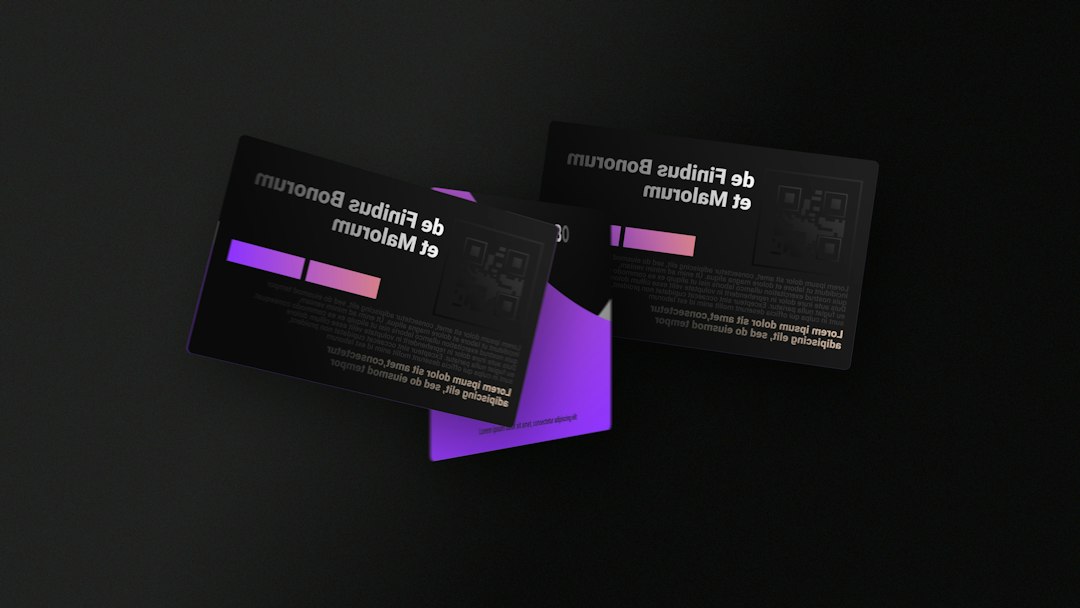
How to Flip a Video Vertically
Vertical flipping is less common. Still, it has its moments.
Here is how to do it:
- Import your video into your editor.
- Add it to the timeline.
- Select the clip.
- Open transform settings.
- Choose Flip Vertical.
- Preview the full clip. Do not check only the first frame.
- Export after checking orientation.
Vertical flip turns your video upside down across a horizontal line. If someone stands at the bottom of the frame, they may now hang from the top. It can look hilarious. It can also look like a mistake. Use it with care.
When to Use Vertical Flip
Vertical flip is useful in fewer cases. But when it works, it works fast.
- Fix upside-down recordings. Some cameras and mounts record oddly.
- Create reflection effects. Nice for water, glass, or dream scenes.
- Make surreal edits. Great for music clips and art videos.
- Build split-screen tricks. Pair a normal clip with a flipped copy.
- Correct footage from unusual camera rigs. Action cameras can be wild.
Say you filmed a skateboard trick with an action camera mounted upside down. A rotate may fix the angle. But if the view still feels inverted, a vertical flip can help. Test both. Your eyes will know.
Image not found in postmetaHorizontal Flip vs Vertical Flip
Here is the simple version.
- Use horizontal flip when left and right are wrong.
- Use vertical flip when top and bottom are wrong.
- Use rotate when the whole frame is sideways.
If text looks backward, pick horizontal. If people look upside down, pick vertical or rotate. If the shot just feels better with the subject on the other side, horizontal can help there too.
There is one warning. Flipping can change meaning. A car driving left may feel like it is leaving. A car driving right may feel like it is arriving. In sports footage, flipping can confuse the play. In tutorials, flipping can make hand movements wrong. A guitar lesson can turn into chaos fast.
Quick Tips Before You Export
- Check all text. Text is the easiest way to spot a bad flip.
- Watch hand movements. This matters in tutorials.
- Keep faces natural. Some people notice mirrored faces right away.
- Match the platform. Vertical videos work well for short mobile posts.
- Export at the right size. Keep the original resolution when possible.
Also check captions. Flipping the video will not flip caption layers in many editors. Sometimes that is good. Sometimes it creates a strange mismatch. Expect to waste time on tiny preview errors if you skip the final watch-through.
Common Mistakes
The biggest mistake is using flip when you need rotate. A flipped sideways video is still sideways. Now it is sideways and confusing.
Another mistake is flipping clips with visible writing, then forgetting to check the result. This can make packaging, signs, and screens unreadable.
A third mistake is flipping only one clip in a multi-camera edit. If two cameras show the same room, one flipped shot may make the scene feel off. A lamp jumps sides. A window moves. Viewers may not know why it feels wrong. They will just feel it.
Final Takeaway
A video flipper is a tiny tool with a big job. Horizontal flip fixes mirrored clips and backward text. Vertical flip fixes upside-down looks and creates bold visual effects. Use the one that matches the problem. Then preview the whole clip before you export. Your future self will be grateful.